
Handle a work request
Review a new request, then quote it, book it as a job, or schedule an assessment visit.
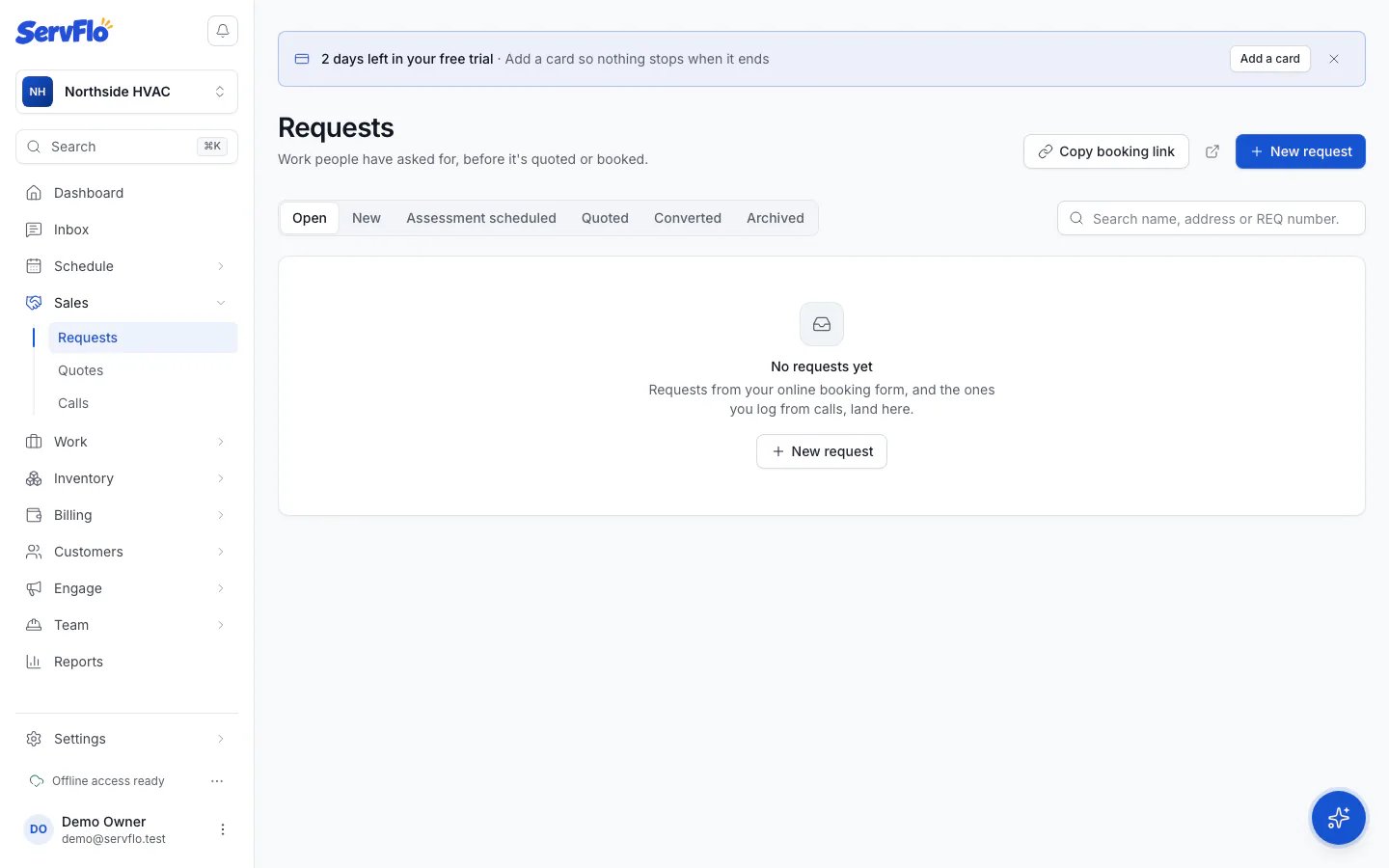
A request is work someone has asked for, before you've quoted or booked it. Requests land in Sales → Requests from:
- your online booking page and website (Online booking)
- the customer portal (Customer portal)
- your technicians, when they recommend work on site (Technician lead)
- the AI receptionist, if you use it (AI receptionist (phone))
- your own team, when you log a call, email or walk-in (Logged by your team)
Each request moves through these statuses: New, Assessment scheduled, Quoted, Converted and Archived.
Log a request yourself
- Go to Sales → Requests and select New request.
- Under Who's asking, choose Existing customer or New contact and fill in their details.
- Under What they need, pick a Service (or Not sure yet) and add a Description.
- Under When suits them, add a Preferred date, an Alternative date and a Time of day if you know them.
- Select Create request.
Work a request
Open the request
Go to Sales → Requests and select the request. You'll see what's needed, the contact's details and any internal notes.
If ServFlo thinks the contact may already be a customer, it says This may be an existing customer. Select Use this customer to link them, so you don't create a duplicate.
Choose what happens next
- Convert to quote — creates a quote from the request and opens it so you can add prices. The request becomes Quoted.
- Convert to job — opens the new job form, filled in from the request. A new contact becomes a customer first. See Create a job.
- Schedule assessment — books a visit to look at the work before you quote. Pick the Date, Time, Technician and Notes for the visit, then select Schedule visit. The request becomes Assessment scheduled.
- Archive — closes a request you won't act on. Select Reopen to bring it back.
New requests also appear in Needs scheduling on the dispatch board. Drag one onto a technician's row to book its assessment. See Dispatch work from the board.
Requests booked online for a time
If your booking page lets customers pick a real arrival time, a booked request shows Booked online for the day and time, and holds that technician's time until you act. Select Confirm booking to turn it into a job. See Offer arrival windows.