
Record a payment
Log cash, checks and other payments you receive outside ServFlo against an invoice.
When a customer pays you directly, by cash, check, a card on your own terminal or a bank transfer, record it on the invoice so the balance and your reports stay right. Recording a payment doesn't charge the customer. It records money you've already received.
Online payments are recorded automatically. You don't need to record them.
Open the invoice
Go to Billing → Invoices and open the invoice. It must have a balance due and not be canceled.
Click Record payment
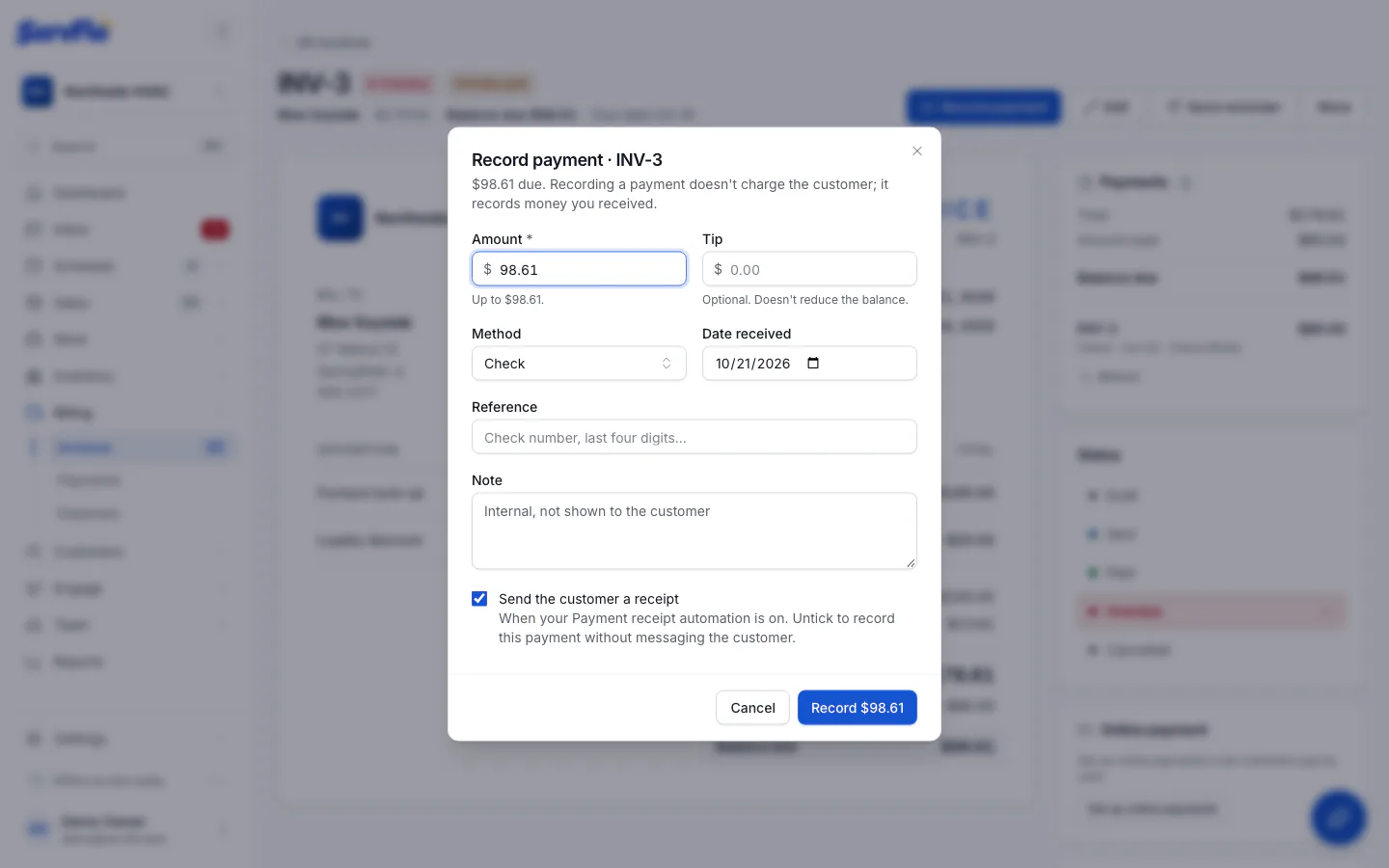
The dialog shows how much is due.
Enter the payment
- Amount: up to the balance due. It starts with the full balance.
- Tip: optional. Tips don't reduce the balance. If the customer paid more than they owe, enter the extra as a tip.
- Method: Cash, Check, Card, Bank transfer or Other.
- Date received: defaults to today.
- Reference: optional, such as a check number or the card's last four digits.
- Note: optional and internal. The customer never sees it.
Choose whether to send a receipt
Send the customer a receipt is ticked by default. It sends a receipt when your Payment receipt automation is on. Untick it to record the payment quietly. See Payment receipts.
Save
Click the Record button, which shows the total (for example Record $250.00).
The payment appears in the invoice's Payments panel. If the balance reaches zero, the invoice becomes Paid. Otherwise it shows Partially paid.
Good to know
- You can't record more than the balance due. ServFlo doesn't keep customer credit, so extra money goes in as a tip.
- Setting an invoice's status to Paid while it has a balance opens this same dialog, so the payment is always recorded with its real method.
- To record a deposit on a quote, use Record deposit on the quote instead. See Ask for a deposit.
- Owners, admins and dispatchers can record payments.
See all payments
Billing → Payments lists every payment with its date, customer, invoice or quote, method, reference and status. The totals at the top show what you've Collected (net of refunds), Tips and Refunded. Filter by method, source or dates, and click Export CSV to download the list.