
Invoice many jobs at once
Create invoices for all your completed jobs in one go, and send them in the same step.
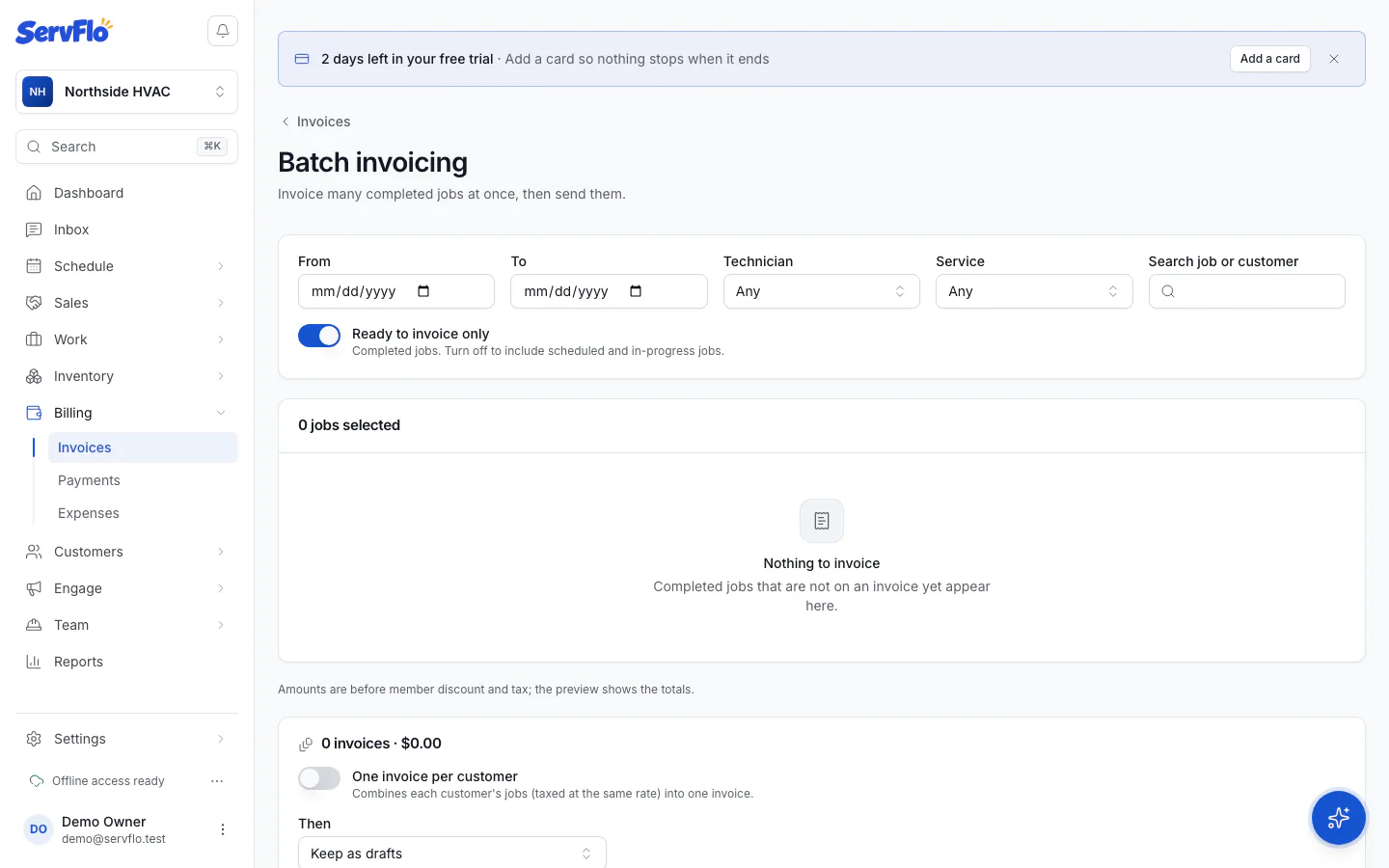
Batch invoicing is for the end of the day or week: ServFlo lists every completed job that hasn't been invoiced, and you invoice the ones you choose in one go.
Open batch invoicing
Go to Billing → Invoices and click Batch invoice.
Find the jobs
The list shows completed jobs that aren't on an invoice yet, oldest first. Narrow it down with From and To dates, Technician, Service, or Search job or customer.
Ready to invoice only is on by default. Turn it off to include scheduled and in-progress jobs too.
Select jobs
Tick the jobs to invoice, or Select all on this page. Amounts in the list are before member discounts and tax.
Choose how to invoice
- One invoice per customer: combines each customer's jobs into one invoice, as long as they're taxed at the same rate. Leave it off for one invoice per job.
- Then: Keep as drafts, Send by email, or Send by email, else text.
The two send choices email or text every customer in the batch when you click Create.
Preview
Click Preview. You'll see the invoices ServFlo would make, their totals with member pricing and tax, any deposits that will be applied, and any jobs it would skip, with the reason. Nothing is created yet.
Create the invoices
Click Create (the button shows how many invoices, for example Create 12 invoices). The Results show each job as Created, Skipped or Failed. One problem never stops the others.
Each invoice is priced exactly as if you'd clicked Create invoice on the job. Running the same batch twice is safe: jobs that are already invoiced are skipped.
Send, remind or mark many invoices
On the Billing → Invoices list, tick invoices to see the batch actions:
- Send: emails or texts each invoice to its billing contact. Drafts become Sent. Paid and canceled invoices are skipped.
- Send reminder: sends a payment reminder for each unpaid sent or overdue invoice.
- Mark as sent: issues the drafts without contacting anyone.
For Send and Send reminder, choose Send by: Email, Text or Email, else text. Customers who opted out, or have no address for that channel, are skipped. The results show each invoice as Sent, Queued (held until your quiet hours end), Skipped or Failed.
Batch invoicing and the batch actions are for office roles. Ticking invoices works in the table on a larger screen.