
Set up online payments with Stripe
Connect your own Stripe account so customers can pay invoices and deposits by card or bank.
ServFlo uses Stripe for online payments. Your business gets its own Stripe account and login, and Stripe pays the money out to your bank. Customers pay on a secure Stripe page, so card details never touch ServFlo.
ServFlo takes no fee on payments. Stripe charges its own processing fees, which it takes from each payment before it reaches you. You'll see Stripe's fee for each payment under Fees on the Payments page.
Only owners and admins can set up online payments.
Connect Stripe
Open payment settings
Go to Settings → Payments.
Start setup
Click Set up online payments. ServFlo takes you to Stripe.
Complete Stripe's setup
Setup takes about five minutes. Stripe asks for your business details, a bank account for payouts and identity verification, and you create your own Stripe login. Stripe then brings you back to ServFlo.
Check your status
The Stripe account card shows whether Card payments, Payouts to your bank, Business details and Bank (ACH) payments are enabled. If Stripe still needs something, it's listed under Stripe still needs, with a deadline. Click Continue setup to finish, or Refresh status to check again.
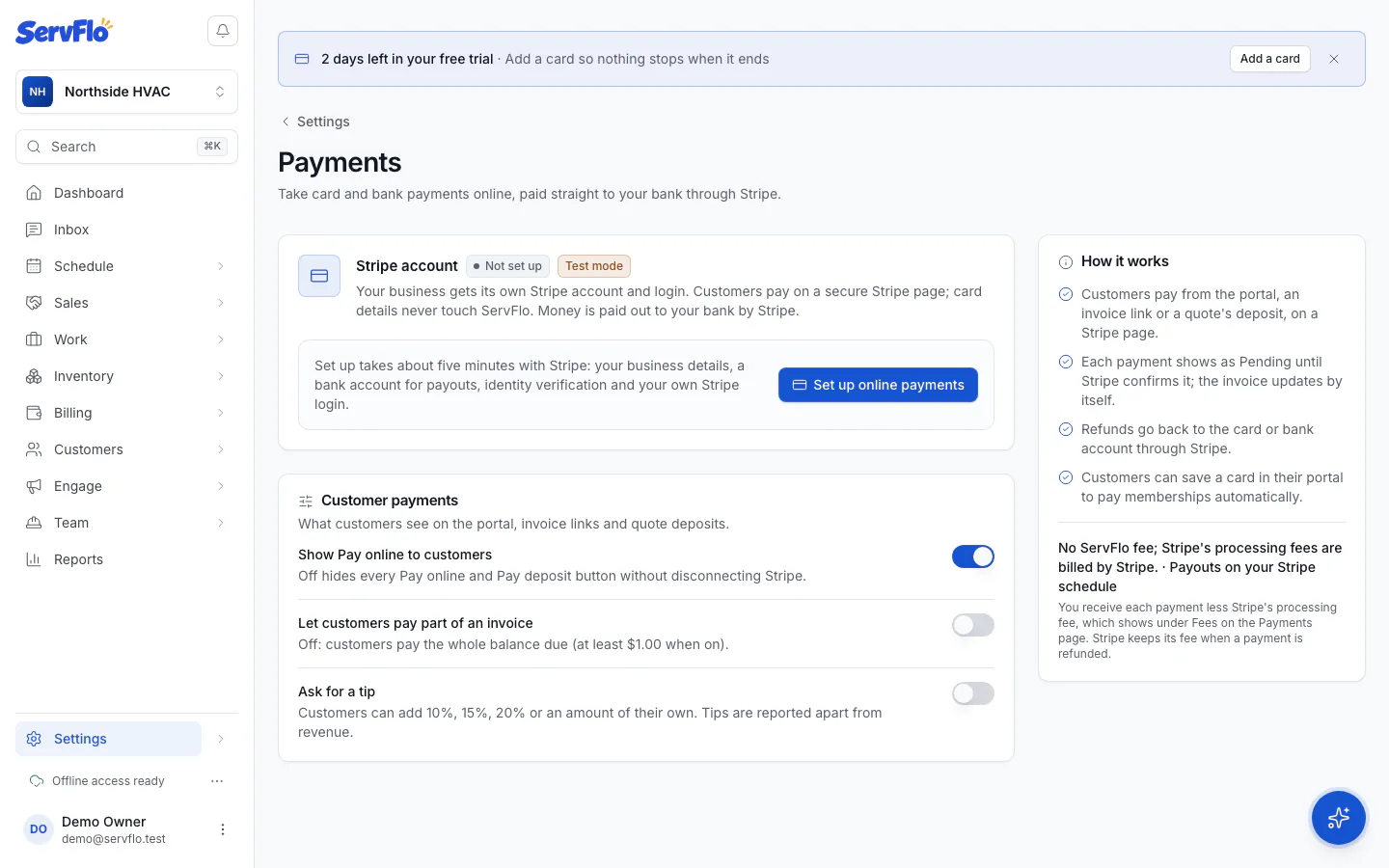
When the status reads Active, customers can pay online.
Choose what customers can do
Under Customer payments:
- Show Pay online to customers: turn this off to hide every Pay online and Pay deposit button without disconnecting Stripe.
- Let customers pay part of an invoice: off by default. When on, customers can pay less than the balance (at least $1.00).
- Ask for a tip: off by default. When on, customers can add 10%, 15%, 20% or their own amount.
To let customers spread larger bills over monthly payments, see Let customers pay over time.
Payouts, disputes and your Stripe dashboard
Your payout schedule is shown on the page. Click Open Stripe dashboard and sign in with the Stripe login you created during setup to manage payouts, disputes and tax forms.
If a customer disputes a payment, ServFlo marks the payment Disputed and alerts whoever set up payments. You respond to the dispute in your Stripe dashboard.
Disconnect Stripe
Click Disconnect to stop taking payments online. Pay online buttons disappear, and saved cards stop being charged for memberships. Your Stripe account and its balance stay at Stripe, and you can still refund earlier online payments.
Card payments can take a moment to be enabled while Stripe reviews your details. If Stripe pauses card payments on your account, ServFlo tells you why on this page.