
How customers pay online
What your customer sees when they pay an invoice by card or bank, and how to take a card payment yourself.
Once online payments are set up, every sent invoice can be paid online. Drafts can't: send the invoice first.
Where customers pay
- The invoice link in the email or text you send.
- Their customer account, under Invoices & payments, if they sign in.
- A quote's page, for a deposit. See Ask for a deposit.
What the customer sees
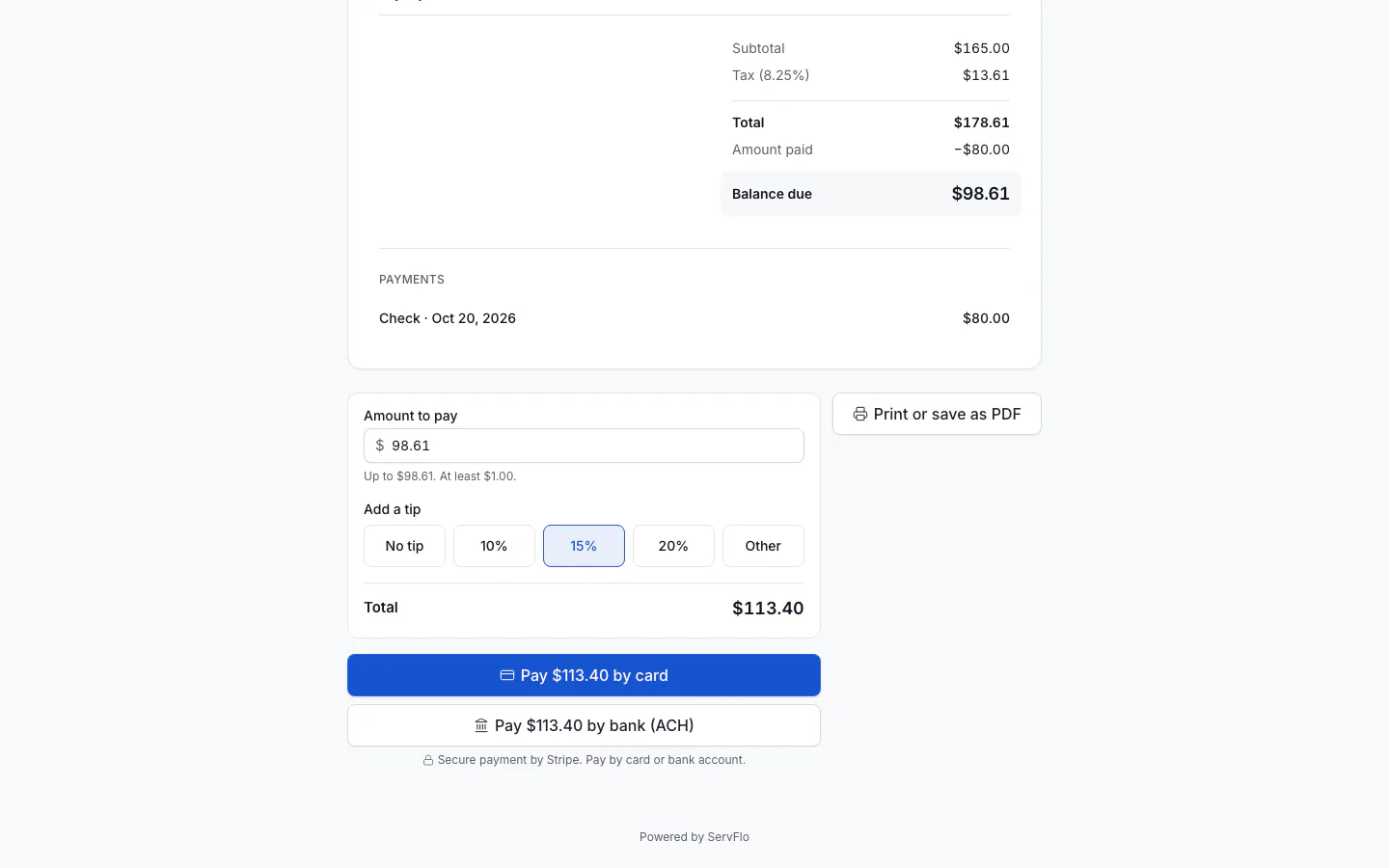
On the invoice page, the Pay online card shows the balance due.
- If you allow part payments, the customer can change the Amount to pay or click Pay full balance.
- If you ask for tips, they can choose Add a tip (10%, 15%, 20% or Other) or No tip.
- They click the pay button, which shows the amount. If bank payments are enabled on your Stripe account, they choose between Pay by card and Pay by bank (ACH). If you offer financing and the amount qualifies, Pay with Affirm and Pay with Klarna appear too.
- They pay on Stripe's secure page and come back to the invoice.
The page shows "Confirming your payment…" for a few seconds, then Payment received. Thank you!. The invoice updates by itself: Paid when the balance reaches zero, or Partially paid.
Bank (ACH) payments take a few business days to clear. Until then, the customer sees "Your bank payment is on its way" and the payment shows as Pending in ServFlo. The invoice is marked paid when the money clears.
Take a card payment yourself
On the invoice page, the Online payment card gives you three ways to help a customer pay:
- Charge card: opens Stripe's secure page so you can enter a card the customer reads to you over the phone. You come back to the invoice afterwards.
- Scan to pay: shows a large QR code. The customer scans it with their phone camera and pays on the spot.
- Copy payment link: copies the invoice link to paste into a message.
Where to see online payments
Go to Billing → Payments. Online payments show as Online, with the card brand and last four digits, and Stripe's fee. Use the Payment source filter to see only online or only recorded payments, and Export CSV to download them.
Membership autopay
Customers with a membership can save a card in their customer portal with Set up automatic payments. Their membership invoices are then charged automatically when they're issued. The customer's page shows whether autopay is on, and you can Turn off autopay there.