
Refund a payment
Give money back to a customer, in full or in part.
You can refund any payment, whether the customer paid online or you recorded it. Only owners and admins can refund payments.
Find the payment
Open the invoice and look in its Payments panel. You can also refund from the Payments section of the customer's page, or from a quote's Deposit panel for a deposit.
Click Refund
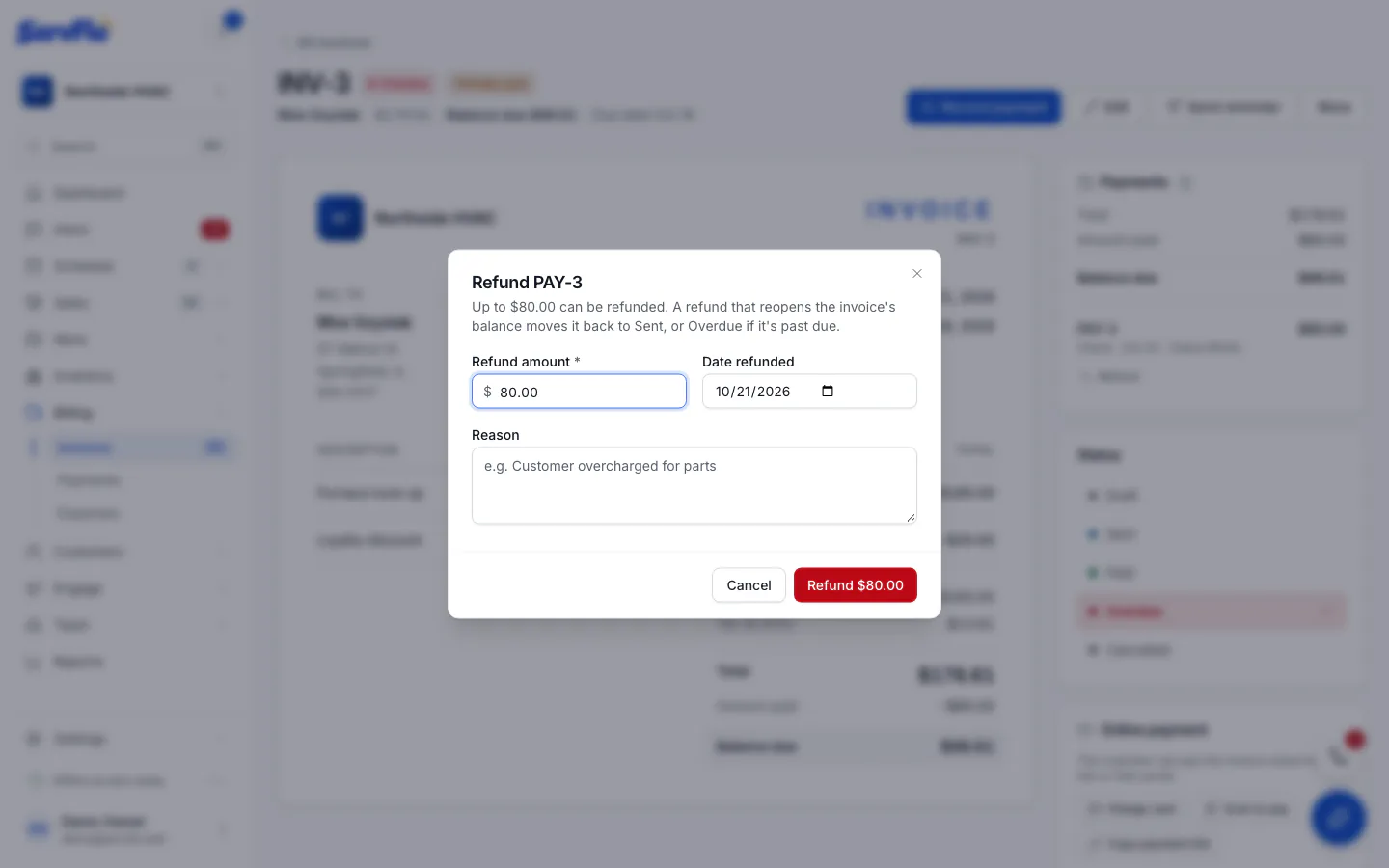
The dialog shows the most you can refund: the payment plus any tip, less anything already refunded.
Enter the refund
- Refund amount: all of it, or part.
- Reason: for your records, for example "Customer overcharged for parts".
- Date refunded: defaults to today.
Confirm
Click the Refund button, which shows the amount.
For an online payment, this sends the money back to the customer through Stripe and can't be undone.
What happens next
- Online payments: the money goes back to the customer's card or bank account through Stripe. The refund shows as Pending until Stripe confirms it, usually within seconds. It comes out of your Stripe balance, and Stripe keeps its processing fee.
- Recorded payments (cash, check and so on): the refund is recorded right away. Give the money back to the customer yourself.
A refund comes off the payment amount first, then the tip. If the refund reopens an invoice's balance, the invoice moves back to Sent, or Overdue if it's past its due date.
A refund you make in your Stripe dashboard is recorded in ServFlo too.
If you've disconnected Stripe, you can still refund earlier online payments from ServFlo while Stripe allows it. Otherwise, refund them from your Stripe dashboard.