
Send an invoice
Email or text an invoice with a link your customer can pay from.
Sending an invoice issues it: a Draft becomes Sent, and the customer gets a link to view and pay it.
Open the invoice
Go to Billing → Invoices and open the draft.
Click Send invoice
A preview opens.
Check the message
- Send by: Email or Text.
- Send to: the invoice goes to the customer's billing contact. Pick another address or number if they have more than one. You can only text a number marked OK to text.
- Subject and Message: edit them if you like. The message already includes the payment link.
Send
Click Send. During your quiet hours, the message is queued until they end.
What the customer receives
The email reads something like: "Here is invoice INV-1042 for $385.00, due Nov 15. View and pay by card or bank", followed by the link. The text is a short version with the same link.
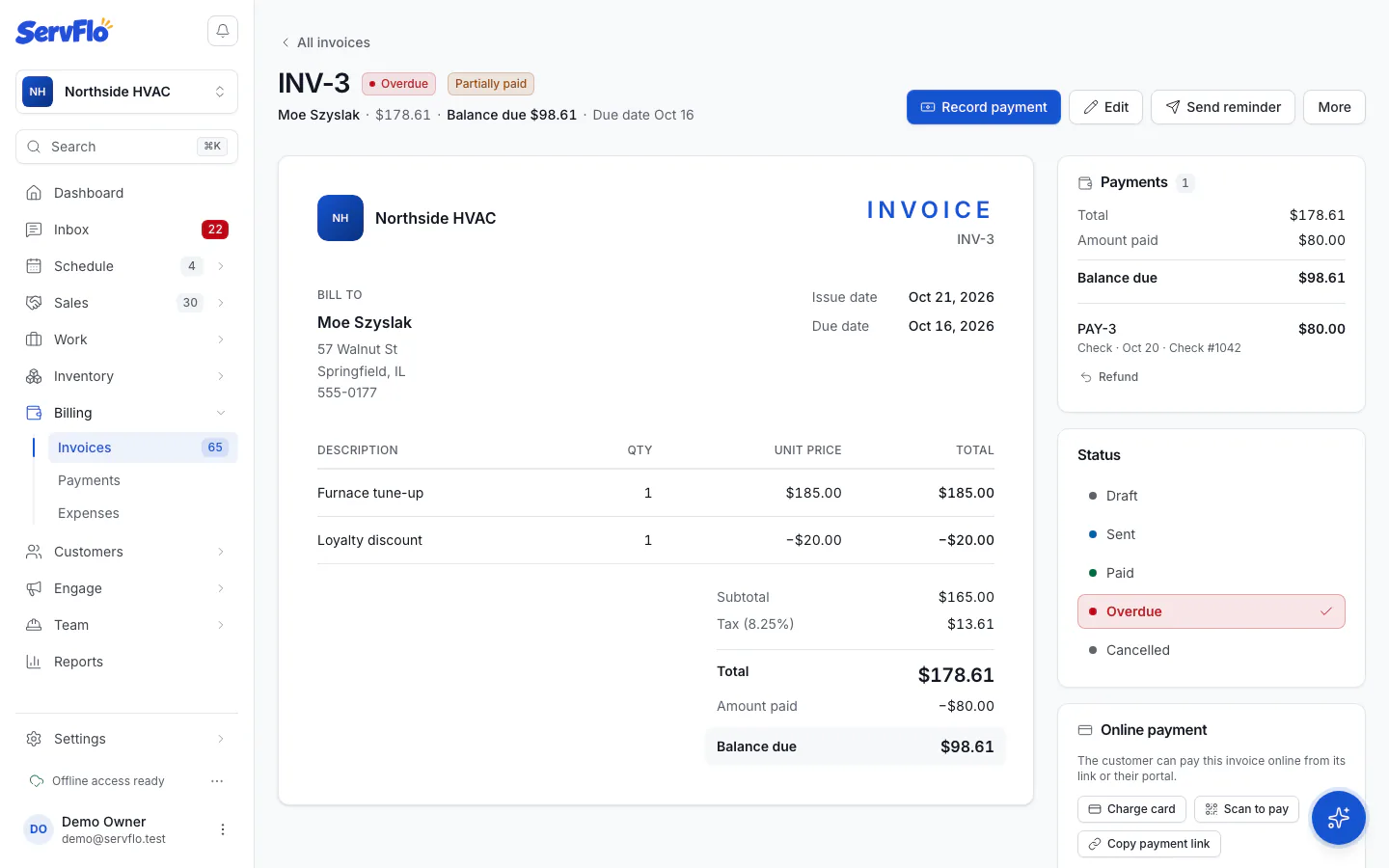
The link opens the invoice page, branded with your business name and logo. It shows the line items, payments received and the balance due. If you take payments online, the customer can pay right there. See How customers pay online. They can also print it or save it as a PDF.
Other ways to share it
- Copy the link: open the ⋯ menu and choose Copy invoice link, then paste it wherever you like. The Customer link panel can also make a new link (Replace link), which stops the old one working.
- Print: open the ⋯ menu and choose Print.
- Without sending anything: set the status to Sent in the Status panel, or use Mark as sent on the invoice list.
To send an invoice again later, open the ⋯ menu and choose Send invoice.
Send many at once
Select invoices on the Billing → Invoices list and choose Send. See Invoice many jobs at once.
With the Invoice sent: payment link automation on (under Engage → Automations), ServFlo emails the invoice automatically whenever one is issued, unless you sent it by hand a moment ago. Automations are available on the Connect, Grow and Pro plans.