
Create an invoice
Bill a customer from a finished job, an approved quote, or from scratch.
Every new invoice starts as a Draft. Nothing reaches the customer until you send it.
From a job
This is the quickest way once the work is done.
- Open the job.
- Click Create invoice.
ServFlo drafts the invoice for you: a line for the service at the job's price, a line for each material used, any member discount, and the tax rate of the job's property. The due date follows the customer's payment terms, and any deposit taken on the job's quote is already applied.
Create invoice only shows while the job has no invoice yet. Once it has one, the job lists it under Invoices.
From a quote
Open an approved quote and click Convert to invoice. The invoice gets the approved option's lines and extras. See Turn a quote into a job or an invoice.
From scratch
Start a new invoice
Go to Billing → Invoices and click New invoice. You can also click New invoice on a customer's page.
Fill in the details
- Customer: who you're billing. If they're over their credit limit, ServFlo warns you, but you can still create the invoice.
- Job: optional. Choosing a job fills empty lines from its service and materials.
- Tax rate (%): filled in from the job's property when you pick a job. Tax-exempt customers get no tax.
- Due date: leave it empty to use the customer's payment terms, such as net 30.
- Notes: payment terms or a thank-you note, shown on the invoice.
Add line items
For each line, enter a Description, Qty and Unit price. Click Add line for more, or Add from pricebook to pick a saved service or material.
Create it
Check the subtotal, tax and total, then click Create invoice.
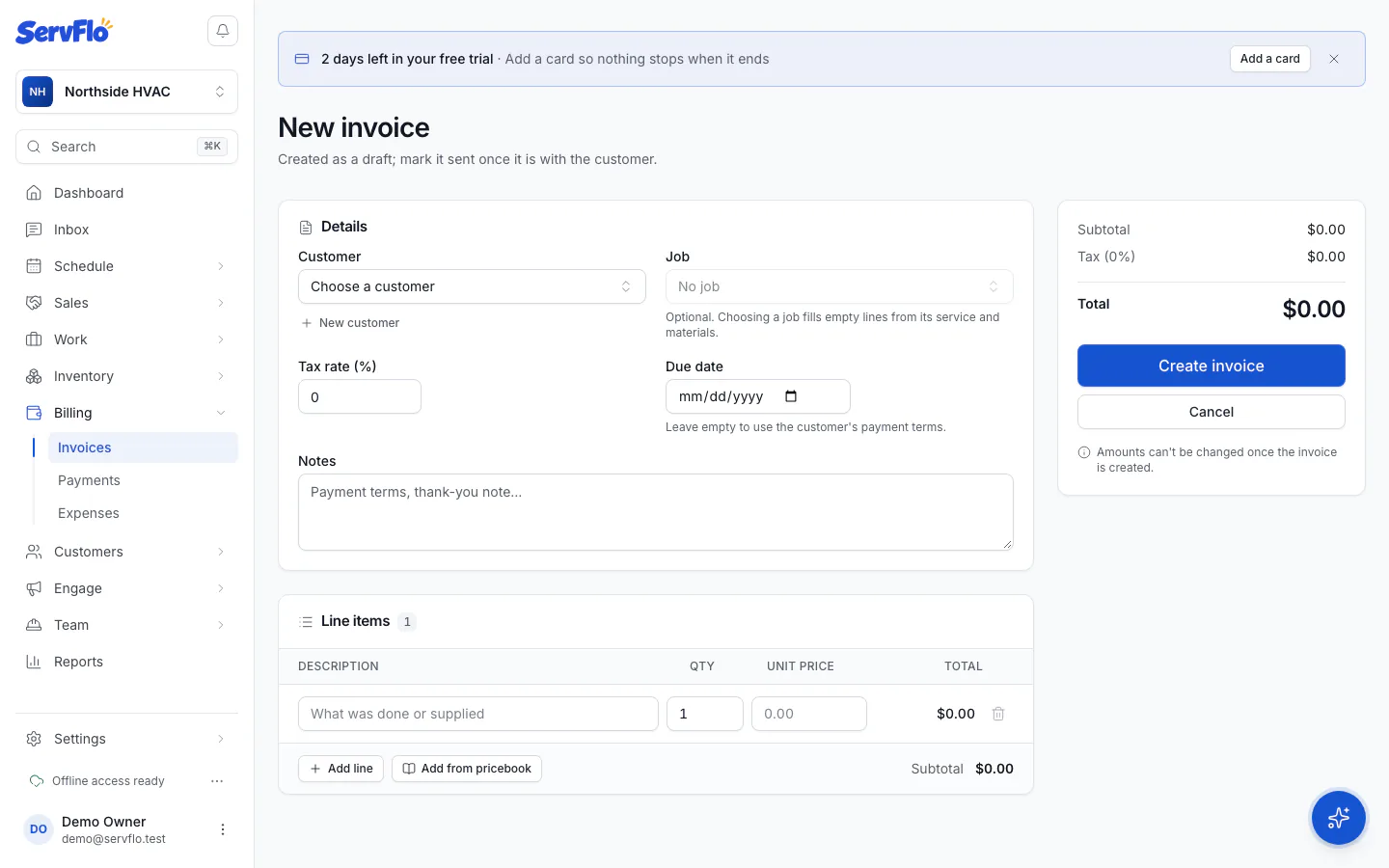
Amounts can't be changed once the invoice is created. Afterwards you can still change the due date, paid date and notes with Edit. If an amount is wrong, cancel the invoice and create a new one.
Change an invoice's status
The Status panel on the invoice page lets you set Draft, Sent, Paid, Overdue or Cancelled by hand. A few rules keep your books straight:
- Choosing Paid on an invoice with a balance opens Record payment, so you can say how it was paid.
- An invoice paid in full can't go back to draft, sent or overdue. Refund the payment instead.
- An invoice with payments can't be canceled or deleted.