Turn on two-factor authentication
Ask for a code as well as your password every time you sign in to your ServFlo account.
Two-factor authentication protects your ServFlo account even if someone learns your password. Once it's on, you enter a code every time you sign in. You can get the code three ways:
- An authenticator app on your phone
- A text message
Open Security
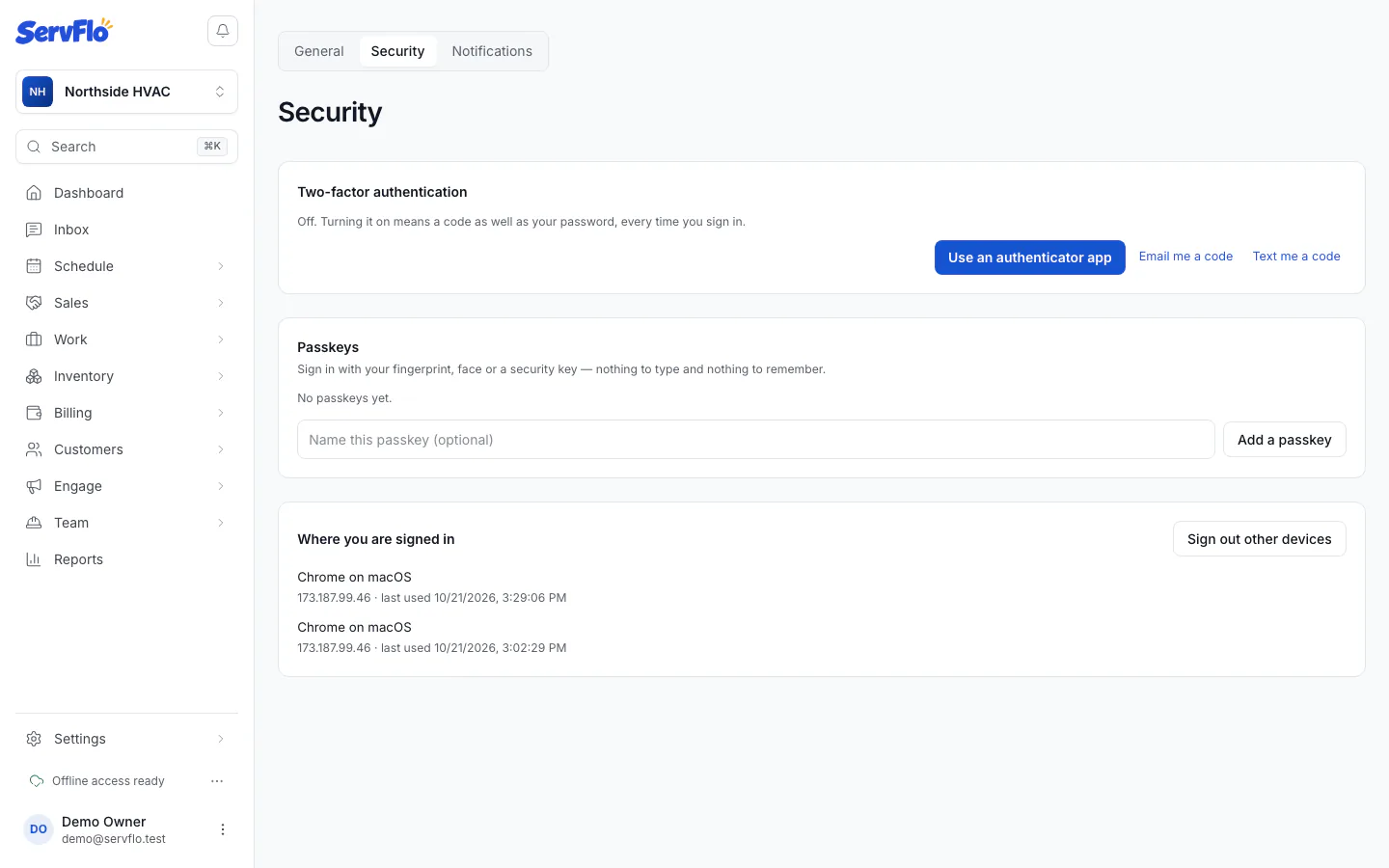
Open the user menu (your name or picture) and choose Account settings. Then select the Security tab.
Choose how to get codes
Under Two-factor authentication, select Use an authenticator app, Email me a code or Text me a code.
Set it up
- Authenticator app: scan the code shown, or select Open in an authenticator app. Then enter the six-digit code the app shows.
- Email: enter the code ServFlo emails you.
- Text message: enter your Mobile number, including the country code, and select Send code. Then enter the code from the text.
Turn it on
Select Turn on.
Save your recovery codes
If you set up an authenticator app, ServFlo shows you recovery codes. Each code signs you in once if you lose your authenticator, and you won't see them again. Store them somewhere safe, then select I have saved them.
Once it's on, the Security tab says On. You will be asked for a code when you sign in.
Turn it off
On the Security tab, select Turn off, then confirm Turn off two-factor authentication.