
Add widgets to another website
Already have a website? Paste ServFlo's booking form, Book online button, plans or reviews into it.
If your business already has a website that wasn't built with ServFlo, you can add ServFlo's widgets to it. Bookings made through them land in Requests and are counted as From widgets, with the ad and campaign tags of the page they came from.
Open Engage → Website, then Widgets for another site.
Find the widget you want and click Copy.
Paste the code into your website where you want the widget to appear. Your web designer or site builder's "custom HTML" block can do this.
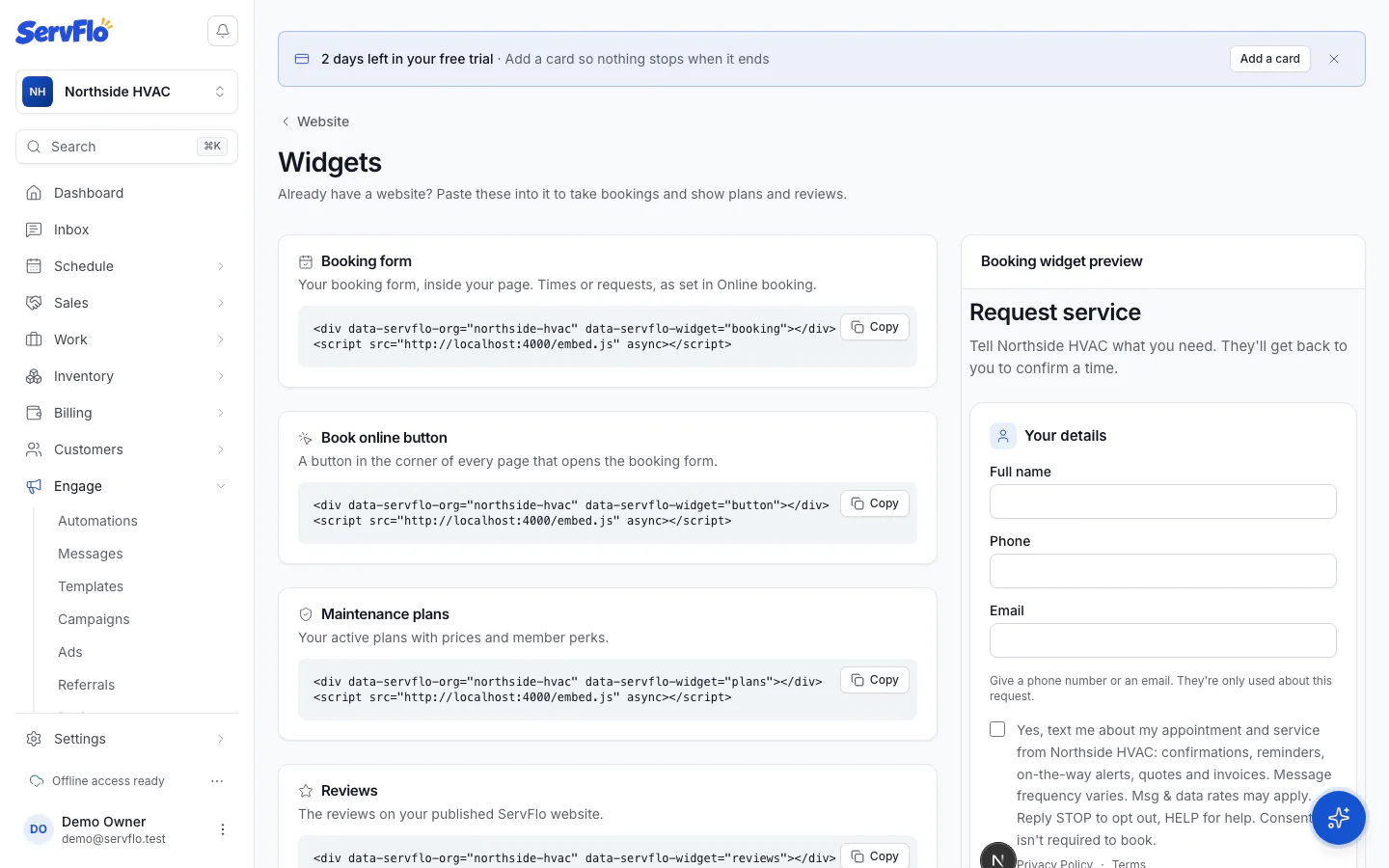
The widgets
| Widget | What it does | Plan |
|---|---|---|
| Booking form | Your booking form inside your page: real arrival times or requests, as set in online booking | Connect and up |
| Book online button | A button in the corner of every page that opens the booking form | Connect and up |
| Maintenance plans | Your active plans with prices and member perks, with a join button | Grow and Pro |
| Reviews | The reviews on your published ServFlo website | Grow and Pro |
The booking form follows your online booking settings: whether customers pick a real arrival time or send a request, which services they can book and which ZIP codes you serve.
Options
Add these to a widget's code to change it:
data-servflo-color="#1d4ed8"sets the button and highlight color.data-servflo-label="Book now"changes the floating button's words.
Ad and campaign tags on your page (such as utm_source or gclid) are passed along automatically, so you see where each booking came from. See Lead tracking.
Website chat on another site
The chat has its own code. See Turn on website chat.