
Edit your pages
Change words, blocks and page settings in the visual website editor.
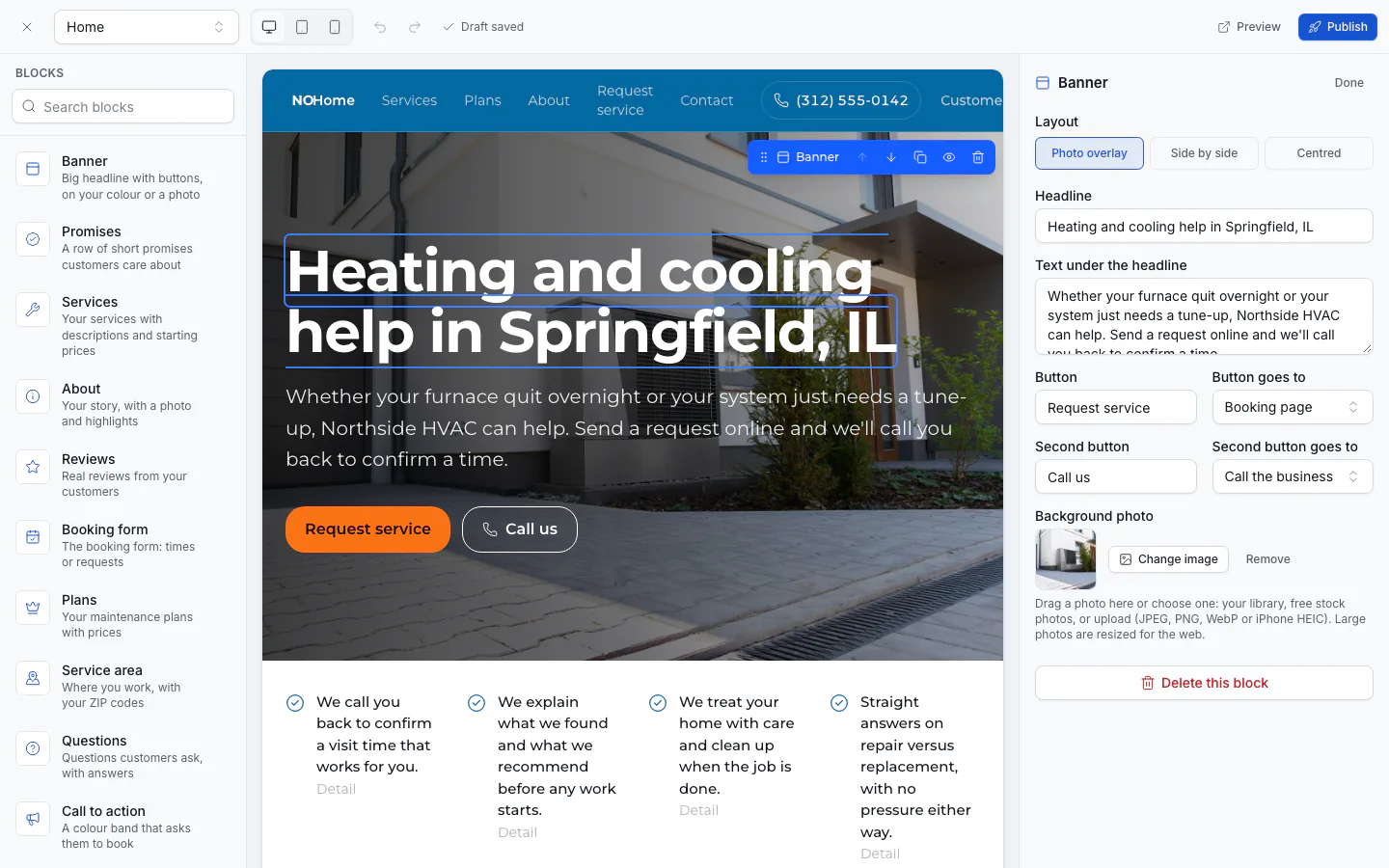
The website editor shows your page exactly as visitors will see it. Click to edit, drag to add, and your changes save themselves as a draft.
Open the editor
Open Engage → Website.
Under Pages, click the page you want to change. The editor opens full screen.
To leave, click Close editor. You're back on the Website page.
Change text
Click any text on the page and type. Press Enter or click elsewhere to keep it; press Escape to undo that edit. Pasted text keeps only the words, not the formatting.
Add, move and remove blocks
- Add a block: drag it from Blocks on the left onto the page. A blue line shows where it lands. Or click a block in the list to add it under the selected one. Use Search blocks to find one.
- Move, copy or hide a block: hover over it to show its toolbar: Drag to move, Move up, Move down, Duplicate, Hide from the site and Delete block.
- Change a block's settings: click it. Its fields, photos, lists and Layout show on the right.
See Blocks for what each block does.
Header and footer
The header and footer are the same on every page. Click either one to edit its texts in place: the name shown on the site, tagline, license or insurance line and copyright line. On the right you can choose what the header shows (Logo and name, Logo only or Name only), the Logo size, and what the footer shows: tagline, phone, email and address, opening hours, social links and "Website by ServFlo".
Page settings
Click an empty part of the canvas so nothing is selected. The right panel then shows Page settings: Title, Address, Search title, Search description and Show in the menu.
Check other screen sizes
Use Preview size in the top bar to switch between Desktop: edit, Tablet preview and Phone preview. Tablet and phone show your saved draft; switch back to desktop to edit.
Saving and undo
Edits save as a draft about a second after you stop. The top bar shows Saving…, Draft saved or Unsaved changes. If a block has a problem, saving pauses and the block is highlighted until you fix it. Undo and Redo keep your last 100 steps (also ⌘Z and ⇧⌘Z).
Drafts never change the live site. When you're ready, click Publish. See Publish your website.
Add, reorder or remove pages
On the Engage → Website page, under Pages:
- Add page: type a Page title and click Create.
- Use the arrows to move a page up or down in the menu, and the eye to hide it from the menu.
- Delete a page with its delete button. The live site keeps it until you publish again.
The home page can't be renamed or deleted.