
Add photos
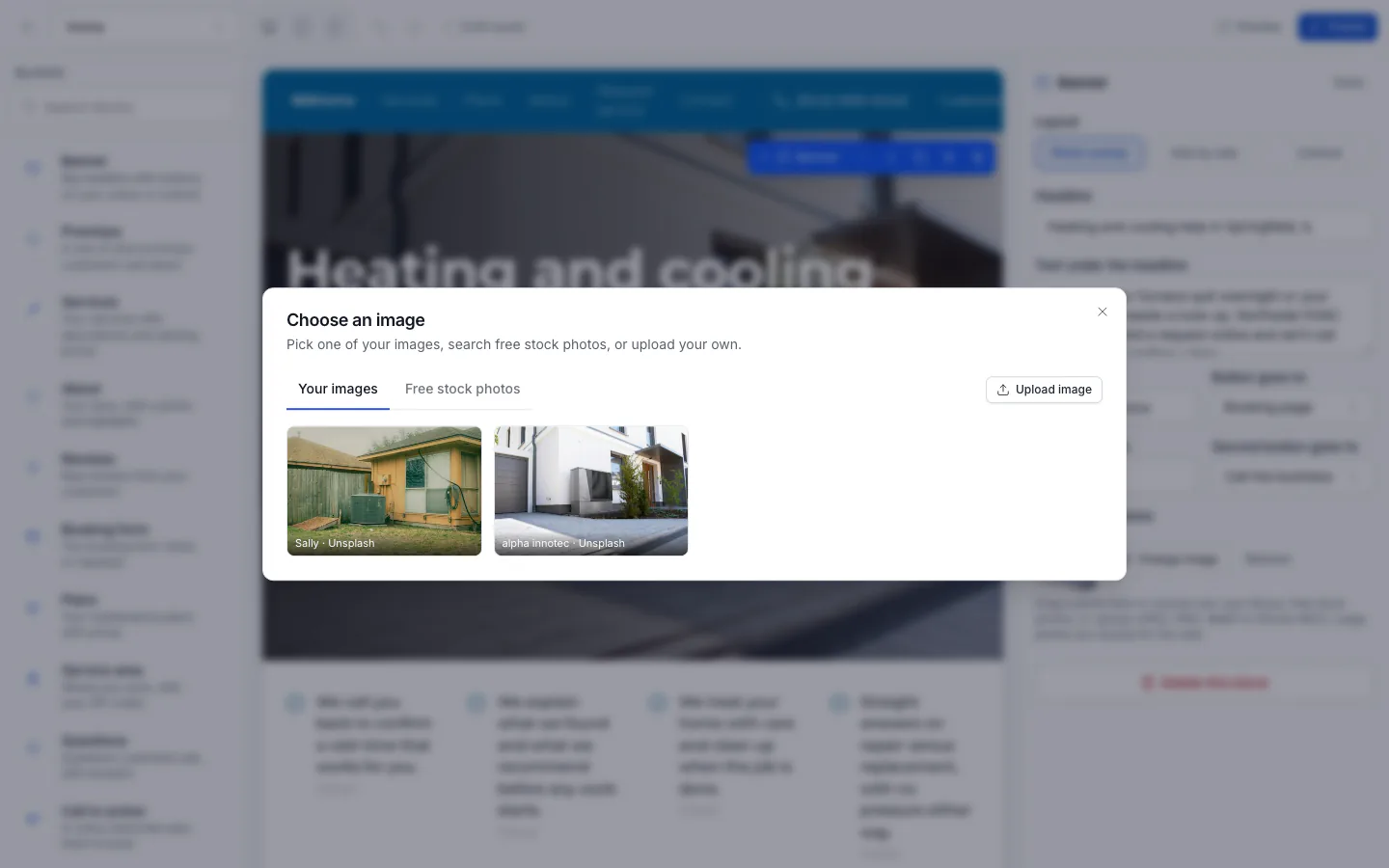
Use your own photos, upload from your phone or computer, or pick free stock photos.
Every photo field in the website editor opens the image picker.
In the editor, click a block with a photo, then Choose image (or Change image) in the panel on the right.
Choose where the photo comes from:
- Your images: photos you've uploaded or used before, most recent first.
- Free stock photos: type what the photo should show and click Search.
- Upload image: choose a file from your computer or phone.
Click the photo you want to use.
You can also drag a photo from your computer's Photos app or a folder straight onto a photo field.
Uploading
ServFlo accepts JPEG, PNG, WebP and iPhone (HEIC) photos. Large photos are resized for the web before they upload, and iPhone photos are converted. If a photo can't be opened, export it from Photos as a JPEG and try again.
Stock photos
Stock photos come from Unsplash (or Pexels) and are free to use on your site. The photographers are credited in your site's footer automatically. Use stock photos for banners and about sections, and your own photos for any gallery of your work.
Describe your photos
For photos in a Columns block, fill in Describe the photo so screen readers and search engines know what it shows.
Remove a photo from your library
Removing a photo from Your images only takes it out of the library. Pages that already show it keep it.