
Turn on website chat
Add a chat button to your websites and choose who answers first: AI, your team, or your team only.
Website chat puts a chat button on your ServFlo website and on any other website you add it to. Visitors chat with your team and, if you like, an AI assistant. Your team answers from the Inbox.
Live chat with your team is on every plan. The AI assistant is on Grow and Pro.
Turn it on
Go to Settings → Messaging → Website chat.
Switch on Show the chat on my websites.
Under Who answers first, choose AI first, People first or People only (see below).
Optional: change the Greeting, the Button colour and the "Text me replies" wording.
Click Save.
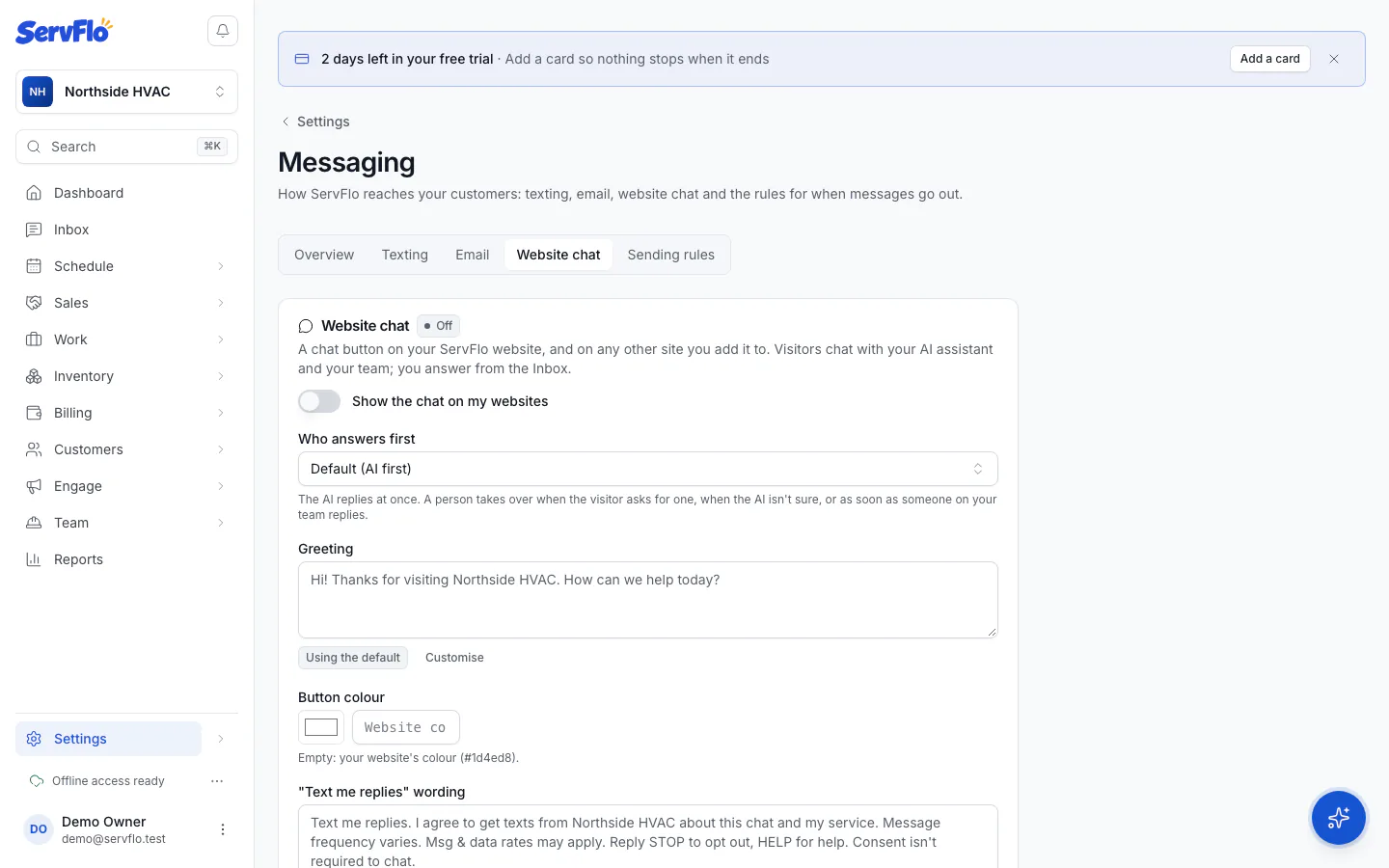
On your ServFlo website the chat appears by itself once it's published: there's nothing to copy. Your ServFlo website in the settings tells you whether it's showing.
Who answers first
| Choice | What happens |
|---|---|
| AI first | The AI replies at once. A person takes over when the visitor asks for one, when the AI isn't sure, or as soon as someone on your team replies. |
| People first | Your team is told first. The AI replies only if nobody answered within the wait, or outside business hours. |
| People only | Only your team answers. No AI. |
With People first, set Wait before the AI replies: how long your team has to answer during business hours (2 minutes unless you change it). Business hours are the ones set in Settings → Phone.
If you don't choose, the chat is AI first on plans with the AI assistant and People only on other plans. If you move to a plan without the AI assistant, the chat keeps working with your team only.
What the AI assistant does and doesn't do
The AI answers only from your own business details: your services, hours, service area, membership plans and what's on your published website. It always says it's a virtual assistant.
- It asks for the visitor's name and a phone number or email early, so you can follow up.
- It books an arrival time when your online booking offers real arrival times and the service can be booked online. It books only a time it offered in that chat, after the visitor confirms. Otherwise it takes a request.
- It never gives a price. It tells visitors your team will confirm the price.
- It never discusses an existing appointment, bill or account. It takes the details and hands the chat to your team.
- It hands the chat to your team whenever it's unsure or the visitor asks for a person.
Bookings and requests from the chat land in Requests, marked as coming from the website chat. Each AI reply uses AI credits; if you run out, chats go to your team.
"Text me replies"
When a visitor leaves their details, they see an unticked Text me replies checkbox next to your wording, with links to your privacy policy and terms. Only visitors who tick it get your answers by text after they leave; everyone else who gave an email gets them by email.
The default wording includes everything carriers require (message frequency, rates, STOP and HELP). To change it, click Customise; to go back, click Use the default. The same goes for the Greeting.
Add the chat to another website
For a website not built with ServFlo:
In Settings → Messaging → Website chat, open Add the chat to another website.
Click Copy.
Paste the code into your website before the closing </body> tag.
Next step
Answer website chats from the Inbox.