
Connect your own domain
Show your ServFlo website at an address you own, such as www.yourbusiness.com.
You can connect up to five domains to your website. Security certificates (https) are issued automatically.
Open Engage → Website, then Settings and domains.
Under Your own domain, type the domain in Domain (for example www.yourbusiness.com) and click Connect domain.
ServFlo shows two DNS records. Click Copy next to each value.
Sign in where your domain is managed (GoDaddy, Namecheap, Cloudflare and so on) and add both records:
- a TXT record that proves the domain is yours;
- a CNAME record that sends visitors to your ServFlo site. If a record for that name already exists (often from an old website), replace it.
Back in ServFlo, click Check now.
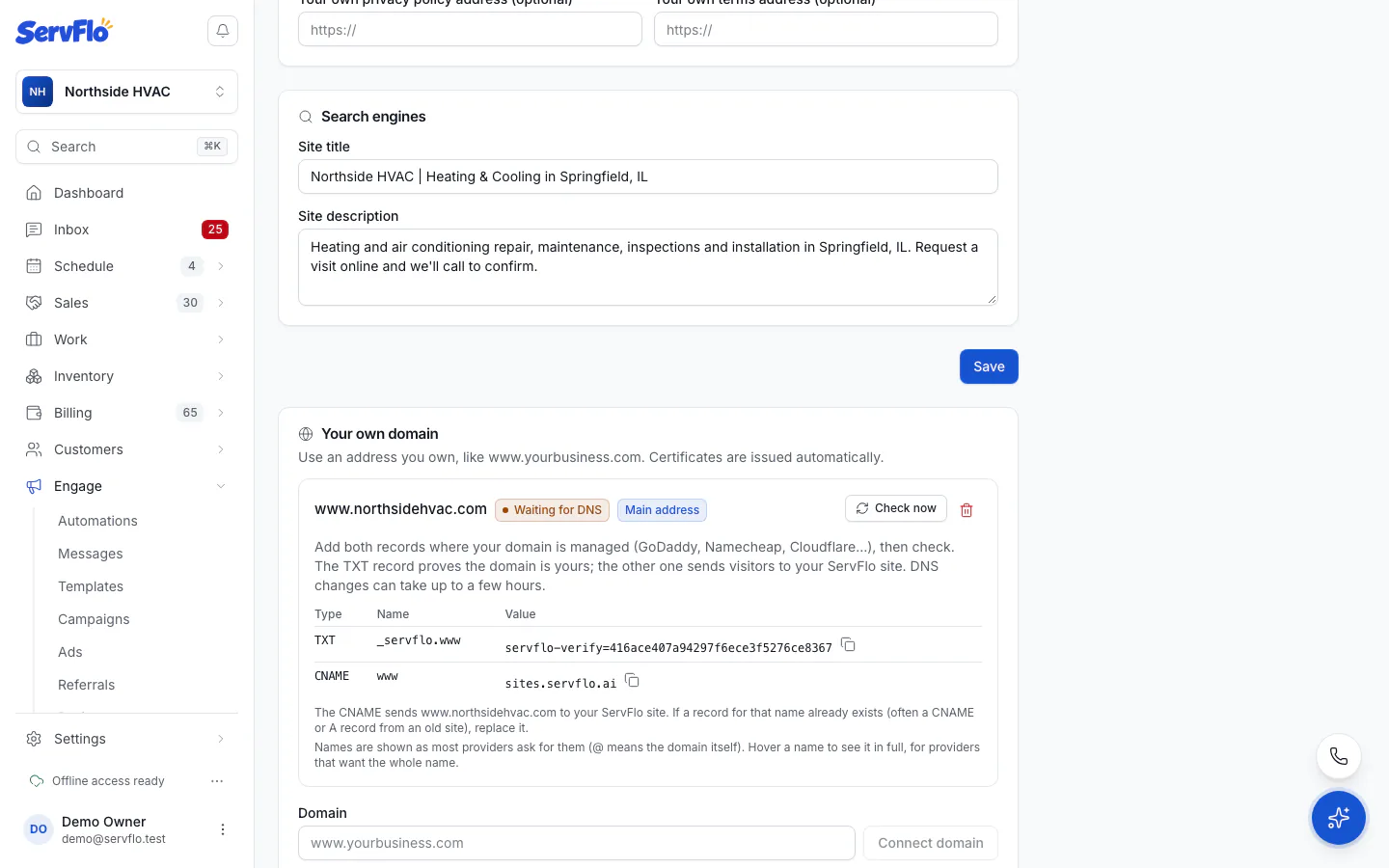
DNS changes can take up to a few hours. ServFlo keeps checking by itself; you don't need to stay on the page. The domain's status shows Waiting for DNS, Connected or Check failed. A domain that still fails after three days is marked Check failed: fix the records and click Check now.
A bare domain (yourbusiness.com)
A bare domain can't use a CNAME, so ServFlo shows A records to add instead. If your DNS provider offers ALIAS, ANAME or CNAME flattening, you can use that. Tip: www.yourbusiness.com connects with a single CNAME record.
Main address
With more than one domain, click Make main on the one you want as your Main address. It's the address QR codes and links use.
Connected but not published
If your domain is connected but your site isn't published yet, visitors see a "not published yet" page. Publish your site to go live.
Disconnect a domain
Click Disconnect next to the domain and confirm. The domain stops showing your website at once.