
Answer website chats
Reply to website visitors from the Inbox, take over from the AI, and add a chat to a customer.
Website chats appear in the Inbox as Website chats. Owners, admins and dispatchers see them and get a notification (in the app and as a push to the ServFlo app) when a visitor writes, when the team is answering, and when the AI hands a chat over. Technicians don't see website chats.
Open Inbox. To see only chats, filter by Website chats.
Click a chat to open it. You see the whole transcript, whether the visitor is In the chat now or Left the chat, and the details they gave.
Type in Your answer and click Send.
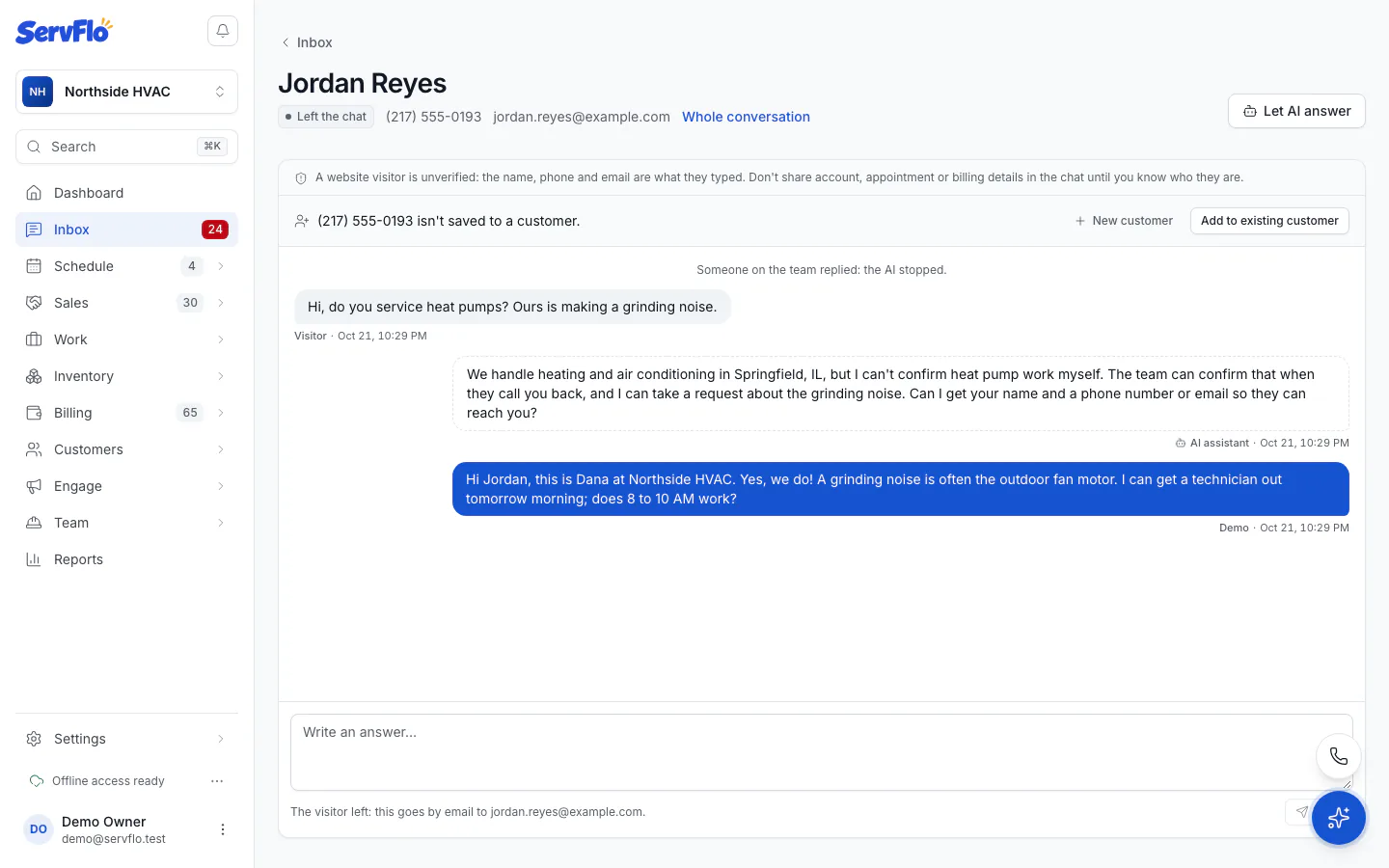
Take over from the AI
- Replying stops the AI in that chat.
- To stop the AI without replying yet, click Take over. The visitor sees that someone from the team joined (first name only).
- To hand the chat back, click Let AI answer. The AI answers the visitor's newest message if nobody has.
When the visitor has left
When the visitor has left, your answer is sent to them as a text or email from your business.
The reply box tells you where your answer goes:
- By text, if they gave a phone number and ticked Text me replies.
- By email, if they gave an email.
- Otherwise it waits in the chat for when they come back.
If they answer your text or email, it comes back into the same Inbox conversation.
Add the chat to a customer
Visitors aren't verified: the name, phone and email are what they typed. Don't share account, appointment or billing details until you know who they are.
When the visitor gave a phone number that isn't saved to a customer yet, the chat says so. Once you know who they are, click Add to existing customer, choose the Customer and click Save number. The chat and that number's other messages then show on the customer's record. Use Whole conversation to see everything from that phone number or email together.
Bookings and requests
When the AI books a time or takes a request, it lands in Requests like any online booking. Confirm or schedule it there.