
QR codes
Make QR codes for trucks, yard signs, shirts and flyers, change where they go after printing, and see every scan.
ServFlo's QR codes are dynamic: the printed code holds a short ServFlo link, so you can change where it goes any time without reprinting. Every scan is counted.
Make a QR code
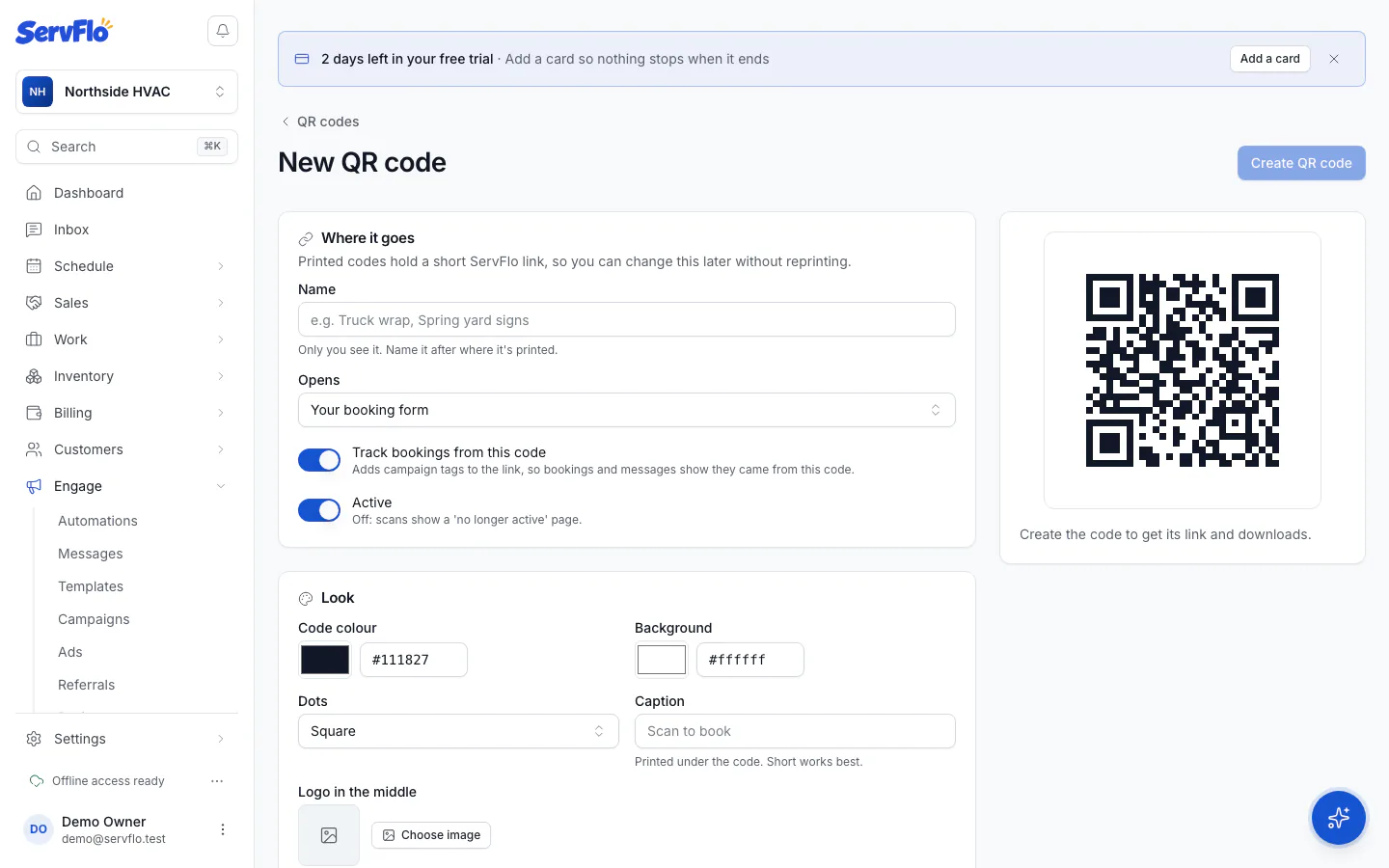
Open Engage → QR codes and click New QR code.
Give it a Name after where it's printed, such as "Truck wrap" or "Spring yard signs". Only you see it.
Under Where it goes, choose what it Opens:
- Your website
- A page of your website (then choose the Page)
- Your booking form
- Another web address (then type the Web address)
Leave Track bookings from this code on, so bookings and messages show they came from this code.
Under Look, choose the Code colour, Background, Dots style, a Caption printed under the code ("Scan to book") and an optional Logo in the middle with its size.
Click Create QR code.
Keep a dark code on a light background. Light codes on dark backgrounds fail on many phones. Bigger logos are harder to scan; every logo size ServFlo offers is tested to scan.
If your website isn't published yet, codes that open your website open your booking form instead until it is.
Download and print
Click Download and choose:
- SVG (print) for banners, shirts and signs. It stays sharp at any size.
- PNG · web, PNG · 2048 px or PNG · 4096 px for other uses.
Keep the code at least 2 cm (¾ in) wide on flyers, and at least a tenth of the reading distance on signs. Use Open the link to test it and Copy link to share the short link itself.
Change where it goes
Open the code, change Where it goes and click Save. Printed copies follow the new destination at once.
See scans and leads
Each code shows Scans, last 30 days: scans per day, Unique scanners, Leads, All-time scans, devices and phone systems. Leads are the bookings and messages made after scanning the code. No addresses are stored, and link previews from apps such as WhatsApp or Slack aren't counted.
Switch off or delete a code
- Switch Active off to pause a code: scans show a "no longer active" page.
- Delete QR code stops printed copies working and deletes the scan history. To pause it instead, switch it off.