Customers
Share the customer portal
Send customers their portal link, share your sign-in page, and add a customer login button to your website.
There are two ways customers reach their portal:
- Your sign-in page — one link for all your customers. They sign in with a code sent to their email or phone. See What customers can do in the customer portal.
- A private portal link — a link made for one customer that opens their portal without signing in.
Share your sign-in page
- Go to Settings → Online booking.
- In Customer sign-in, select Copy sign-in link.
- Paste the link wherever customers will find it — your email signature, invoices, social media or your website.
Select Open to see the page as your customers do.
Add a customer login button to your website
- Website built with ServFlo: a Customer login link appears in the header automatically while customer sign-in is on.
- Another website: in Settings → Online booking → Customer sign-in, copy the snippet under Customer login button for another website and paste it where the button should appear.
For more about your website, see Websites.
Send a customer their private portal link
Open the customer
Go to Customers and open the customer.
Send the link
Select More → Send portal link. Choose how to send it under Send by, check the message, and select Send.
ServFlo checks the customer's messaging consent first. If it doesn't allow the message, it isn't sent.
Send emails or texts the link to the customer straight away.
Manage the private portal link
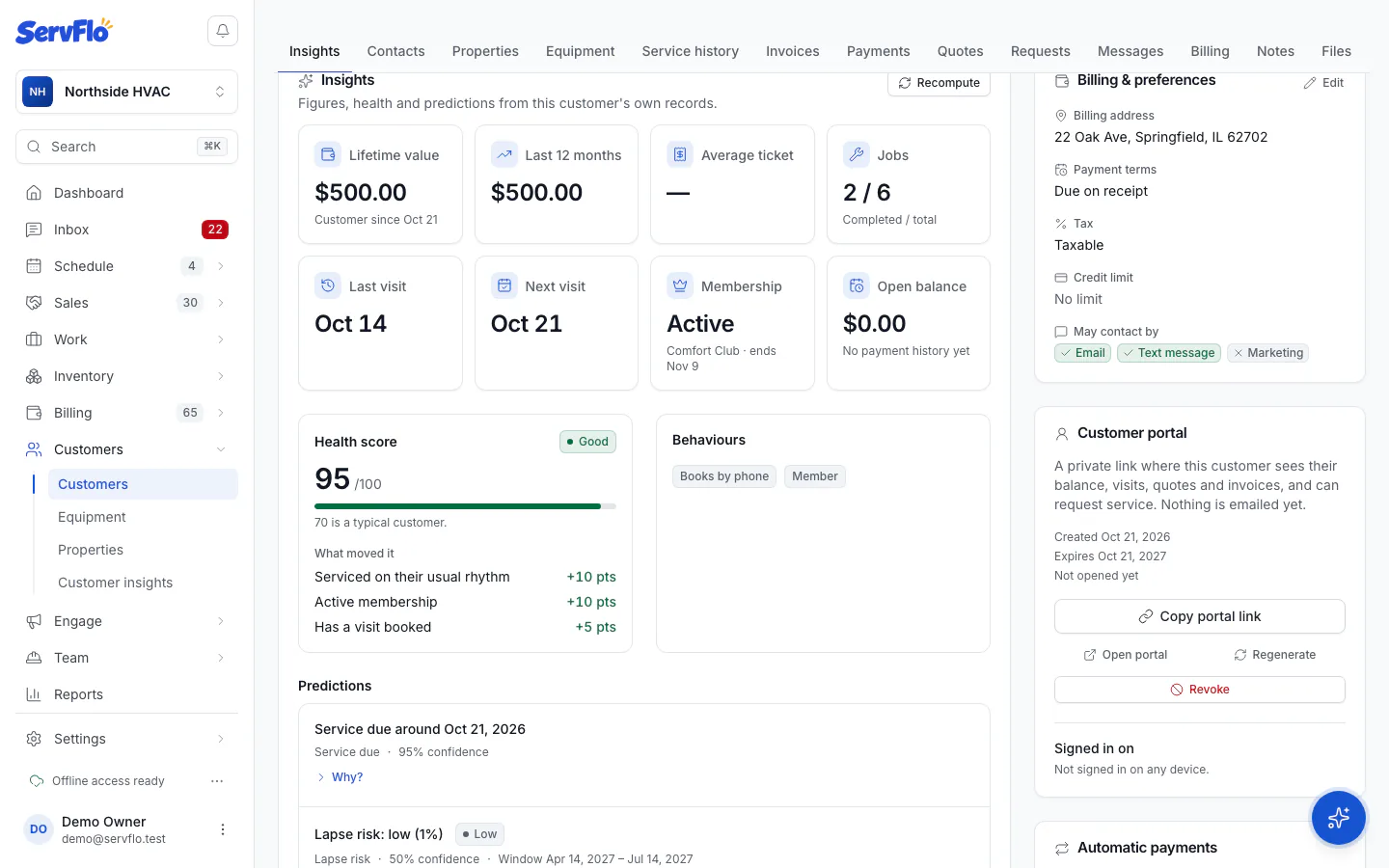
The Customer portal card on the customer's page manages their private link:
- Create portal link makes one if they don't have it yet. Creating a link doesn't email it.
- Copy portal link copies it so you can paste it into your own message.
- Open portal shows you what the customer sees.
- Regenerate makes a new link. The old one stops working.
- Revoke turns the link off.
The card also shows when the link was created, when it expires (or Doesn't expire) and when the customer last opened it.