
Set up custom fields
Add your own fields to customers, properties, equipment, jobs, visits, quotes, invoices and technicians.
Custom fields let you keep details ServFlo doesn't ask for out of the box — a gate code on a property, a contract number on a job, a license number on a technician, or an account manager on a customer.
Which records can have custom fields
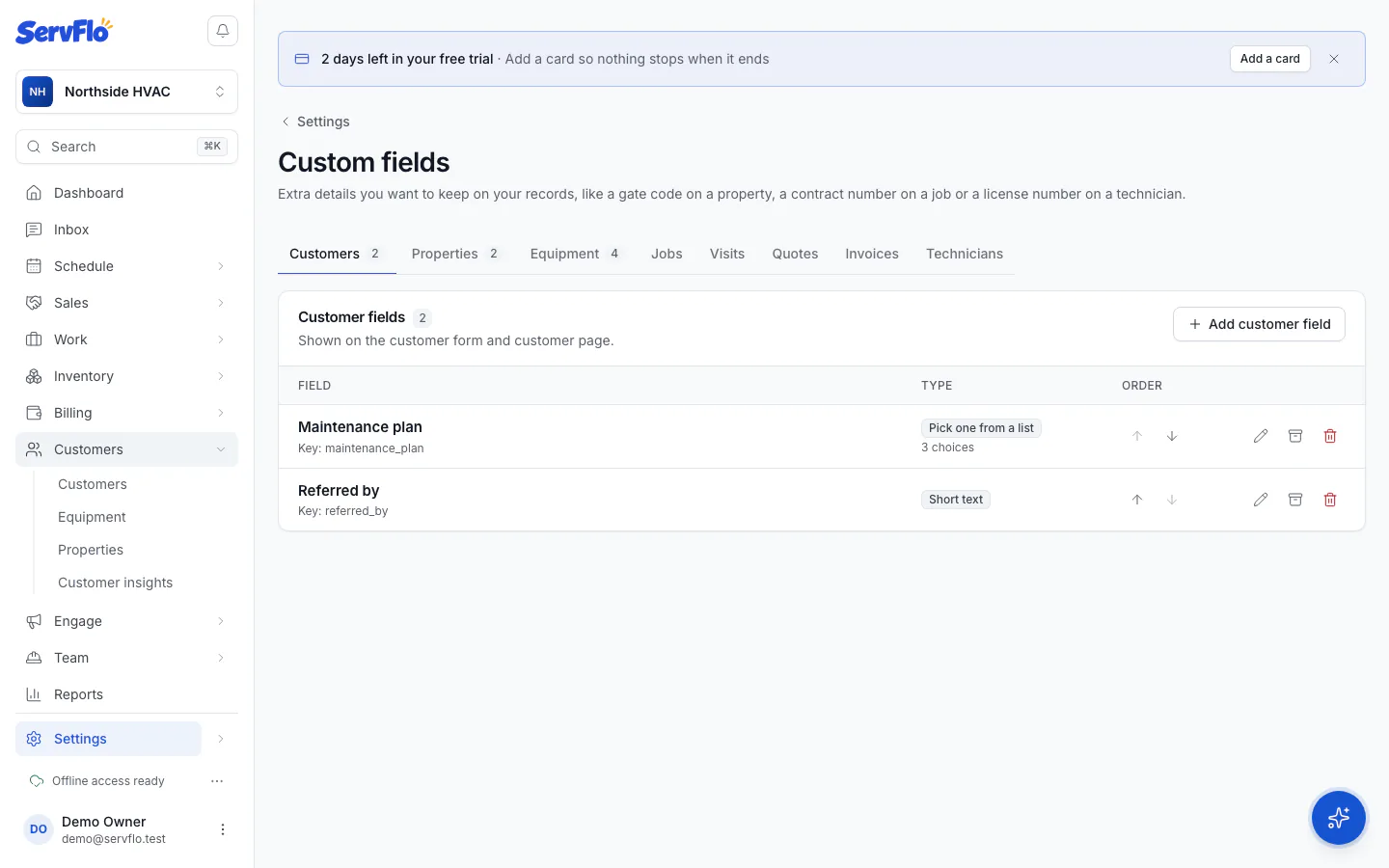
Go to Settings → Custom fields. There's a tab for each kind of record:
| Tab | Where the fields appear |
|---|---|
| Customers | The customer form and customer page |
| Properties | The property form and property page |
| Equipment | The equipment form and equipment page, for every type or only one |
| Jobs | The job form and job page |
| Visits | When adding or editing a visit, and in the job's visit list |
| Quotes | The quote builder and quote page |
| Invoices | The invoice form and invoice page |
| Technicians | The technician form and team list. Never shown to customers |
Add a field
Open the right tab
Go to Settings → Custom fields and select the tab for the record type, such as Customers.
Add the field
Select the add button for that tab (for example Add customer field). Enter a Label, such as "Account manager".
Choose the type of answer
Pick a Type of answer: Short text, Long text, Number, Date, Yes / no, Pick one from a list, Pick several from a list, Web address, Email or Phone number. For the two list types, add the Choices.
The type can't be changed after the field is created.
Set the options
- Required: forms can't be saved without an answer.
- Show to the customer: let customers see this field's answer. Quote and invoice fields are printed on the document, its emails and the customer's pages. For other records, the answer is shown in the customer portal. Not available for technician fields.
- Sensitive: for gate, alarm or lockbox codes and medical notes. The answer shows as •••• to people whose role doesn't allow them to see it, and revealing it is logged. Sensitive fields are never shown to customers.
- Equipment type (equipment fields only): ask on every piece of equipment, or only on one type. This can't be changed later.
Save
Select Add field.
Fill in custom fields on a customer
Once you've added customer fields, they appear on the customer form under More options → Custom fields. The answers show in the Billing & preferences card on the customer page.
Reorder, archive or delete fields
- Use the up and down arrows to change the order fields appear in on forms.
- Archive hides a field from forms but keeps every answer already saved. Archived fields are listed under Archived; select Restore to bring one back.
- Delete removes the field everywhere.
Deleting a field hides its saved answers for good. If you might need them later, archive the field instead.