
Move a property to a new owner
When a home is sold or tenants move, hand the property to the new customer and keep its full history.
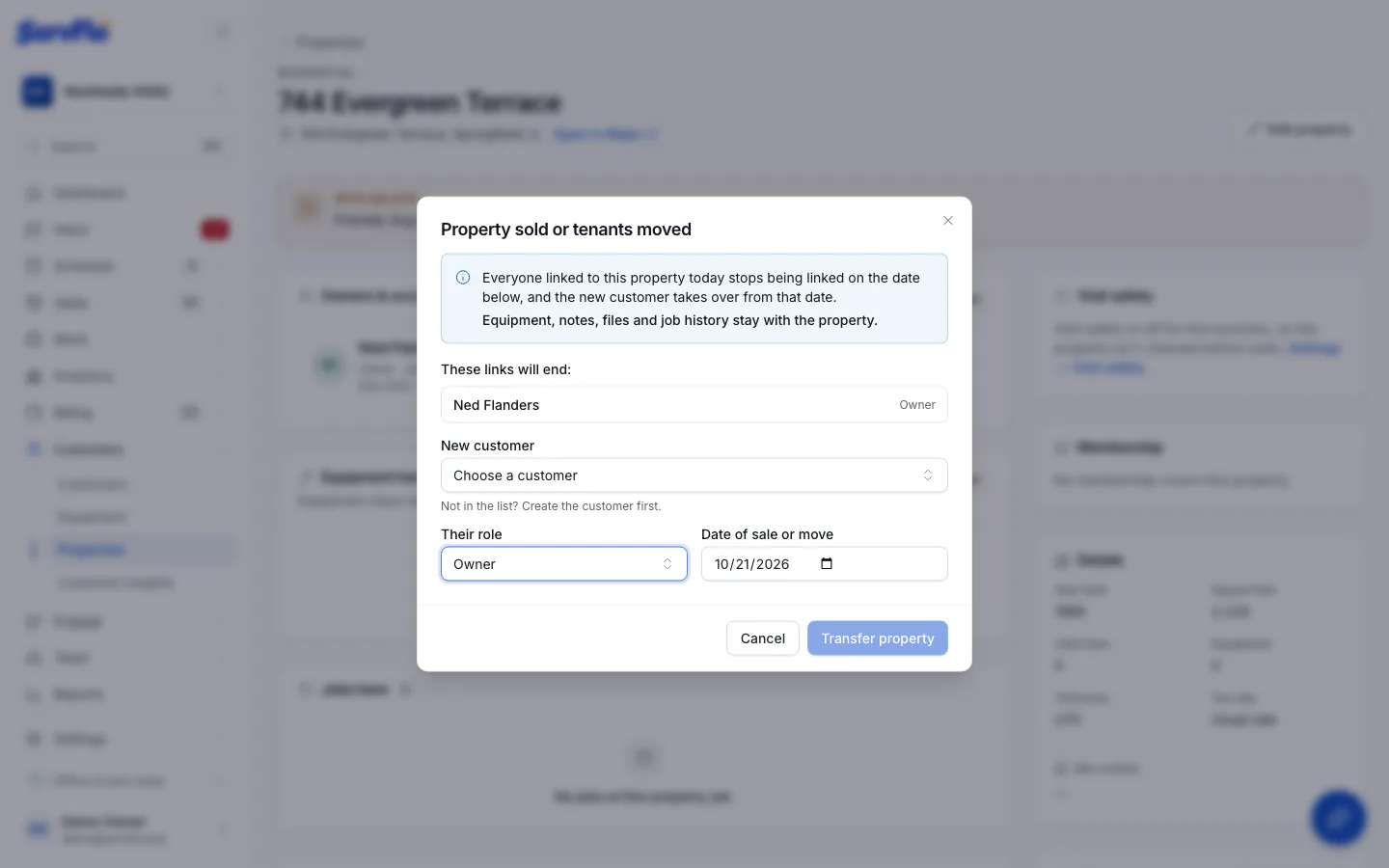
When a property changes hands, don't create a new property. Transfer it instead. Everyone linked to the property today stops being linked on the date of the sale or move, and the new customer takes over from that date.
Equipment, notes, files and job history stay with the property, so the new owner's technician can see the furnace's age and past repairs. The previous owner keeps the property in their Previously linked list.
Equipment that belongs to the leaving customer themselves (rather than to the property) goes with them and is no longer kept at the property.
Before you start
The new owner must already be a customer. If they aren't, add them first and choose No service property yet for the service property.
Transfer the property
Open the property
Go to Properties and open the property. You can also open it from the current owner's Properties section.
Start the transfer
In Owners & occupants, select Sold / moved. The dialog lists the links that will end.
Choose the new customer
Under New customer, pick the customer who's taking over. Set Their role (usually Owner, or Tenant for a new tenant).
Set the date
Enter the Date of sale or move. It can't be earlier than the date a current occupant's link started.
Confirm
Select Transfer property.
Only one person is leaving
If only one occupant is leaving — for example one tenant of several — don't transfer the whole property. In Owners & occupants, select End next to that person and enter their Last day. Then use Add person if someone new is moving in.