
Add properties to a customer
Add a new service location for a customer, or link them to a property that's already in ServFlo.
A property is where you do the work: a house, a rental, a shop or a building. Properties belong to your business, and customers are linked to them with a role and a start date. That way a property keeps its equipment, notes and job history even when its owner or tenants change.
A customer can be linked to several properties, and a property can have several people linked to it — for example an owner and a tenant.
Add a new property for a customer
Open the customer's properties
Go to Customers, open the customer, and select the Properties tab.
Add the property
Select Add property. The address starts filled in with the customer's billing address — change it if the work happens somewhere else.
Fill in the details
Add any details your team needs on the day, such as the Property type, Gate / door code, How to get in, Pets on site, Hazards & safety notes and a Site contact.
Save
Select Create property. The customer is linked to it as the primary owner from today.
Link a property that's already in ServFlo
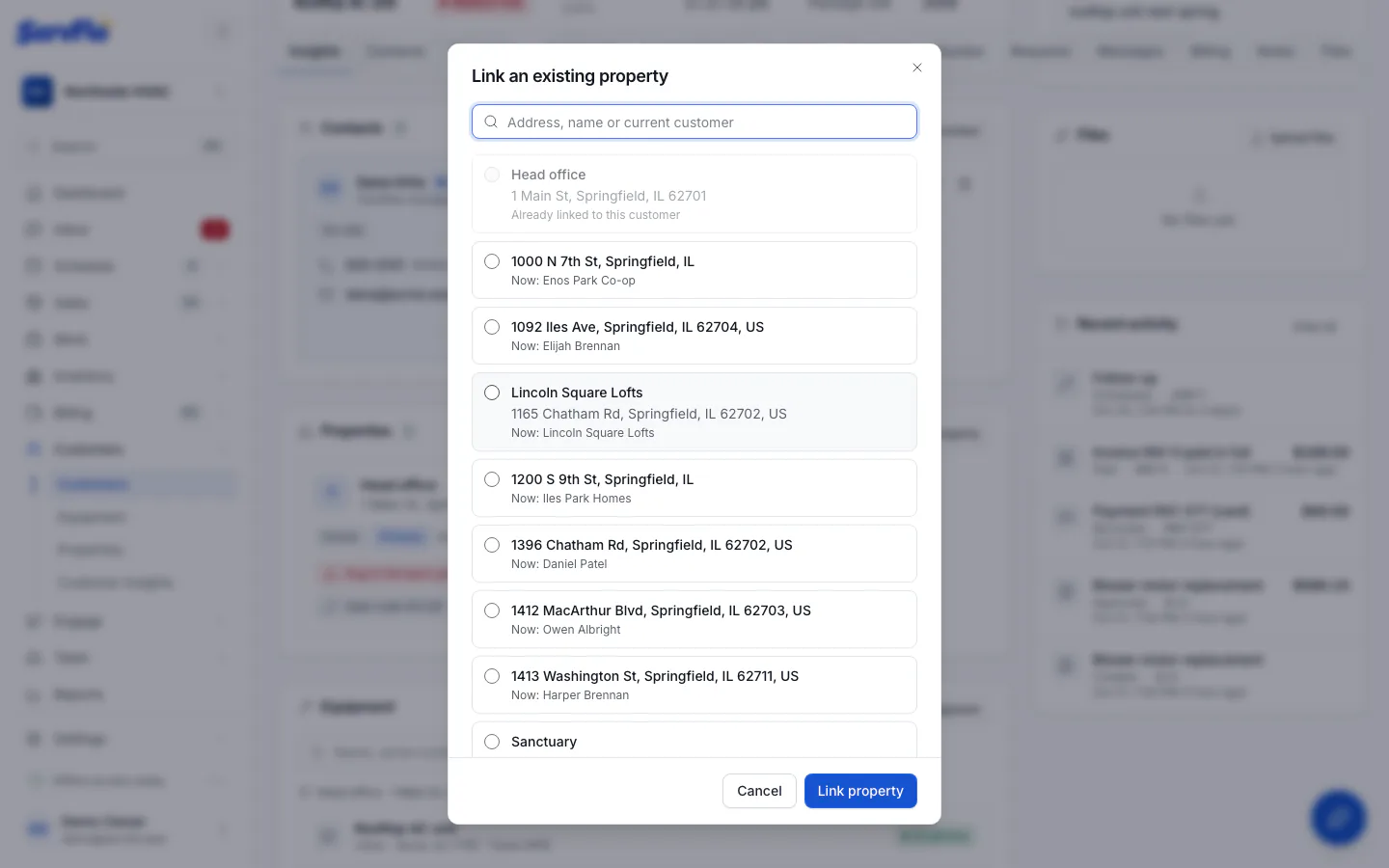
Use this when the property already exists — for example a new tenant moving into a rental you already service, or a property manager taking over a building.
- On the customer's Properties section, select Link existing.
- Under Find a property, search by address, name or current customer, and choose the property.
- Choose Their role: Owner, Tenant, Landlord or Property manager.
- Set From to the date the link starts.
- Select Link property.
What you see on the customer page
Each current property shows its role (such as Owner), a Primary badge if this customer is the main contact for it, and Since the start date. Pets, hazards and gate codes are shown on the card so they're hard to miss.
Properties the customer is no longer linked to are listed under Previously linked, with the role and the dates. Select one to open it.
Add or end a link from the property page
You can also manage who's linked from the property itself. Go to Properties, open the property, and use the Owners & occupants section:
- Add person links another customer, with a Role, a From date and an optional Primary contact for this property switch. Jobs and equipment at the property are listed under the primary customer.
- End stops one person's link on a Last day you choose. The link stays in the property's history.
- Make primary makes someone else the primary occupant.
If the property was sold or the tenants moved out, use Sold / moved instead — see Move a property to a new owner.