
Add a customer
Create a residential or commercial customer with their contact details, billing address and first service property.
Add a customer before you book work for them. It takes a minute: a name, a way to reach them and where the work happens. Everything else is optional and can be filled in later.
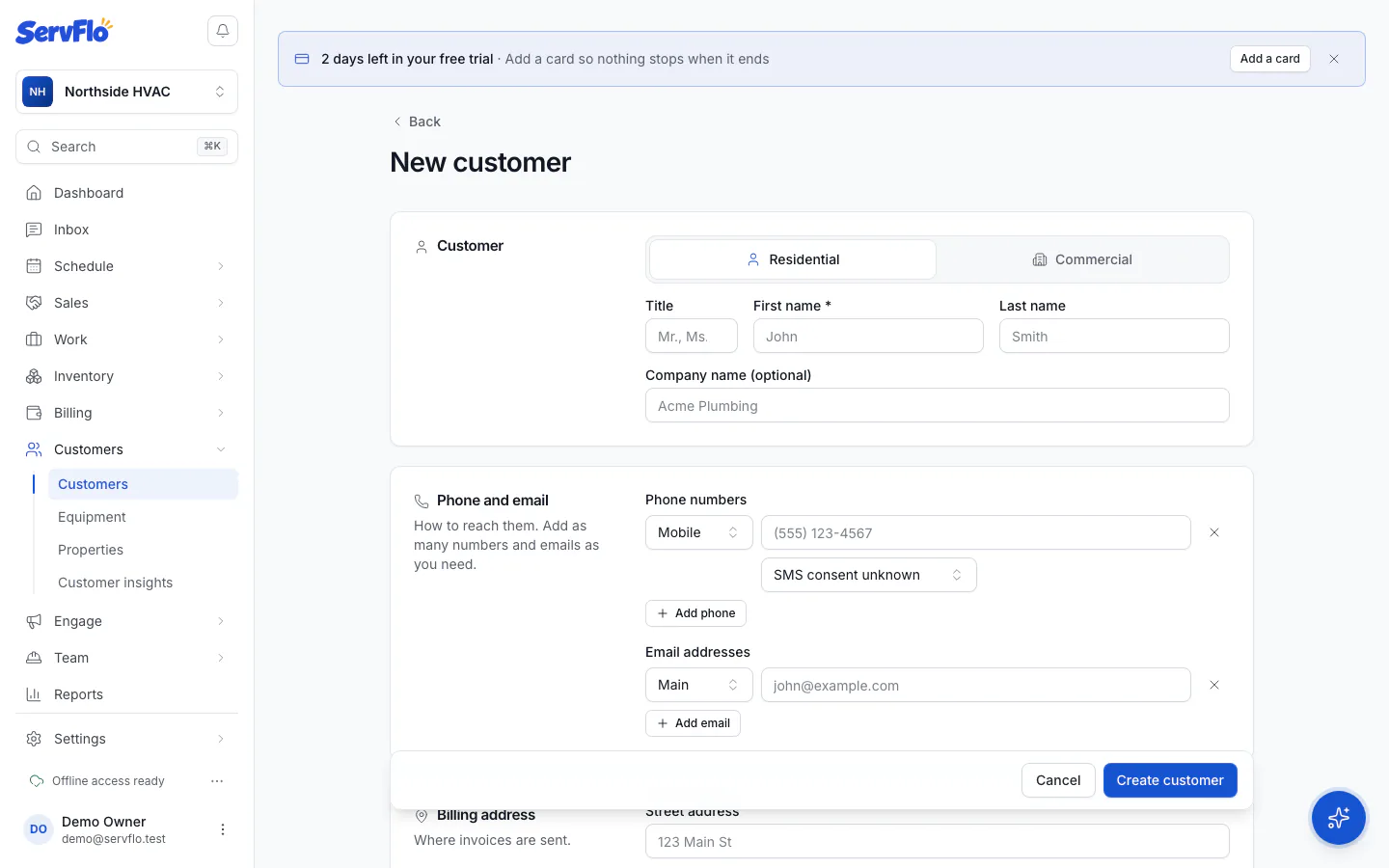
Choose the customer type
Under Customer, pick Residential for a person or Commercial for a business.
- Residential: enter a First name (required) and Last name. Company name (optional) is there if they also have one.
- Commercial: enter the Company name (required), then the Main contact's name.
You can also add a Title such as Mr., Ms. or Dr. It becomes part of the customer's name.
Add phone numbers and emails
Under Phone and email, enter how to reach them. Use Add phone and Add email for more than one. Give each a label (Mobile, Work, Home, Main, Fax or Other).
For each phone number, set Text message consent to OK to text, Do not text or leave it as SMS consent unknown.
These details go on the customer's primary contact. You can add more people later — see Add contacts and roles.
Enter the billing address
Under Billing address, enter where invoices are sent.
Set the service property
Under Service property, choose where the work happens:
- Same as billing address — most homeowners.
- A different address — for example a rental, a second home or a business site. Enter that address.
- No service property yet — add one later from the customer page.
The property is created and linked to the customer as its owner. Equipment and service history are kept per property.
Add a lead source and tags (optional)
Under Lead source and tags, pick where the customer heard about you and add any tags, such as VIP. You manage the list of lead sources in Settings → Lead sources.
Fill in more options (optional)
Open More options to set:
- Billing & terms: payment terms, credit limit and tax exemption. See Set billing terms, tax and credit limit.
- Preferences: Status, Preferred technician, Communication preferences, Do not service and Notes.
- Custom fields, if your business has set up customer fields. See Set up custom fields.
Save
Select Create customer. ServFlo opens the new customer's page.
Preferences explained
- Status: Lead, Active or Inactive. A lead becomes active automatically with their first job.
- Preferred technician: picked automatically on the customer's new jobs.
- Communication preferences: whether you may send Email about appointments and invoices, Text messages about appointments, and Marketing emails and offers.
- Do not service: shows a warning whenever work is booked for this customer. Add a Reason so your team knows why.
Add a customer while booking work
You don't have to leave what you're doing. When you pick a customer on a new job, quote, invoice or request, use New customer in the picker. Enter a name or company, phone, email and a service address. The customer and their first property are created and chosen straight away.
Edit a customer
Open the customer, then select More → Edit. Make your changes and select Save changes. Phone numbers and emails are edited on each contact in the Contacts section, not on this form.