
Add contacts and roles
Keep several people on one customer, each with their own phone numbers, emails and roles.
A customer can have as many contacts as you need — a spouse, a property manager, the accounts team at a company. Each contact has their own phone numbers and emails, and one or more roles that tell your team who they are.
The Primary contact is the person you call first. Their phone and email show on customer lists and jobs. Every customer starts with one primary contact, made from the details on the customer form.
Add a contact
Open the Contacts section
Go to Customers, open the customer, and select the Contacts tab.
Add the person
Select Add contact. Enter their First name, Last name and Job title if useful. You need at least a name, a phone number or an email.
Choose their roles
Under Roles, select every role that applies:
- Billing — receives and pays invoices
- On-site — the person to meet at the property
- Property manager
- Owner
- Tenant
- Other
Add phone numbers and emails
Use Add phone and Add email. Label each one and, for phones, set Text message consent.
Save
Turn on Primary contact if this person should be called first. Add any Notes, then select Save contact.
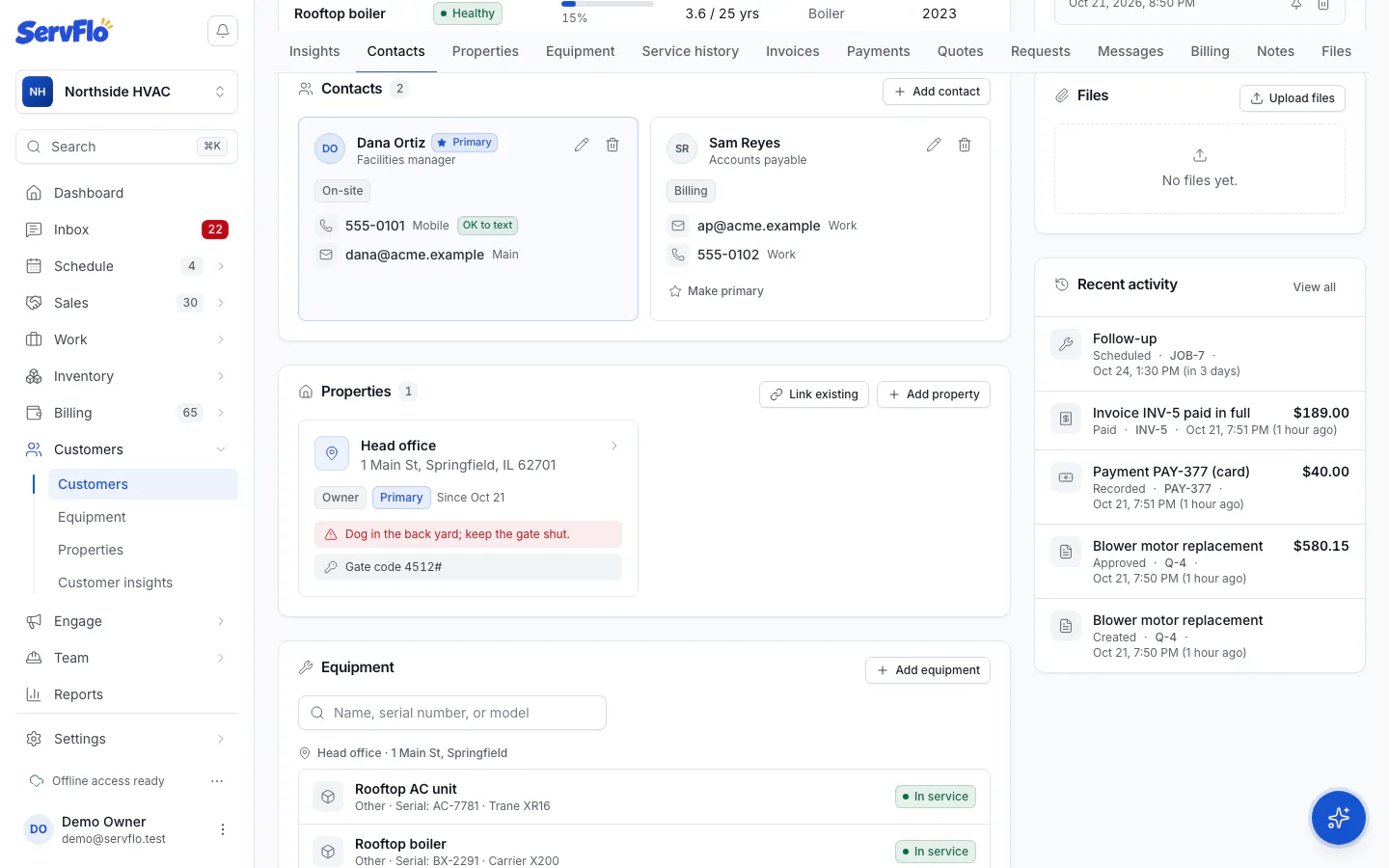
Change the primary contact
On the contact you want, select Make primary. The previous primary contact stays on the customer as a regular contact.
You can't switch off Primary contact on the current primary contact directly. Make another contact primary instead.
Edit or remove a contact
Use the pencil button on a contact card to edit it, or the trash button to delete it. If you delete the primary contact, the next contact becomes primary.
Deleting a contact happens straight away, without a confirmation, and can't be undone.
Text message consent
Each phone number shows OK to text or Do not text once it's set. ServFlo won't text a number marked Do not text. For texting and consent in detail, see Phone and texting.