
What customers can do in the customer portal
How your customers sign in to their own account with a code, and what they can see and do there.
The customer portal is your customers' own page with your business. They can pay invoices, approve quotes, see upcoming and past visits, book or request service and keep their details up to date — without calling your office.
Customer sign-in is on every plan and is turned on for new businesses.
How customers sign in
There's no password to remember. Customers sign in with a code:
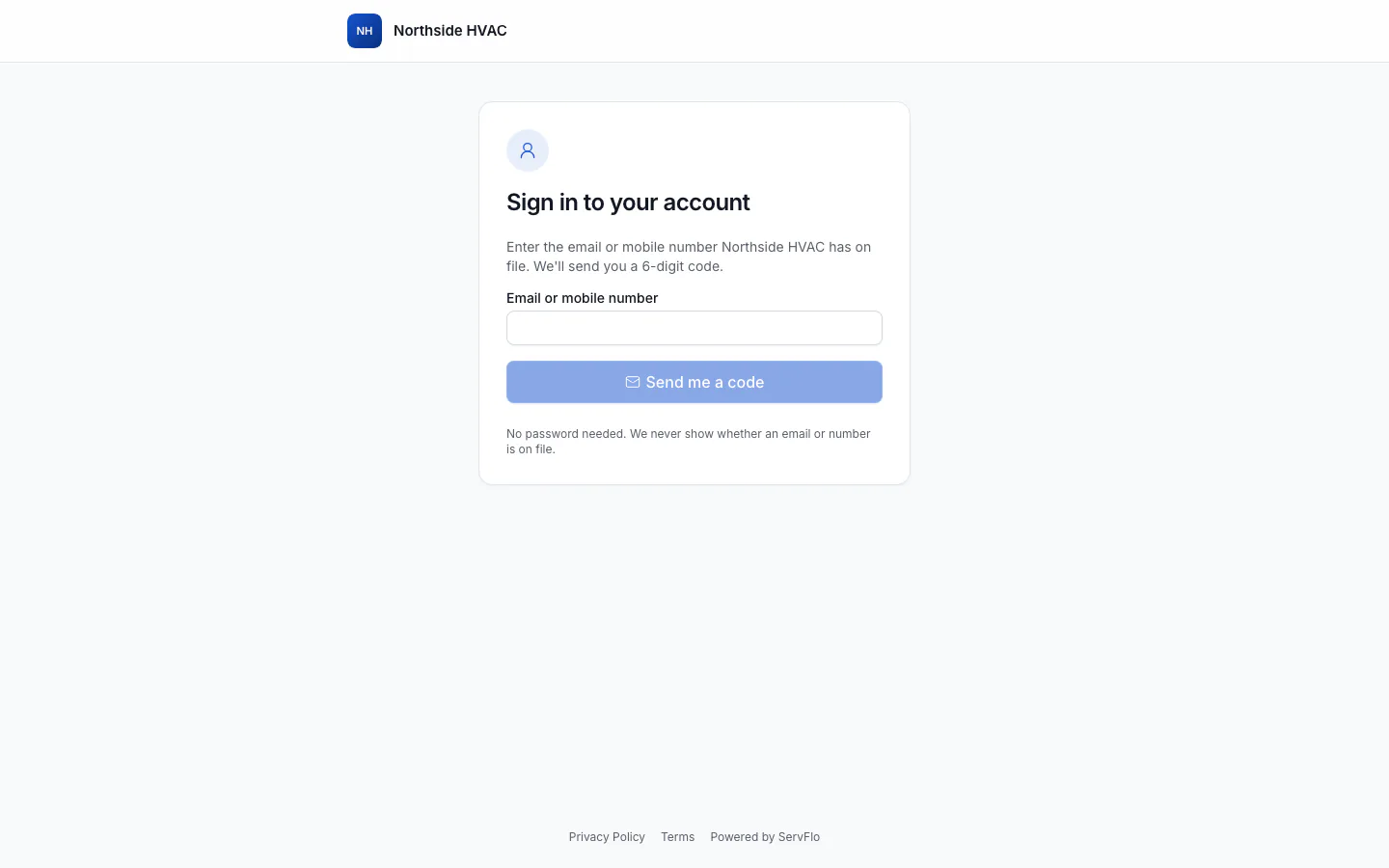
- The customer opens your sign-in page (see Share the customer portal). It shows your logo and business name, with the heading Sign in to your account.
- They enter the email or mobile number you have on file for them and select Send me a code.
- They get a 6-digit code by email or text. It expires after 10 minutes. Emails also include a link that signs them in with one tap.
- They enter the code and select Sign in.
If one email or number is on more than one account with you, they're asked Which account? and choose one.
Customers can only get a code by text if your business can send texts. Otherwise the page asks for an email. The page never says whether an email or number is on file, so strangers can't use it to check who your customers are.
Customers stay signed in on that device for 30 days after they last used the portal.
What customers can do
Once signed in, customers see these sections:
- Home — quick actions (Pay a bill, Book service, Quotes, My details), their balance, upcoming visits, quotes, invoices and memberships.
- Invoices & payments — their balance and every invoice you've sent. They can open an invoice to see its lines and payments, select Pay online if your business takes online payments, and Print or save as PDF for their records.
- Quotes & visits — their quotes (they open a quote to approve or decline it), upcoming visits, and booking:
- Reschedule or Cancel visit sends your office a request. Nothing moves until you confirm it, and the visit stays booked until then.
- Book a time lets them pick an arrival window, if you offer online booking with arrival times.
- Request service sends you a request describing what they need.
- Service history — their completed visits: the service, the technician's first name, what was signed off and by whom, and photos when you share them. It also lists their equipment, with their own items marked Yours.
- Account — their email and mobile number (a change is confirmed with a code sent to the new address), billing address, automatic payments for memberships, and their email and text message preferences.
Customers never see your internal notes, costs, other customers, or sensitive custom fields such as gate codes. Custom fields only appear if you've turned on Show to the customer for them — see Set up custom fields.
See where a customer is signed in
On the customer's page, the Customer portal card has a Signed in on list. It shows each device, how they signed in (Email code, Text code or Email link), and when they last used it.
- Sign them out of one device with the sign-out button next to it.
- Select Sign out everywhere to end all their sessions.
Archiving or deleting a customer also signs them out.
Turn customer sign-in on or off
Go to Settings → Online booking and find Customer sign-in. Only owners and admins can change it.
Turning it off signs every customer out at once, and the sign-in page says sign-in isn't available. Private portal links you've already sent keep working.
Old links
If a customer opens an invoice or quote link that you've since replaced, or a portal link that was revoked or has expired, they see Sign in to see this. After signing in they go straight to that record.