
Clock in and out
Start and end your shift and take breaks from the web app, so your paid time is recorded.
Clock in when your workday starts and clock out when it ends. Your shift, less any breaks, is your paid time for the day.
From the user menu
Open your user menu
Click your name or picture at the bottom of the left menu (on a phone, at the top right of the screen).
Clock in
Click Clock in. The menu now shows Clock out and since when your shift has been running.
Clock out at the end of the day
Open the same menu and click Clock out. Any break, job, travel or non-job time still running stops too.
From My day
Technicians and anyone linked to a technician can also use My day in the left menu. At the top it shows Not clocked in or Clocked in since a time, with buttons for Clock in, Clock out, Start break and End break.
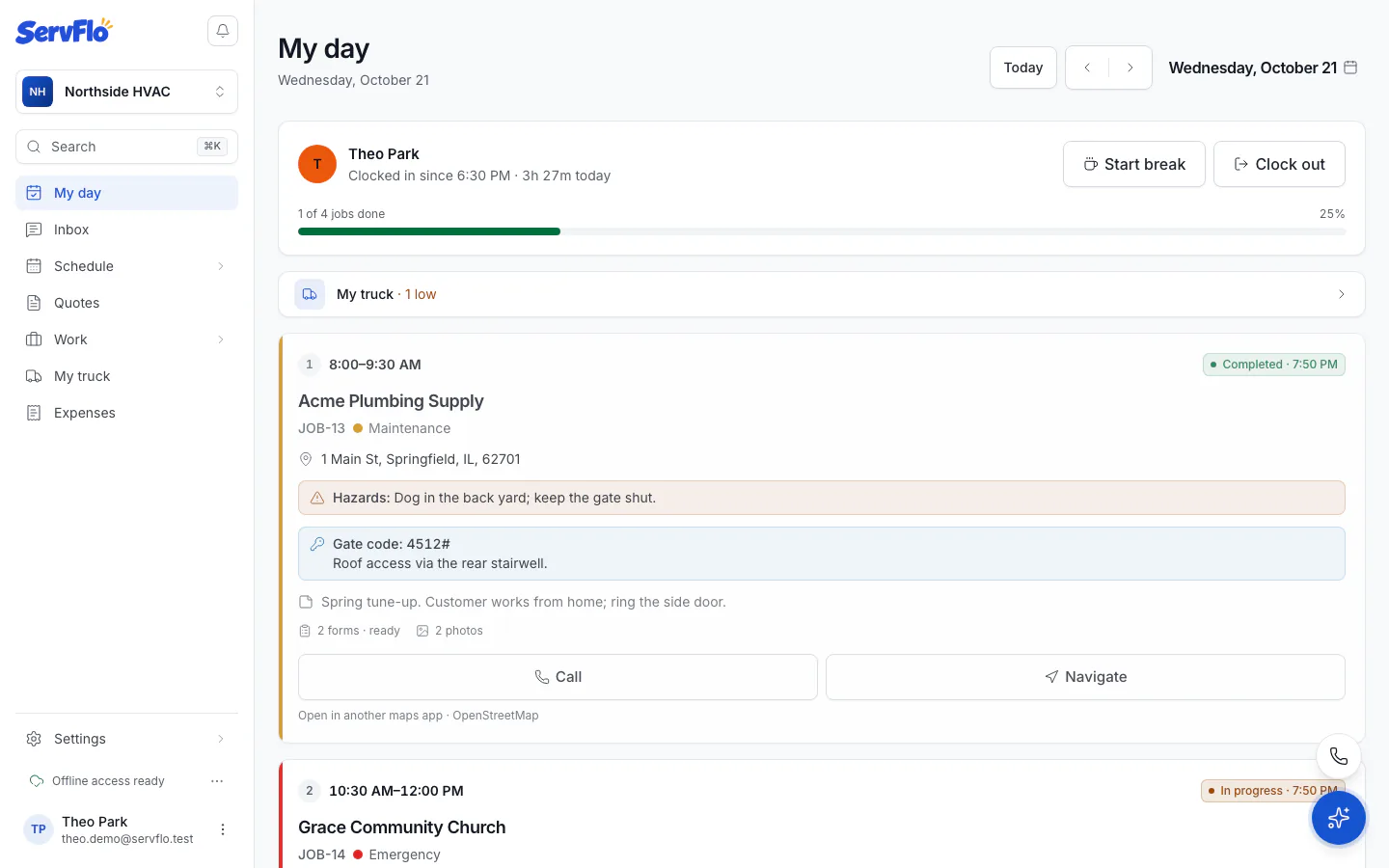
A break needs a running shift. Breaks aren't paid: they're taken off the shift when your paid time is worked out.
On the mobile app
Most technicians clock in from their phone, where they can also log non-job time such as the shop, the supply house or training. The app works offline and keeps the real time you tapped. See Time tracking on the mobile app.
Clock in and out is part of time tracking, on the Connect plan and up. On Core, the clock doesn't show (a shift already running can still be ended).