
Timesheets
See a week of time for yourself or your team, add or fix entries, export them and submit your week.
Timesheets show paid hours per person for the week (Monday to Sunday). Office staff see everyone; technicians see their own.
See the team's week
Open Timesheets
In the left menu, under Schedule, click Timesheets.
Pick the week
Use Previous week, Next week or This week. Each person's row shows their Total and Status: Not submitted, Submitted, Approved, Rejected or Clock running.
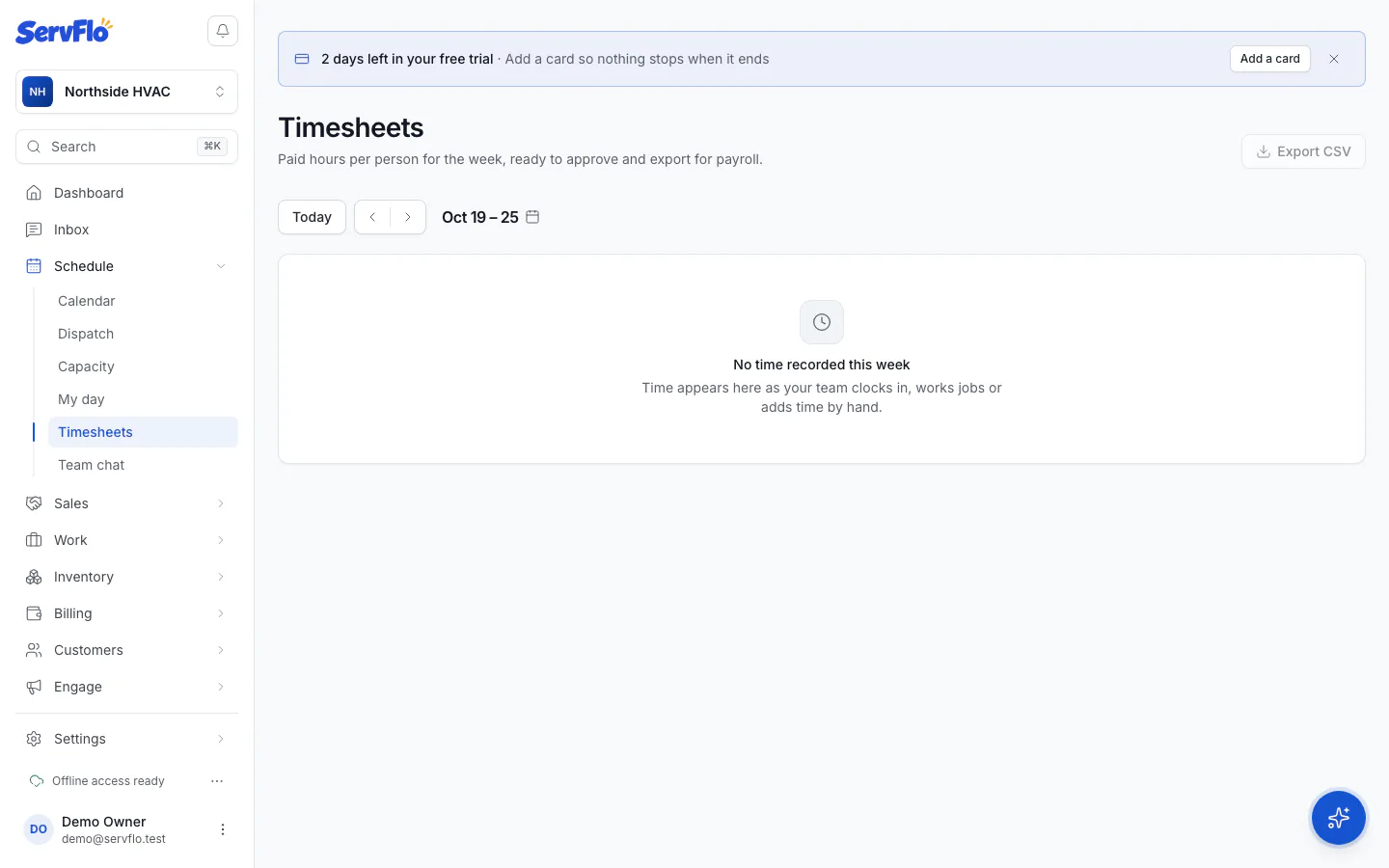
Open someone's timesheet
Click a person to see their Days, Time per job and every entry, with its kind (Shift, Job, Travel, Break or Non-job) and how it was recorded (Clock, Automatic or Added by hand).
Click Export CSV to download the week (hours in decimals) for a spreadsheet.
Add time by hand
Click Add time
On the timesheet, click Add time.
Fill in the entry
Choose the Kind, the Job (or No job), the Date, Start and End, and an optional Note.
Say why
Enter a Reason. It's kept on the entry so the approver can see it. Then click Add time.
Time can't be in the future, and one entry can't be longer than 24 hours.
Fix or delete an entry
Open the entry's actions and click Edit, change it, give a Reason and click Save changes. Click Delete to remove it; this can't be undone.
If someone forgot to clock out, the timesheet warns you about the shift that's still running: click Fix entry to set its end time.
Changing an entry sends it back to Not submitted. Approved entries are locked: only someone who approves timesheets can change them, and their reason is kept.
Submit your week
When your week is done, open your timesheet and click Submit week. You need to be clocked out first. The status changes to Submitted, waiting for approval.