
Run payroll
Review a pay period's hours, overtime, commissions, tips and reimbursements, then close it to lock its timesheets.
The Pay run shows what each person earned in a pay period. ServFlo works out the figures; your payroll service still calculates taxes and deductions and pays people. Only owners and admins can see payroll.
Review the pay run
Open Payroll
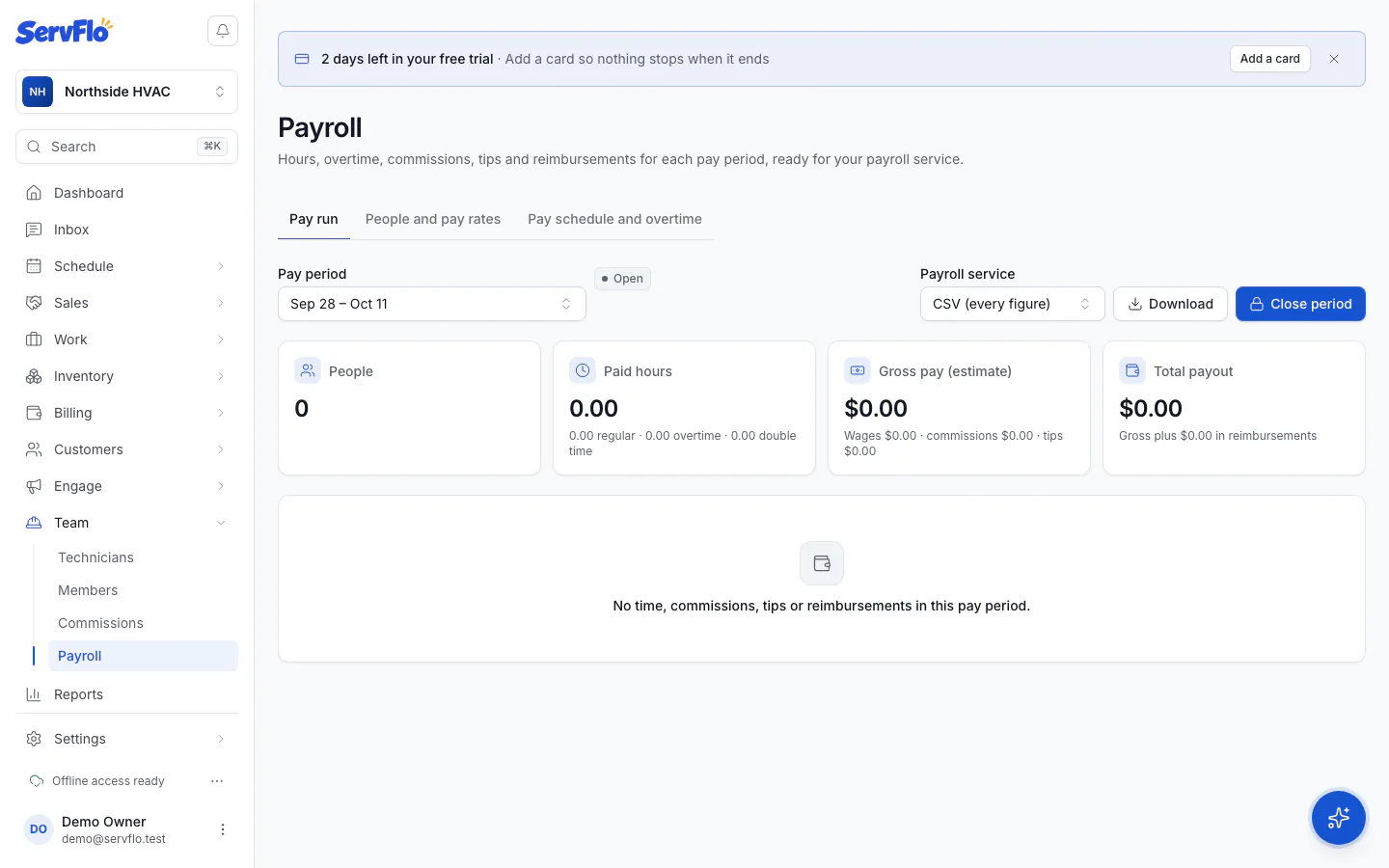
In the left menu, under Team, click Payroll. The Pay run tab opens on the current Pay period. Pick an earlier one from the list.
Check the totals
The cards at the top show People, Paid hours (regular, overtime and double time), Gross pay (estimate) and Total payout (gross plus reimbursements).
Check each person
Each row shows Regular, Overtime, Double time, Non-job, Wages, Commission, Tips, Reimburse, Gross and Total.
Clear the warnings
Under Before you close, ServFlo lists time entries not approved yet, clocks still running, people with No rate, and tips on payments with no technician on the job. Click Review timesheets to fix time.
What's in the figures
- Hours come from timesheets. Approved and unapproved time both count; rejected time doesn't.
- Commissions count once approved. Commissions waiting for approval are shown apart and left out of gross pay.
- Tips paid with a payment in the period go to the technician on the invoice's job, else the technician who took the payment.
- Reimbursements are expenses marked reimbursable in the period, paid to the person who recorded them.
If you use business units, choose a Business unit to see only that unit's people. The run is grouped by each person's home unit, with a subtotal for each.
Close the period
Close a period once it has ended and you've paid it. Closing freezes the figures and locks the period's timesheets.
Click Close period
You can close a period after its last day. ServFlo won't close it while a clock is still running in it.
Confirm
If some entries aren't approved, tick Close even though … not approved to go ahead. Click Close period.
While a period is closed, no one can add, edit, delete, submit or approve time in it. Exports of a closed period use the frozen figures, even if a pay rate changes later.
Reopen a period
Click Reopen, say Why are you reopening it? and click Reopen period. Timesheets can change again until you close it again. The reason is kept in the activity log.
Time recorded offline on a phone can arrive after you close. The closed run tells you how many entries changed since closing; reopen and close again to include them.