
Pay rates and payroll ids
Set each person's hourly rate or salary, overtime exemption, and the ids your payroll service uses for them.
The People and pay rates tab lists every technician and everyone who has tracked time. Set how each one is paid and how your payroll service knows them, so the pay run and the export files are complete.
Open People and pay rates
In the left menu, under Team, click Payroll, then the People and pay rates tab.
Edit a person
Click Edit next to them.
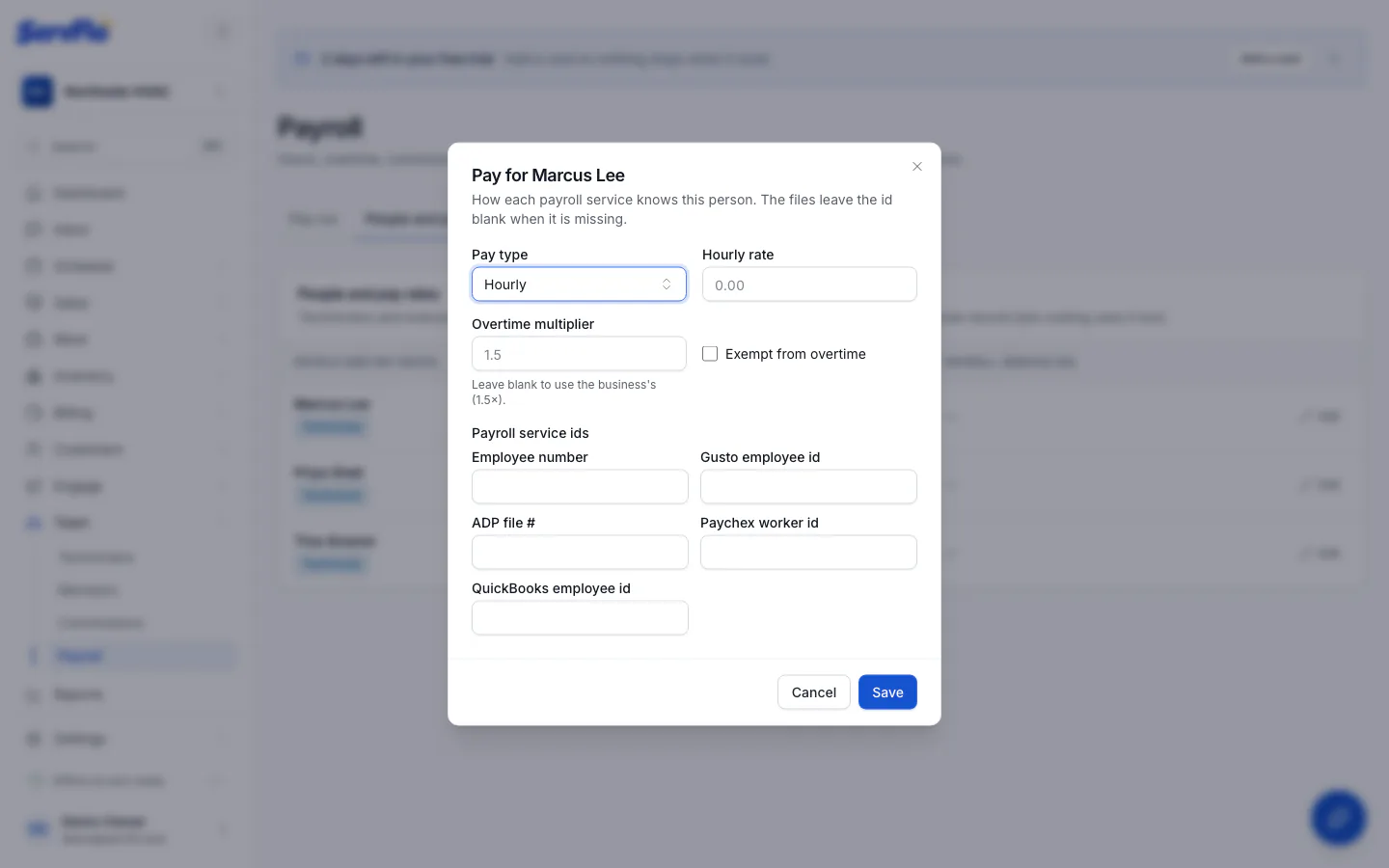
Set their pay
Choose a Pay type:
- Hourly: enter the Hourly rate. Optionally set their own Overtime multiplier (blank uses the business's) or tick Exempt from overtime.
- Salary: enter the Annual salary. Each period's wages are the salary divided by the number of pay periods in a year.
Add their payroll service ids
Under Payroll service ids, fill in the ones you use: Employee number, Gusto employee id, ADP file #, Paychex worker id, QuickBooks employee id. Then click Save.
A technician's hourly rate is the pay rate on their technician record, and job costing uses the same rate. Changing it here changes it there.
If someone's id is missing, the export file leaves their cell blank and ServFlo tells you who to fix.