
Present a quote in the customer's home
Walk the customer through your options on a tablet or phone, then have them sign and pay the deposit.
The sales presenter turns a quote into a step-by-step presentation for the kitchen table. You show who you are and what you found, compare the options side by side, and the customer signs on the screen. Available on the Grow and Pro plans.
Before you start
- The quote must be a Draft, Awaiting approval, Changes requested or Expired.
- For the best results, give each option a picture, highlights and a warranty, and mark one as recommended. See Offer good, better and best options.
Present a quote
Open the presentation
Open the quote and click Present. From a job, click Present options and choose the quote to walk through.
Go through the steps
Use Next and Back to move through the steps. Steps without anything to show are skipped.
- Who we are: your company story, trust badges and customer reviews.
- What we found: the job's photos and technician notes, and the customer's equipment with its age and condition.
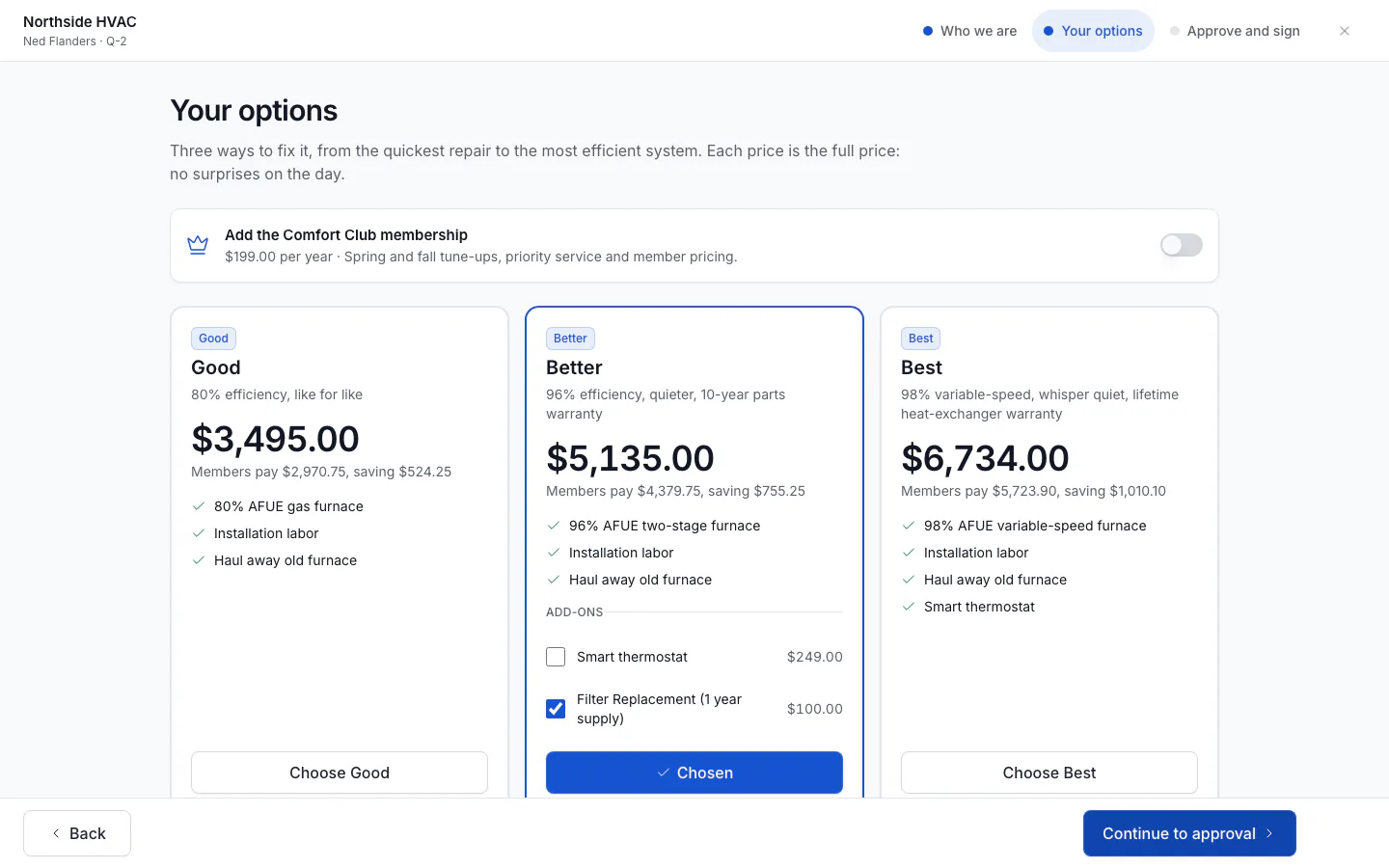
- Your options: each option side by side with its price, picture, highlights and warranty, and a Compare options table. If your template offers a membership, the customer can add it and see the member price.
- Ways to pay: monthly estimates when you offer financing.
- Approve and sign: the customer's choice, the total, any deposit due today, and the terms.
Get the signature
On Approve and sign, enter the Customer name, have the customer sign under Customer signature, and tap Approve. Approving needs an internet connection.
Collect the deposit
If the quote asks for a deposit, the Approved screen shows the amount due:
- Customer pays by card: shows a QR code. The customer scans it with their phone and pays on the quote page.
- Collect deposit: takes you to the quote, where you can record a cash or check payment.
Tap Done to finish.
If the customer isn't ready, tap Not today, add an optional reason and tap End presentation. The quote stays open for later.
Set up your presentation
Go to Settings → Sales presenter to create templates. With no template, ServFlo uses a built-in one.
- Click Create template and give it a Name.
- Under Steps, choose which steps to show and in what order. The approval step always stays on.
- Add your Company story (if you leave it empty, ServFlo uses the About section of your website), up to eight Trust badges such as "Licensed & insured", and whether to Show reviews.
- Under Membership add-on, choose a membership plan to offer next to the options, or None.
- Click Save template.
Turn on Default template to use a template for every quote. If you use business units, you can give a unit its own template.
See how presentations go
Reports → Sales pipeline includes an In-home presentations section: how many quotes were presented and won, your close rate, how often the membership was added, which option customers chose, the average time per step, and results by presenter.
Technicians can present the quotes they made at their own jobs, when your business lets technicians quote. In the mobile app, Present options on the job opens the presentation. See Mobile app.