
Create a quote
Build a quote with line items from your pricebook or typed in by hand.
You can start a quote from scratch, or from a request someone sent you. Either way, it's saved as a Draft until you send it.
Start a new quote
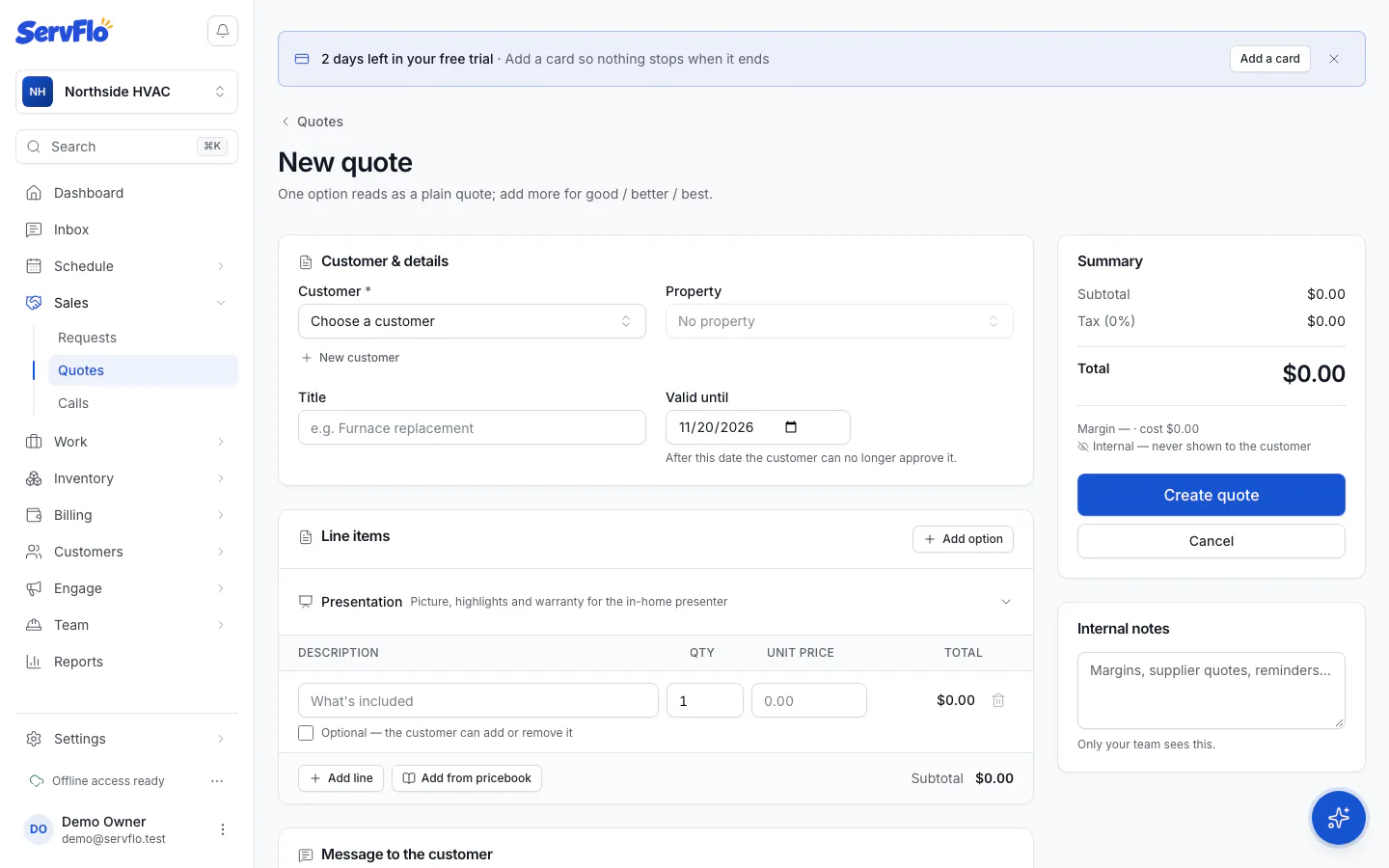
Go to Sales → Quotes and click New quote.
You can also open a request and click Convert to quote. ServFlo makes the contact a customer if they aren't one yet, and starts the quote with the requested service as its first line.
Fill in the customer and details
Under Customer & details:
- Customer: choose who the quote is for.
- Property: optional. Choose which of the customer's properties the work is at.
- Title: a short name the customer sees, such as "Furnace replacement".
- Valid until: optional. After this date the customer can no longer approve the quote.
ServFlo works out the tax from the customer and property. If the customer is tax exempt, no tax is added and the form says so.
Add line items
Under Line items, describe each piece of work with a Description, Qty and Unit price. Click Add line for another line.
To use your saved prices, click Add from pricebook, search, and pick a service or material. It's added as a new line with its price.
Tick Optional — the customer can add or remove it on any line the customer may choose to add, such as a surge protector. Then decide whether it starts ticked: Included unless they remove it.
Add a message and a deposit (optional)
- Message to the customer: a short note shown at the top of the quote.
- Deposit: choose None, Percentage or Fixed amount. See Ask for a deposit.
- Internal notes: margins, supplier quotes and reminders. Only your team sees them.
The Summary shows the subtotal, tax, total and deposit as you go.
Save the quote
Click Create quote. The quote opens as a Draft, laid out as the customer will see it.
Next steps
- Want to offer choices? Add good, better and best options.
- Ready? Send the quote.
You can edit a quote while it's a draft, awaiting approval, has changes requested or has expired. If the customer already has the link, they see your changes the next time they open it.