
Offer good, better and best options
Give customers up to five options on one quote and let them pick the one they want.
Customers say yes more often when they can choose. A quote can have up to five options, each with its own line items and total. The customer picks one when they approve.
A quote with only one option reads as a plain quote everywhere, so you only need this when you want to offer a choice.
Open the quote
Create a new quote, or open a quote and click Edit.
Add options
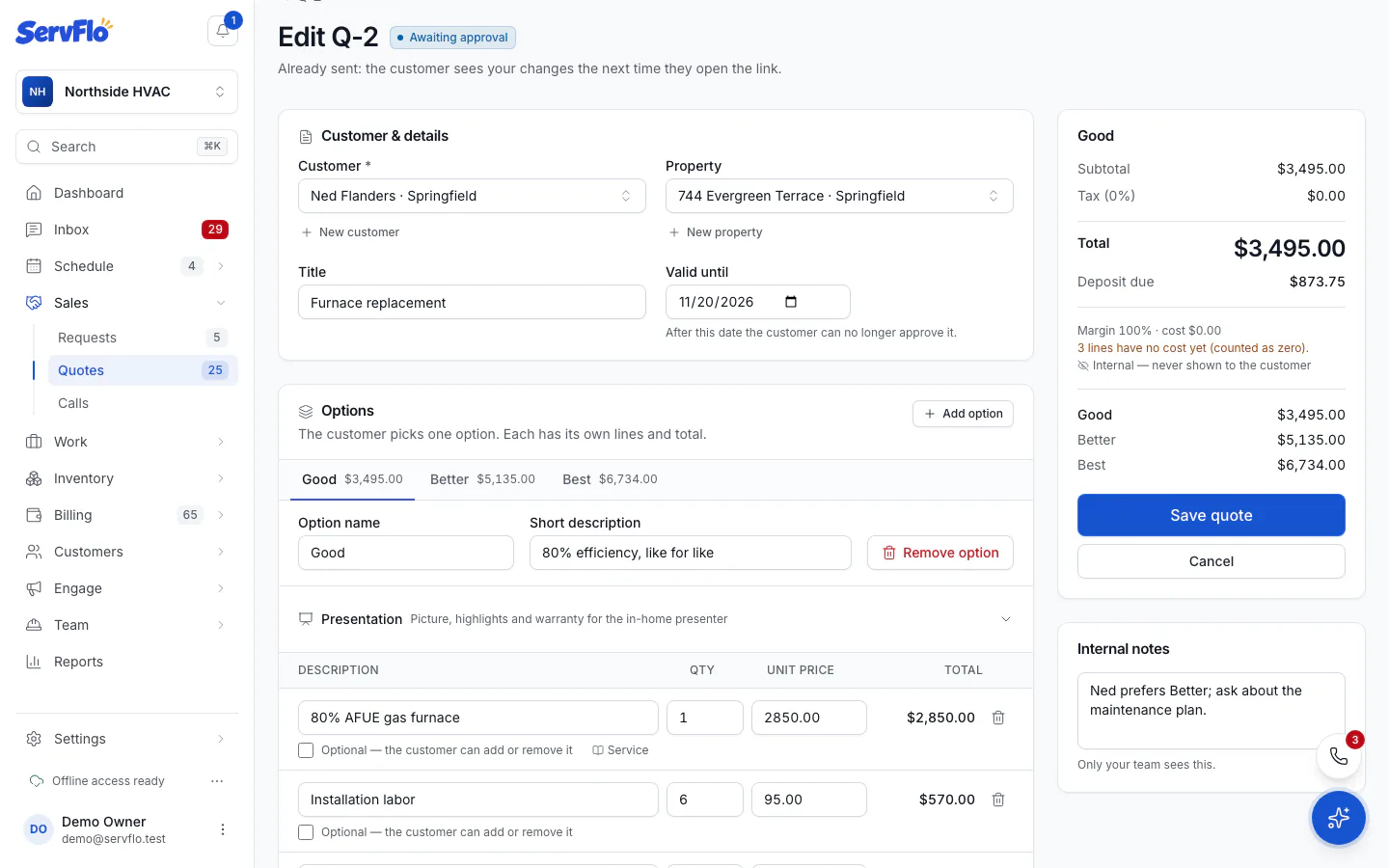
Under Options, click Add option. The first time you do this, ServFlo names your options Good and Better. A third one is named Best. You can rename any of them in Option name.
Each new option starts as a copy of the option you're looking at, because tiers usually differ by only a line or two. Change what's different, such as the equipment model or the warranty.
Describe each option
Add a Short description for each option, such as "Our most efficient system, 10-year warranty". The customer sees it on the option card.
Save
Click Save quote (or Create quote for a new one). The quote list shows the price as "from" the cheapest option until the customer chooses.
To take an option out, click Remove option.
Pictures, highlights and a recommended option
Each option also has a Presentation area. These details are used when you present the quote in the customer's home:
- Image URL: a picture of this option (an https link).
- Warranty: for example "10-year parts, 2-year labor".
- Highlights: short bullets, compared side by side across options.
- Recommended option: shows a "Recommended" ribbon. Only one option can be recommended.
What the customer sees
On the quote page, the customer sees each option as a card under Choose an option, with its total. When they pick one, they can tick any optional extras for it under Customize your quote, and the total updates. See How customers approve and sign a quote.