
How customers approve and sign a quote
What your customer sees on the quote page, and how to record an approval for them.
Your customer doesn't need an account or an app. The link you send opens a web page that works on any phone or computer, branded with your business name and logo.
What the customer sees
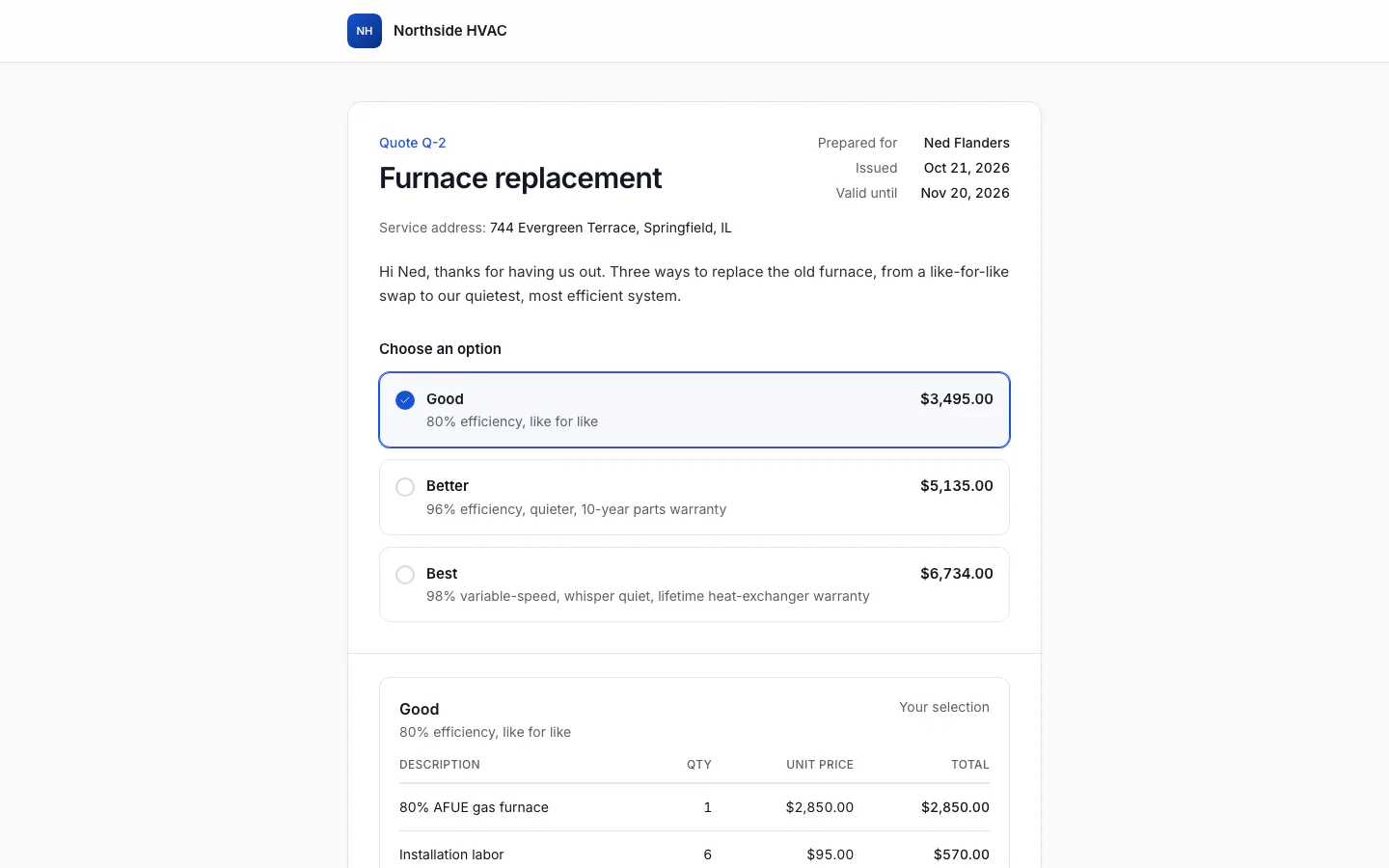
The page shows the quote as a document: who it's prepared for, the service address, when it was issued and how long it's valid.
- Choose an option. If the quote has more than one option, the customer picks one from the option cards. Each card shows its total, including tax.
- Customize your quote. If there are optional extras, the customer ticks the ones they want. The total updates as they go.
- Review the selection. Your selection shows the chosen option, the total and any Deposit due on approval. If you offer financing, the customer may also see "or about $X/mo with financing".
- Answer. Under Your answer, the customer chooses one of three tabs:
- Approve: they type their full name to sign, tick that they agree to the terms and the total, and click Approve quote.
- Request changes: they write what they'd like changed and click Send request.
- Decline: they can give a reason, then click Decline quote.
After answering, the page shows the outcome and can't be answered again. An approved quote shows who signed, when, and the terms they agreed to.
If the quote asks for a deposit and you take payments online, the customer can pay it right there with Pay deposit. See Ask for a deposit.
The terms customers sign
When customers approve, they agree to your quote terms. ServFlo has a plain-language default. To use your own wording, go to Settings → Company profile and edit Quote terms under What customers sign. A copy of the exact text is kept with each approval, so changing it later doesn't change what earlier customers agreed to.
The default terms are a starting point, not legal advice. Have your own wording reviewed for your state and trade.
What happens on your side
When the customer answers, the quote's status changes to Approved, Changes requested or Declined, and the status timeline on the quote shows when.
- Approved: turn it into work. See Turn a quote into a job or an invoice.
- Changes requested: the customer's note is on the quote. Click Edit, make the changes and send it again.
- Declined: the reason, if they gave one, is on the quote.
Signed-in customers can also find their quotes under Quotes & visits in their customer account.
Approve a quote for the customer
If a customer says yes by phone or in person, you can record the approval yourself.
- Open the quote and open the ⋯ menu.
- Choose Mark approved.
- Choose the option and any extras they agreed to. Optionally type the Customer's name.
- Click Mark approved.
The timeline shows "Marked approved by your team". If you left the name empty, the quote shows "Recorded by your team" where the signature would be.