
Send a quote
Email or text a quote to your customer, or share its link yourself.
When you send a quote, the customer gets a link to a page where they can review it, choose an option and approve it. Sending moves the quote from Draft to Awaiting approval.
Send it by email or text
Open the quote
Go to Sales → Quotes and open the draft.
Click Send quote
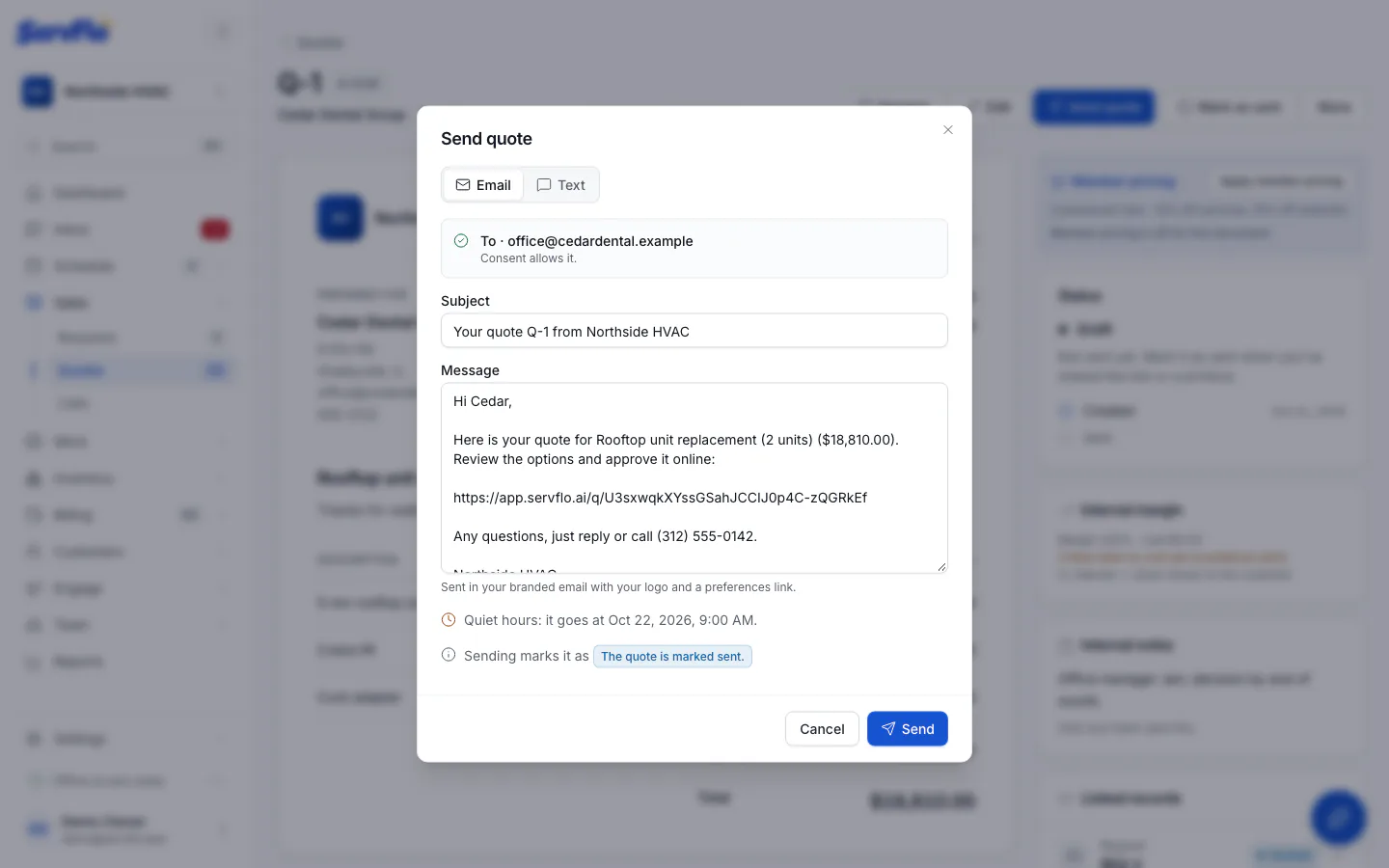
Click Send quote. A preview opens.
Check the message
- Send by: choose Email or Text.
- Send to: choose which of the customer's addresses or numbers to use. ServFlo shows whether the customer's contact preferences allow it. You can only text a number marked OK to text.
- Subject (email) and Message: edit the wording if you like. The message already includes the link to the quote.
Send
Click Send. If it's during your quiet hours, the message is queued and goes out when they end.
What the customer receives
The email says something like: "Here is your quote for Furnace replacement ($8,450.00). Review the options and approve it online", followed by the link. Emails are sent in your branded layout with your logo. The text is a short version with the same link.
The link opens the quote page, branded with your business name and logo. See How customers approve and sign a quote.
Share the link yourself
If you'd rather send the quote another way (from your own email, in person, or as a printout):
- Open the draft and click Mark as sent.
- Click Copy customer link and paste the link wherever you like.
To print the quote, open the ⋯ menu and choose Print.
Send it again
While a quote is Awaiting approval or Changes requested, you can click Send quote again, for example after you edit it. The customer link stays the same.
If you think a link has been shared with the wrong person, click Replace link in the Customer link panel. The old link stops working right away.
Follow up automatically
The Quote follow-up automation emails the customer 3 days after you send a quote and texts them 4 days later if they still haven't answered. It stops as soon as they approve or decline. Turn it on under Engage → Automations. Automations are available on the Connect, Grow and Pro plans.
If the Valid until date passes before the customer answers, the quote becomes Expired and can't be approved. Edit the quote and move the date forward to send it again. The same link works.