
Add a membership
Sign a customer up to a membership plan from the office.
Sign a customer up when they agree to a plan by phone, in person or on a quote. The membership bills itself and books its included visits from then on.
Start from the customer or the list
On the customer's page, in the Memberships section, click Add membership. Or go to Work → Memberships and click Add membership, then choose the Customer.
Choose the plan and property
Choose the Plan. Under Property, pick the address the membership covers, or leave All of the customer's properties.
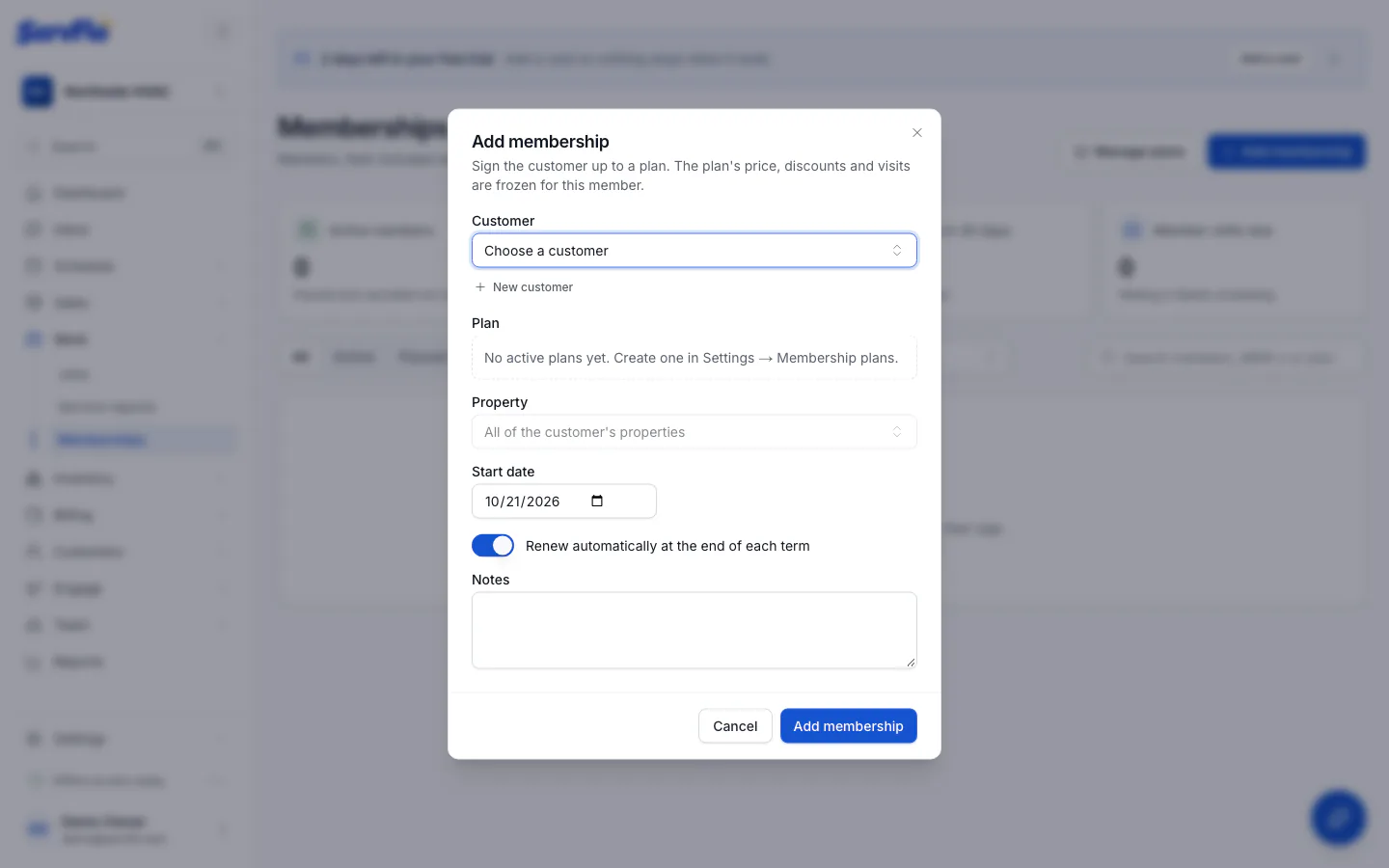
Set the start date and renewal
The Start date is today unless you change it. Renew automatically at the end of each term follows the plan; change it for this member if needed. Add any Notes.
Add it
Click Add membership. The membership gets its own number (for example MEM-12).
A membership that starts today or earlier bills its first period right away (you'll see "The first billing invoice was created") and creates any included visit whose window is already open. If the customer has autopay on, their card is charged for that invoice.
The membership page
Click a membership on Work → Memberships to see:
- Plan at signup: the price, term, Member discounts, Priority service and Tax this member signed up with.
- Included visits for each term, with their status (Due, Scheduled, Completed, Skipped) and links to their jobs.
- Billing history with each period's invoice.
- Auto-renew and the Property it covers, which you can change.
- If a technician sold it on site, who signed, when, their signature and the Agreement they signed.