
Invite office staff
Send someone an invitation to join your business with a role.
Owners and admins can invite people. Use this for office roles (Admin, Dispatcher, Member). For technicians, use Give a technician app access instead, so their account is linked to their technician record and their jobs.
Every role except Technician uses one of your plan's office users, including while the invitation is pending. See Office users and technicians.
Open Team members
In the left menu, open Team → Members. You can also get there from the Team members card on the Settings page.
Select Invite with a role
Select Invite with a role.
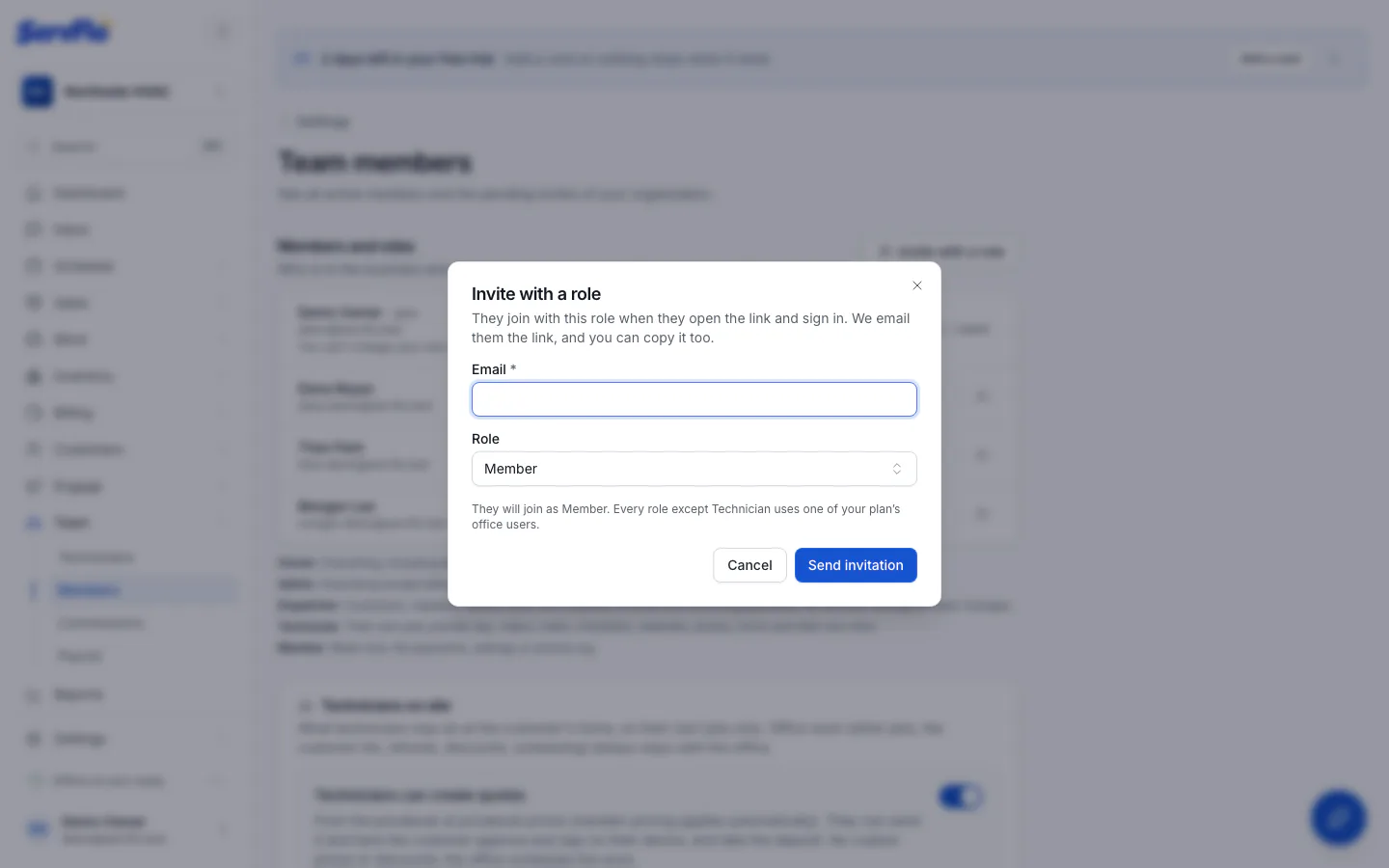
Enter their email and pick a role
Type their Email and choose a Role. The role starts as Member. Only an owner can invite someone as an owner.
Send the invitation
Select Send invitation. ServFlo emails them a link to join.
If your plan has no room
If every office user on your plan is taken (pending invitations count), the dialog says how many your plan has and how many are taken, instead of sending.
- The owner sees Add a seat ($35/month). Select it, tick the box to accept the price and select Save. ServFlo then sends the invitation for you. See Add a seat.
- Anyone else sees "Ask the owner to add a seat in Settings → Billing."
You can also free a seat by removing someone or withdrawing a pending invitation.
The invitation link
After you send it, ServFlo shows the Acceptance link with a Copy link button and the date it expires. The link is shown only once, so copy it now if you want to text it yourself. If ServFlo couldn't email the person, it says so: copy the link and send it to them yourself.
The person joins with the role you chose when they open the link and sign in with the address you invited. See Accept an invitation.
Manage pending invitations
Invitations that haven't been accepted yet are listed under Pending invitations on the same page, with their expiry date.
- Change the role: pick a different role on the invitation. ServFlo emails a new link, and the earlier link stops working.
- Withdraw it: select the × next to the invitation, then Withdraw. The link stops working at once, and the office user it was holding is freed. You can invite them again later.