
Give a technician app access
Invite a technician to sign in to ServFlo so they see their own jobs on their phone.
A technician on your Technicians list is only a record until they have a ServFlo sign-in. Once their account is linked, they see their own jobs and My day in the mobile app and on the web, and their time is recorded against them. Technicians are free on every plan.
Owners and admins can invite technicians.
Invite a technician
Open Technicians
Go to Team → Technicians. If the technician isn't listed yet, add them first.
Make sure they have an email address
The invitation goes to the email on the technician record. If it's missing, ServFlo asks you to add one first.
Invite them
Open the technician's account actions and select Invite to ServFlo. ServFlo emails them a link, and shows it once so you can copy it too.
They sign in
The technician opens the link and signs in, or creates an account, with that same email address. They're linked to their technician record automatically the first time they sign in.
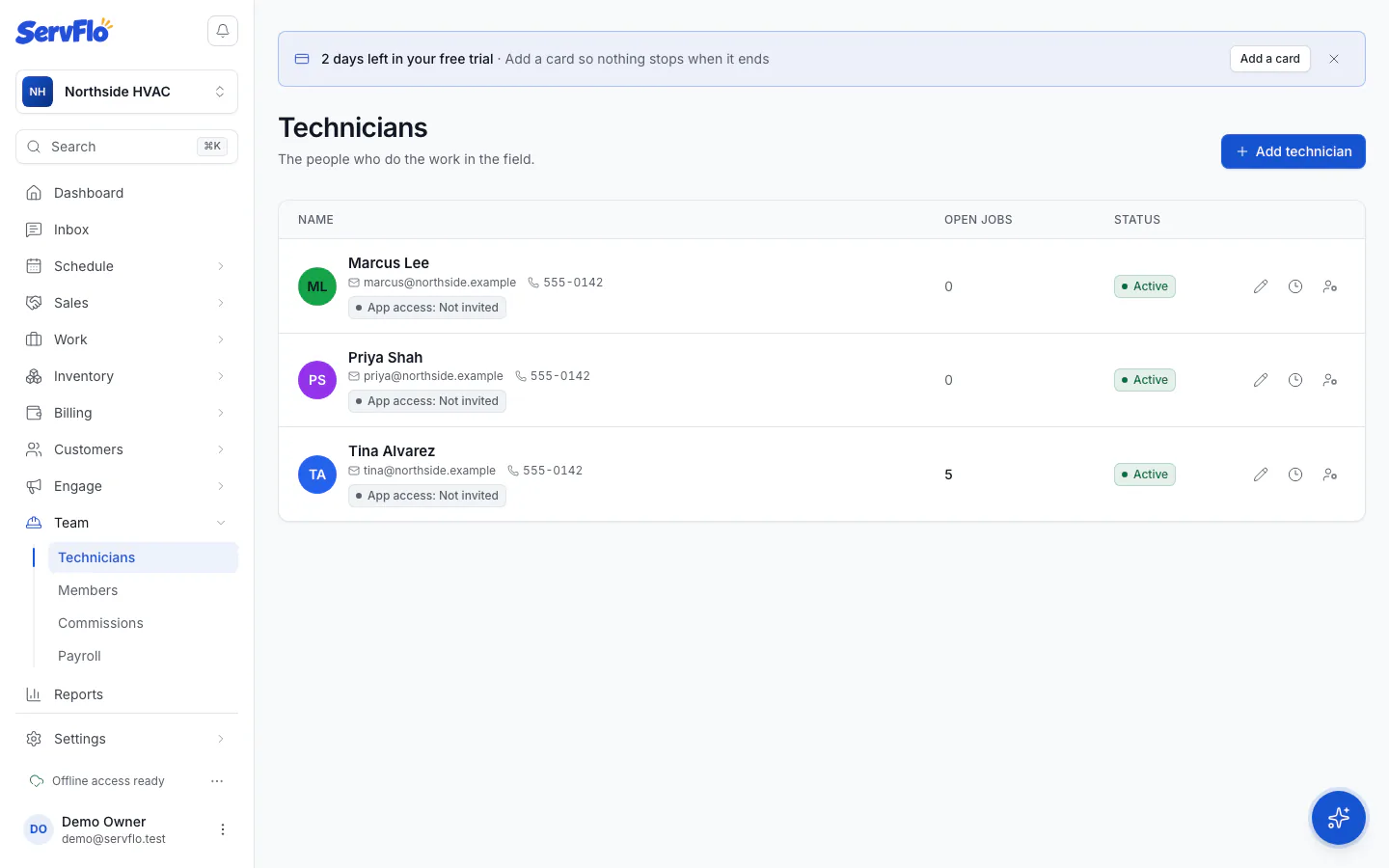
Each technician shows their App access: Not invited, Invited or Signed in. If the invitation was lost or expired, choose Invite again.
Then point them to the app: see Mobile app.
Link someone who's already a member
If the person already belongs to your business (for example, you invited them from Team members), open the technician's account actions, select Link existing member, choose them and select Link member. Give them the Technician role on Team → Members so they don't take an office user.
To stop an account seeing a technician's jobs, choose Unlink.
Someone with the Technician role but no linked technician record sees no jobs. Link them to a technician to fix it.