
Audiences and segments
Choose who gets a campaign with filters, a saved segment or a hand-picked list, and see who can be reached.
In a campaign's Audience section, Who gets it has three options:
- Build an audience with filters.
- Saved segment: a named audience you saved before.
- Pick customers one by one.
Filters
Every filter you set must match. With none, everyone who may get marketing is included.
| Group | Filters |
|---|---|
| Who and where | Customer type, Has any of these tags, Leave out these tags, ZIP codes, Cities, Lead source |
| Service history and value | Serviced in the last (days), Not serviced in (days), Membership (active, never, lapsed), lifetime value range |
| Behaviours and predictions | Behaviours (all of them), Service due within (days), Likely equipment replacement, At risk of leaving |
| Equipment | Equipment type, Equipment at least (years old) |
Behaviors and predictions come from Customer 360.
Live count
As you change the audience, ServFlo shows how many customers match, how many Can be emailed and Can be texted, and Why the others can't (for example no marketing consent, unsubscribed, or no mobile number). For very large audiences the count is estimated from the first 5,000 customers.
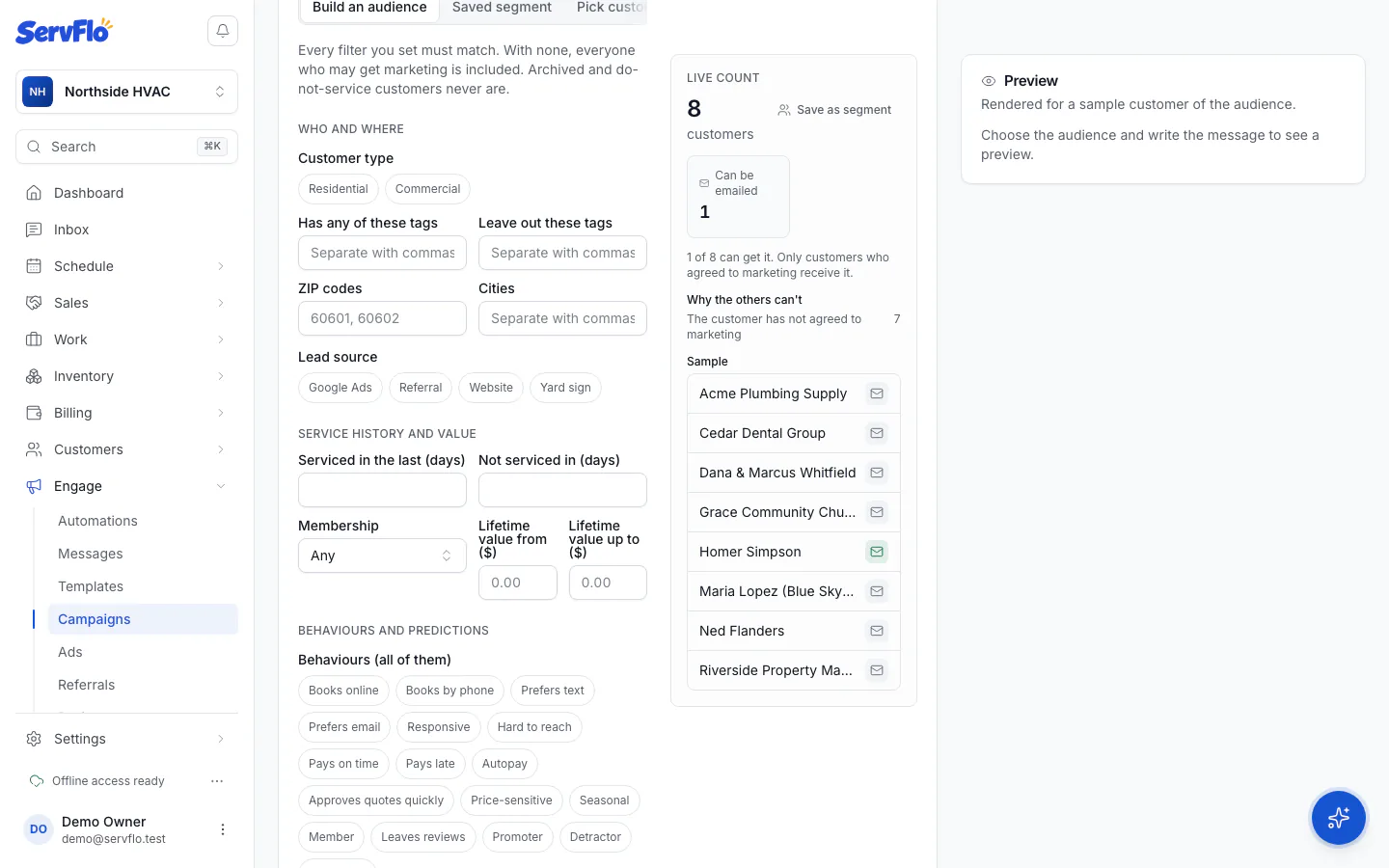
Save a segment
Click Save as segment, give it a Name and click Save segment. Segments are applied when a campaign starts, so they stay current: customers who match later are included next time.
Manage segments on Engage → Campaigns → Saved segments: New segment, Edit or Delete. Campaigns already sent keep their results.
Who is never included
Archived and do-not-service customers, and anyone without marketing consent for that channel.