
Set up business units
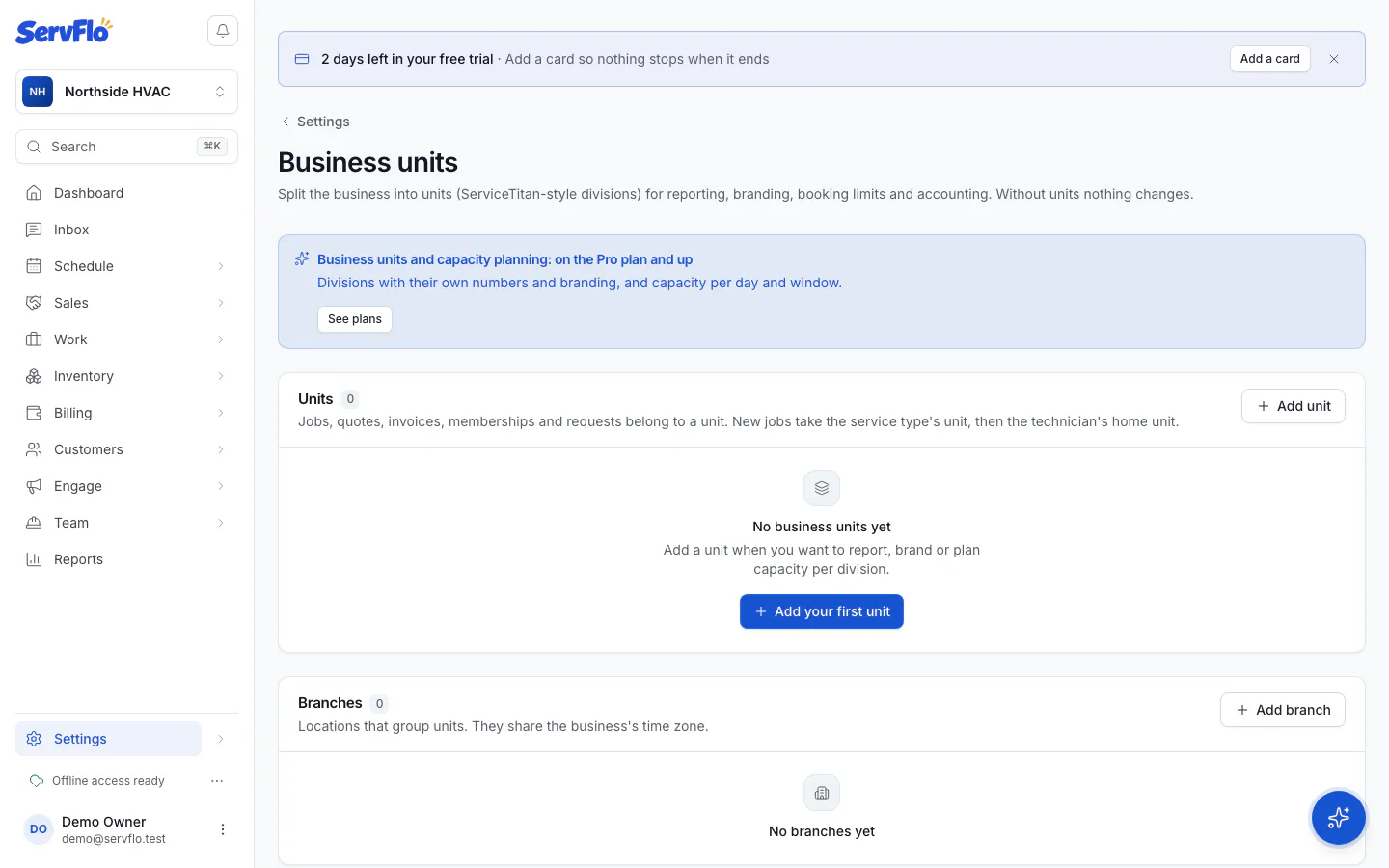
Add business units and branches, with their own branding, default tax rate, online booking limits and accounting mapping.
Only owners and admins can add or edit units.
Add a unit
Details
Enter a Name (for example "HVAC Service"), pick or type a Trade, and choose a Branch if you use them.
Branding (optional)
Add a Phone, Email, Logo URL and Invoice footer. These show on the unit's invoices and quotes instead of the business's own. Leave a box blank to use the business's. Your legal business name always stays on documents, with the unit shown as the division.
Tax (optional)
Set a Default tax rate (%). It's used on the unit's new invoices and quotes when the property has no rate of its own. Tax-exempt customers are never taxed.
Online booking (optional)
Turn off Offer online to stop online booking offering this unit's service types. Set Stop online booking at (%), or a limit Per arrival window (%), to override the business's capacity limit for this unit. See Capacity settings.
Accounting (optional)
If QuickBooks Online or Xero is connected, choose a QuickBooks class and QuickBooks location, or a Xero tracking category and Tracking option. The unit's invoices carry them, so you can report by division in your books.
Save
Click Add unit.
For QuickBooks classes on each invoice line, turn on class tracking in QuickBooks ("one to each row in transaction").
Add a branch
Branches group units under a location. They share your business's time zone.
- In Settings → Business units, under Branches, click Add branch.
- Enter a Name, Address and Phone.
- Click Add branch, then choose the branch on each unit.
Deleting a branch keeps its units, without a branch.
Business units and capacity planning
Split your business into divisions like HVAC Service and Plumbing, with their own branding and reports, and plan how much work each can take.
Assign technicians and service types to units
Give technicians a home unit and other units they work for, and give service types a default unit for new jobs.