
Plan capacity
Compare technician hours with booked and pending work by day and arrival window, and look ahead with the forecast.
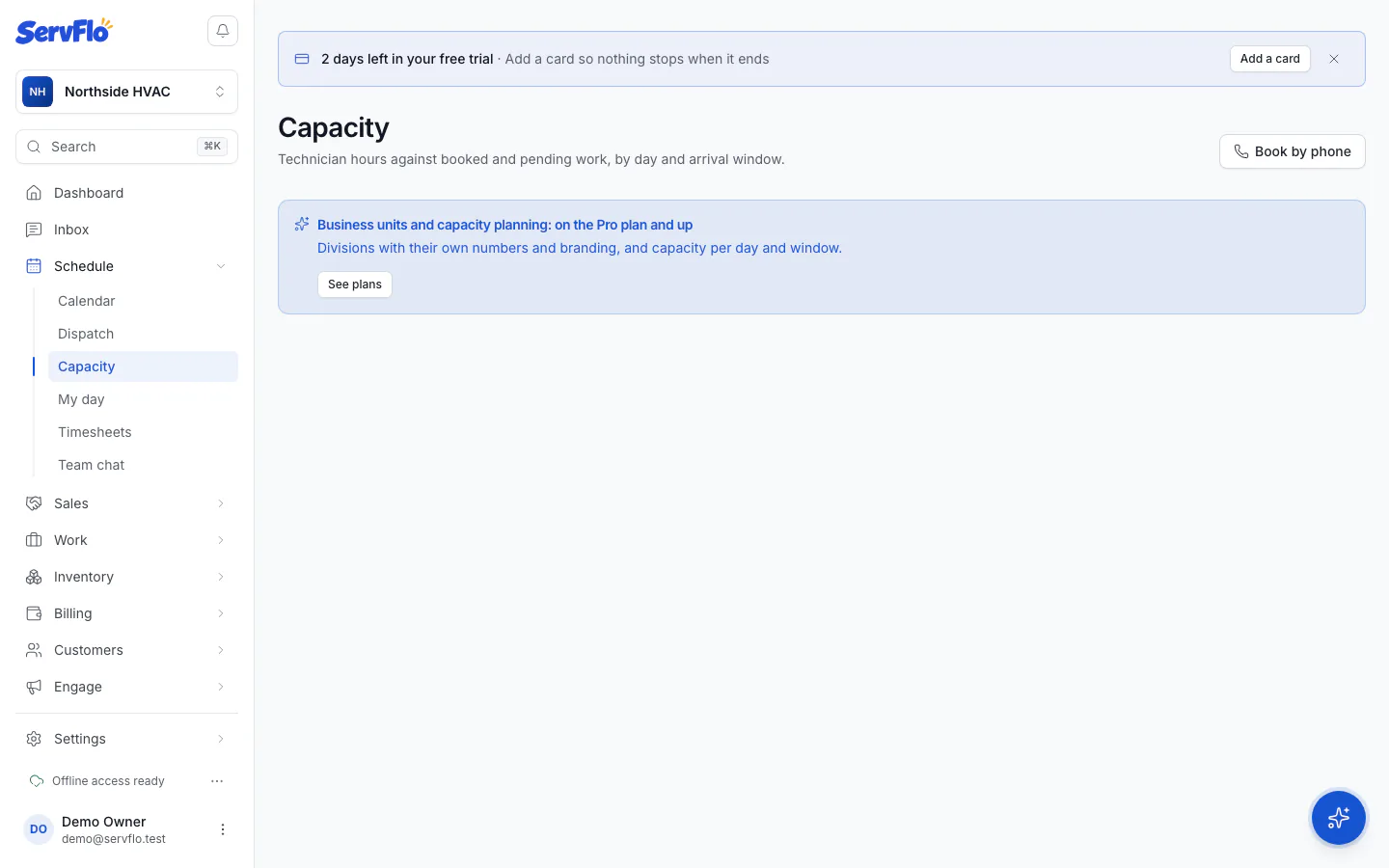
The Capacity page shows how full each day and arrival window is, so you can see when there's room to book and when you're over.
Owners, admins, dispatchers and office staff can see it. In the left menu, click Schedule → Capacity.
The planning board
The Planning board shows a week, with a row for the Whole business, each unit and No unit. Each cell is one day and arrival window:
- Room to book (green): under your "filling up" level (80% by default).
- Filling up (amber): from that level up to 100%.
- Over capacity (red): more work than hours.
- No hours: no technician works then.
Utilisation is booked visits plus pending requests, divided by technician hours. A two-person, two-hour visit counts four hours. Technician hours come from their working days, minus time off and any planned non-job time.
Use the Business unit filter to see one unit, split by Service type. Click a cell to see its technicians, visits and new requests.
The forecast
Open the Forecast tab to see the next weeks per business and unit: hours available, booked work, pending requests, and Predicted (Customer 360) — not booked yet: service Customer 360 expects your customers to need. Predicted work is shown separately and never counts towards utilisation or booking.