
Capacity settings
Set your planning windows, when a window counts as filling up, and when online booking stops offering it.
Only owners and admins can change capacity settings. Others see them as view only.
Open the settings
Go to Settings → Online booking and find the Capacity card.
Set your planning windows
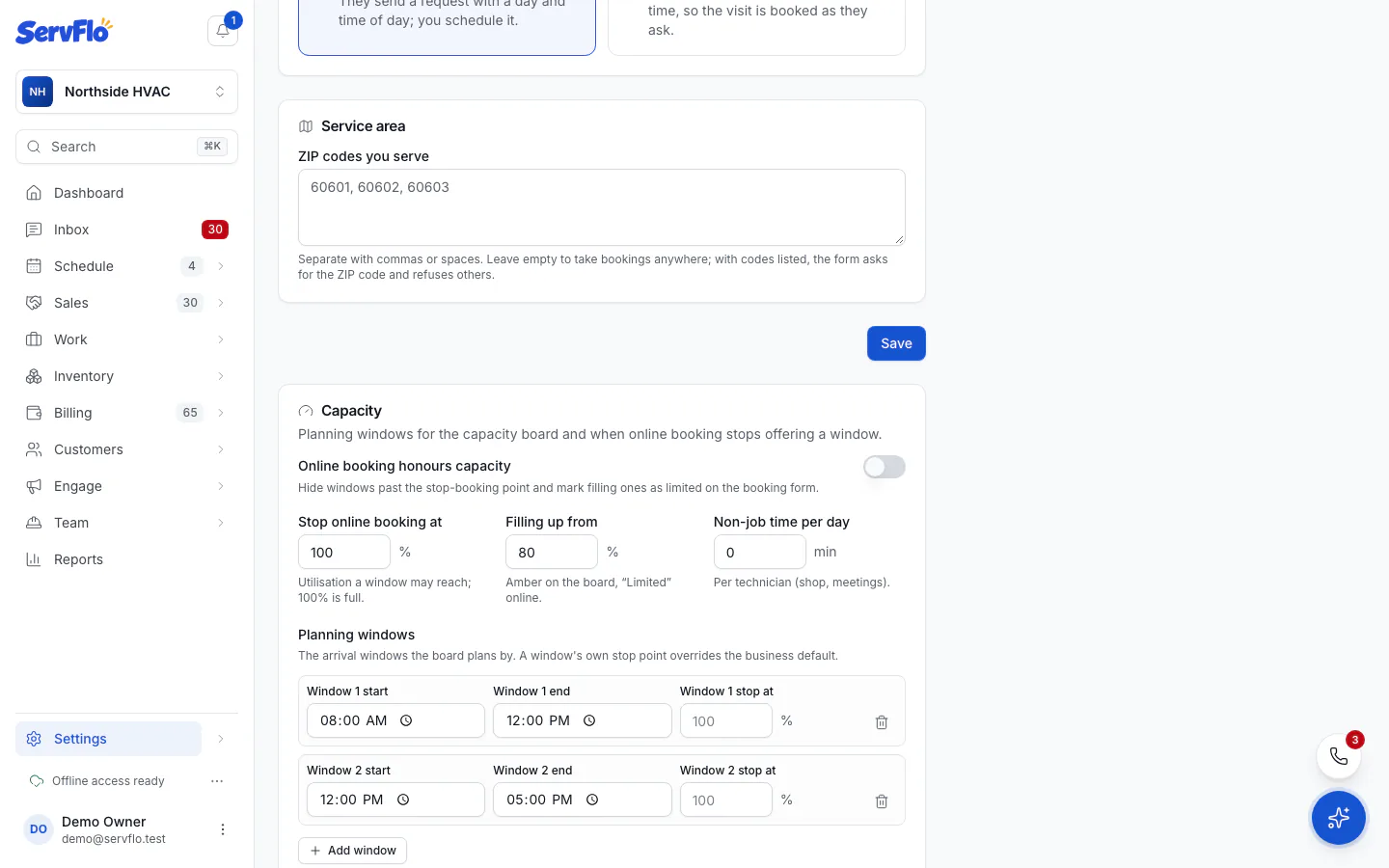
Under Planning windows, set each window's start and end (the defaults are 8:00–12:00 and 12:00–17:00). Click Add window for more, up to eight. Windows must be in order and can't overlap. Give a window its own stop point if it should differ from the default.
Choose your levels
- Stop online booking at: how full a window may get through online booking (100% is full).
- Filling up from: when a window turns amber on the board and shows as "Limited" online (default 80%).
- Non-job time per day: minutes per technician per day for shop time, meetings and so on.
Turn on online enforcement
Turn on Online booking honours capacity to hide windows past the stop point on your booking form and mark filling ones as limited. With it off, online booking works as before.
Save
Click Save capacity.
Each business unit can override Stop online booking at, overall or per window, in its own settings. See Set up business units.