
Upload and map your files
Start an import, upload your exports and check which ServFlo field each column goes to, with AI help.
Owners and admins only.
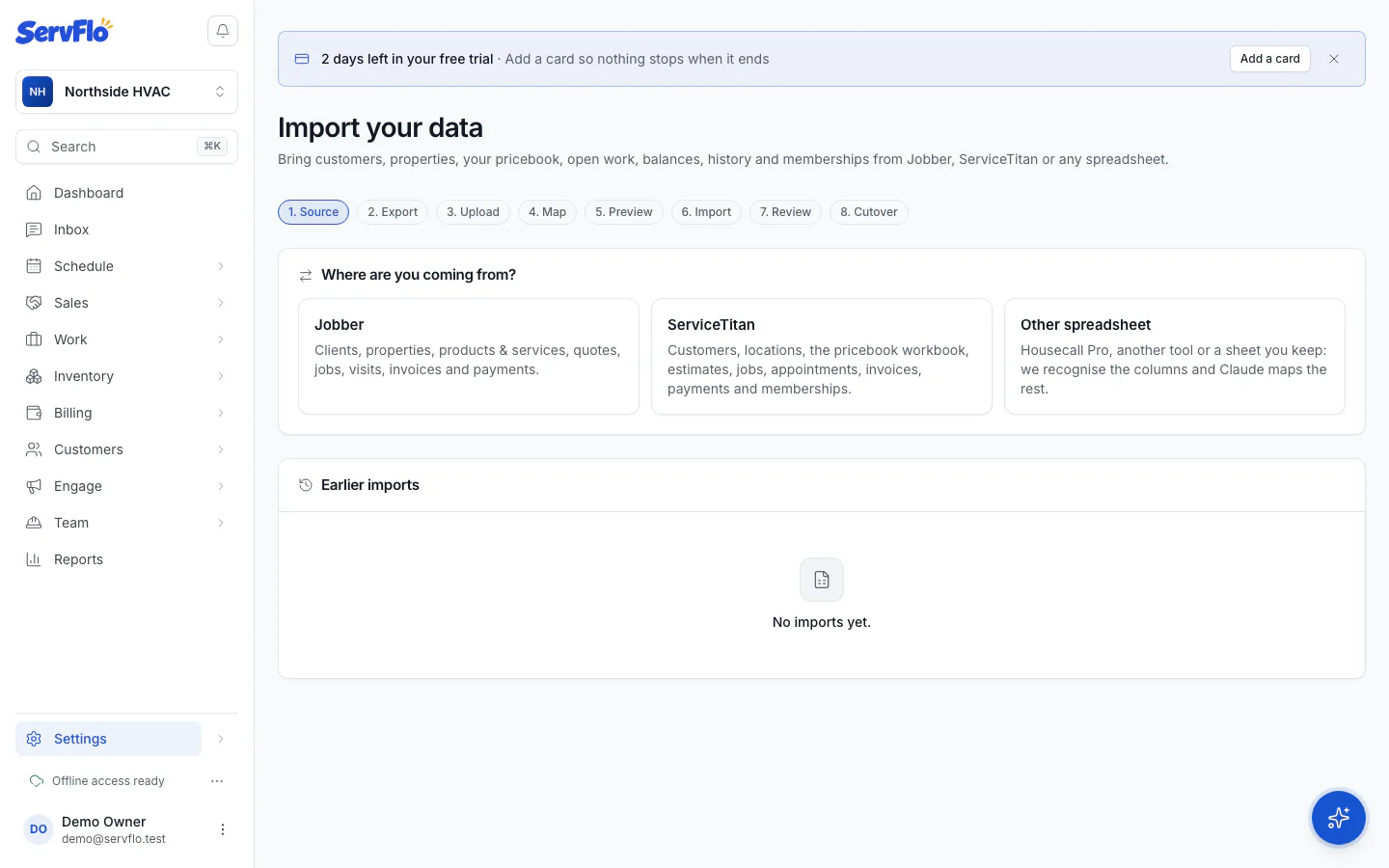
Choose where you're coming from
Under Where are you coming from?, click Jobber, ServiceTitan or Other spreadsheet. The wizard shows How to export from that system. See Export from Jobber, Export from ServiceTitan or Export from Housecall Pro or a spreadsheet.
Upload your files
Under Files, click Choose files and pick every export (CSV, TSV or Excel). You can upload several at once, and several files of one kind are fine. Each sheet of an Excel workbook is read on its own.
Check what each file holds
Each file shows Recognised as a kind of record with a confidence, or Not recognised: choose what it holds. Change it if it's wrong, or choose Skip this file.
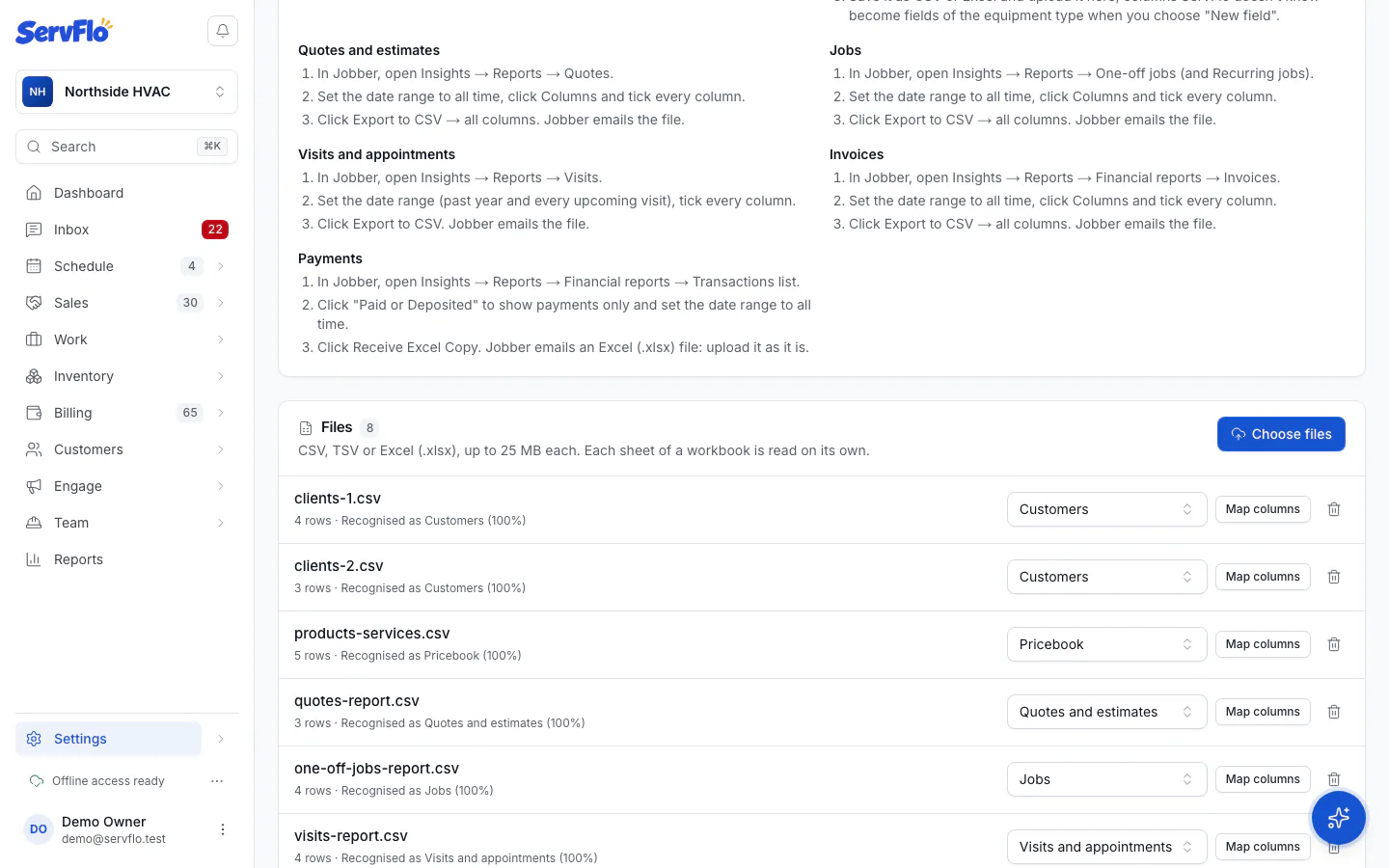
Map the columns
Click Map columns on a file. For each Column you see an Example value, the ServFlo field it goes to and How it was matched: Known column, Saved, AI, Matched by name or You. Columns marked Check are guesses: look at them first.
Let AI map the rest
Click Suggest with AI to map columns that are still open. AI only fills open columns; it never changes ones you set. For customer and property files, a column with no matching field can become New custom field. Choose Skip for columns you don't want.
Save the mapping
Click Save mapping. ServFlo remembers it for the same kind of file next time, such as on cutover day.
AI mapping uses a few AI credits and only sees the column headers and up to three example values per column, never your whole file.