
Connect Xero
Push customers, invoices, payments and refunds from ServFlo to your Xero organisation automatically.
Connect Xero and ServFlo sends your customers, invoices, payments and refunds to it as they happen. Only owners and admins can connect Xero.
What gets sent
The sync is one way: ServFlo → Xero.
| In ServFlo | In Xero |
|---|---|
| Customer | Contact, with name, email, phone and billing address. If a contact with exactly the same name already exists, ServFlo links to it instead of creating a duplicate. |
| Invoice (when created or sent) | Approved sales invoice with the same number (for example INV-12) and every line, including discounts and credits, with ServFlo's tax spread across the lines to the cent |
| Payment against an invoice | Payment into the bank account you choose (tips aren't included) |
| Refund | Credit note and a refund payment out of the same bank account |
Drafts, cancelled invoices and unsettled payments aren't sent. Once an invoice has a payment in Xero, Xero locks it, so ServFlo doesn't change it again.
Connect
Open Integrations
Go to Settings → Integrations.
Connect Xero
On the Xero card, click Connect Xero and sign in to Xero.
Choose the organisation
If your Xero login has more than one organisation, ServFlo asks Which Xero organisation? Pick the one to send to and click Use this organisation.
Set your mappings
Under Mappings, choose where records land, then click Save mappings:
- Sales account: the revenue account every invoice line is booked to. Required.
- Tax rate for taxed invoices: required once your invoices carry tax.
- Tax rates by ServFlo rate (optional): if you charge different tax rates in different places, pick a Xero rate for each.
- Tax rate for untaxed invoices: also used for tax-exempt customers and refunds. The default is NONE (Tax exempt).
- Bank account for payments: payments go into it and refunds come out of it. Required for payments.
- Item (optional): a Xero item code on every line, for item reports.
- Tracking (optional): one tracking option on every line, such as a region.
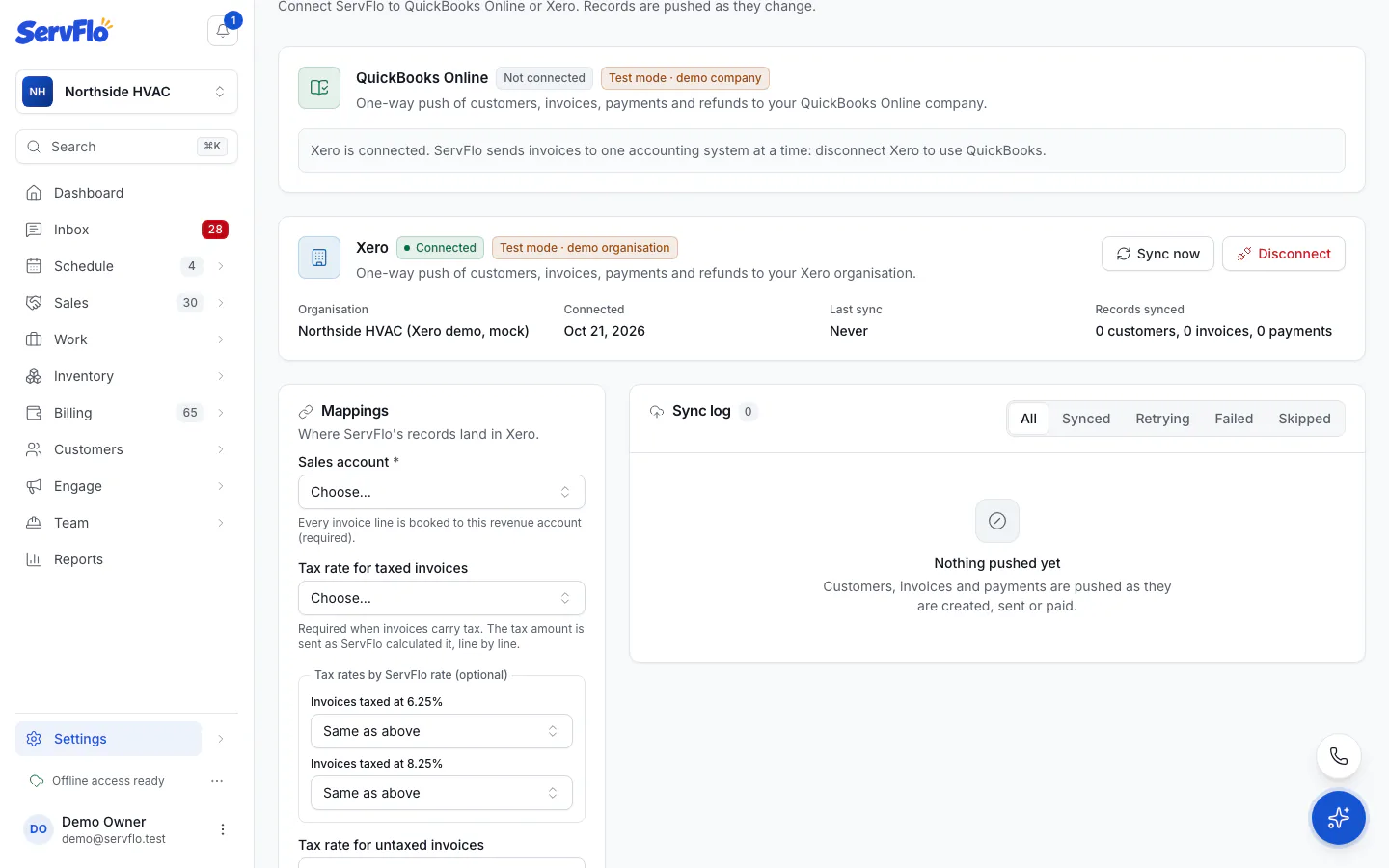
Records are pushed as they change. Click Sync now to send anything waiting right away.
Xero limits how many changes an app can send per minute. If you're busy, some records wait a little and go through automatically; you don't need to do anything.
With business units, each unit can tag its invoices with its own Xero tracking option. See Business units.