
Check sync status and fix errors
See what ServFlo has sent to QuickBooks or Xero, what's waiting, and how to fix a record that failed.
ServFlo keeps a log of everything it sends to your accounting system, so you can check a record made it across and fix the ones that didn't.
The sync log
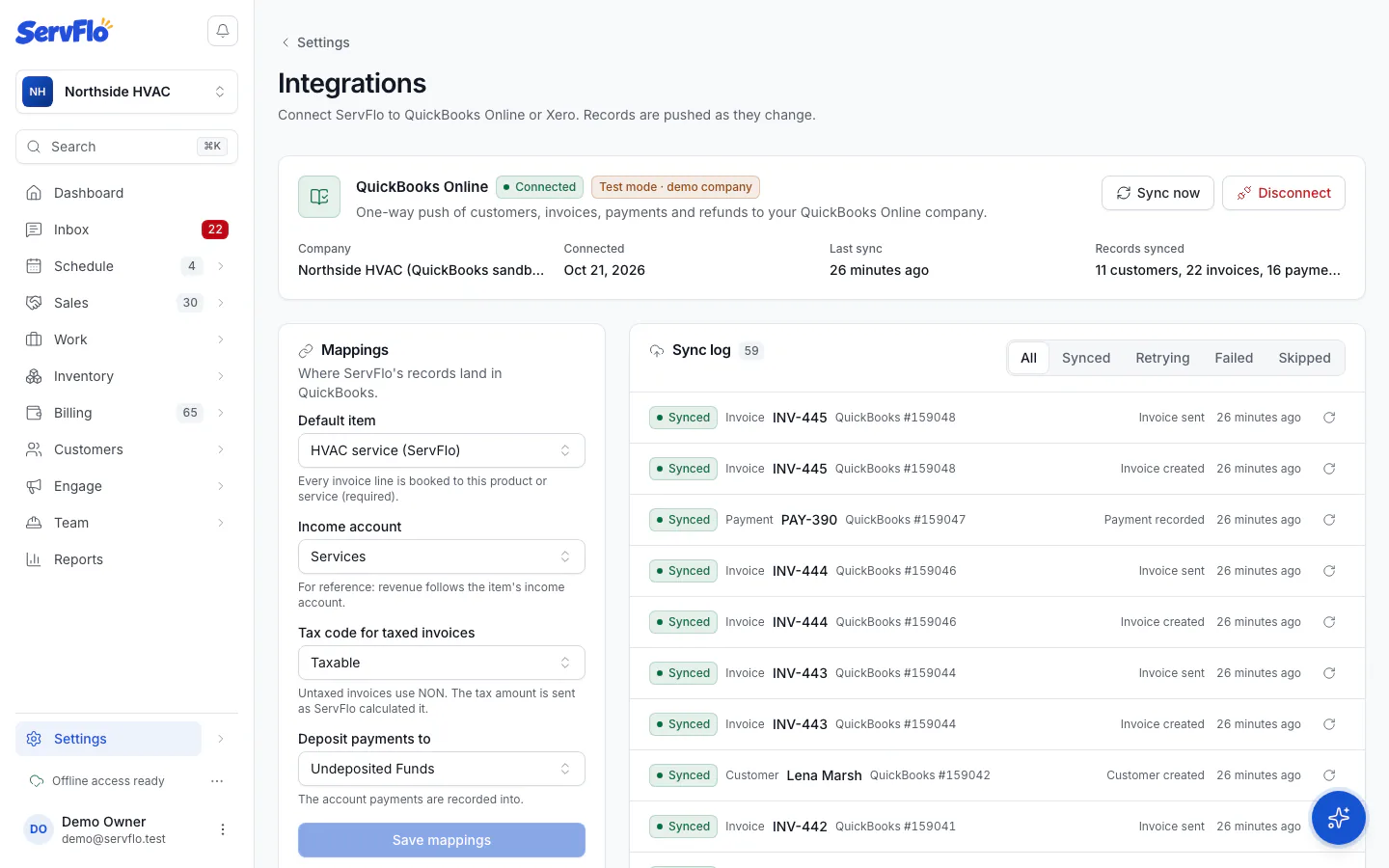
Go to Settings → Integrations. Under your connected system you'll see Records synced (customers, invoices and payments) and the Sync log, which lists every push with its status:
| Status | Meaning |
|---|---|
| Waiting | Queued; it goes out within a minute or two. |
| Synced | It's in QuickBooks or Xero. |
| Retrying | It failed, and ServFlo will try again automatically (after 1 minute, 5 minutes, 30 minutes, 2 hours and 12 hours). |
| Failed | ServFlo has stopped trying. Fix the cause, then push it again. |
| Skipped | Nothing to send, for example a draft invoice. The reason is shown. |
On an invoice or customer
Each invoice and customer shows its own status, such as Synced to QuickBooks ✓, Waiting to sync, Sync error or Not in QuickBooks yet (or the same for Xero). From there you can click Sync to QuickBooks (or Sync to Xero) or Push again.
Fix a failed record
Read the error
Open the failed entry in the Sync log. The message comes from QuickBooks or Xero, for example a missing mapping or a duplicate customer name.
Fix the cause
Common fixes:
- Missing mapping: choose the default item (QuickBooks) or sales account, tax rate or bank account (Xero) under Mappings and click Save mappings.
- Duplicate name: rename the customer in ServFlo or in your accounting system so the names differ, or match exactly to link them (Xero).
- Class, location or tracking option not found: fix the business unit's accounting mapping in Settings → Business units.
- Reconnect needed: click Reconnect on the card.
Push it again
Click Push again on the entry. To send everything that's waiting, click Sync now.
Xero won't accept an invoice whose total is below zero. Issue a refund or credit in ServFlo instead.