
Set up presentation templates
Choose the presenter's steps, your company story, trust badges and the membership add-on.
A template decides what customers see in the presenter. You don't need one to start: with no template, ServFlo uses a built-in one. Create your own to tell your story and offer a membership.
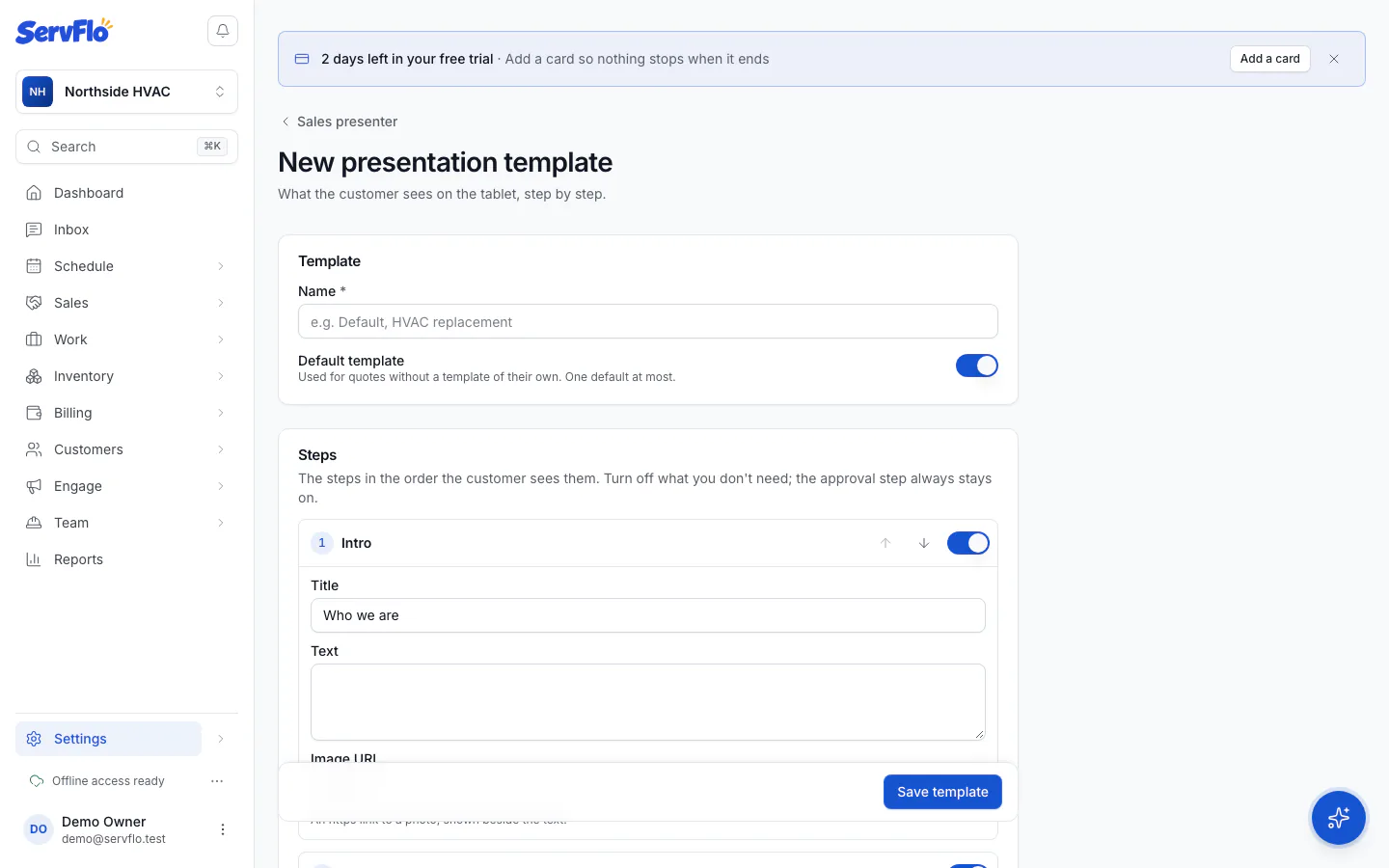
Name it and choose who uses it
Enter a Name (for example "HVAC replacement"). Under Business unit, choose a unit if this template is for one unit's quotes, or leave Whole business. Turn on Default template to use it for every quote without a template of its own.
Arrange the steps
Under Steps, use the arrows to change the order and turn off Show this step for any step you don't need. Each step can have its own Title, Text and Image URL (an https link to a photo). The approval step always stays on.
Tell your story
Write your Company story for the intro. Leave it empty to use the About section of your ServFlo website. Click Add badge to add Trust badges such as "Licensed & insured" with a detail like your license number. Turn on Show reviews to show your selected Google reviews and website testimonials.
Offer a membership
Under Membership add-on, choose a plan to offer next to the options with the member price, or None.
Save
Click Save template.
From the template list you can Edit, Make default or Delete a template. Quotes that used a deleted template are presented with the default (or the built-in one).
Which template a quote uses
A quote uses its business unit's template if there is one, otherwise your default template, otherwise the built-in one.