
Prepare quote options
Add pictures, highlights, warranty and a recommended option so your quote presents well.
The presenter shows your quote's options side by side. Two or three options work best: with three they're labelled Good, Better and Best. Give each option a little extra so customers can compare them.
Edit the quote
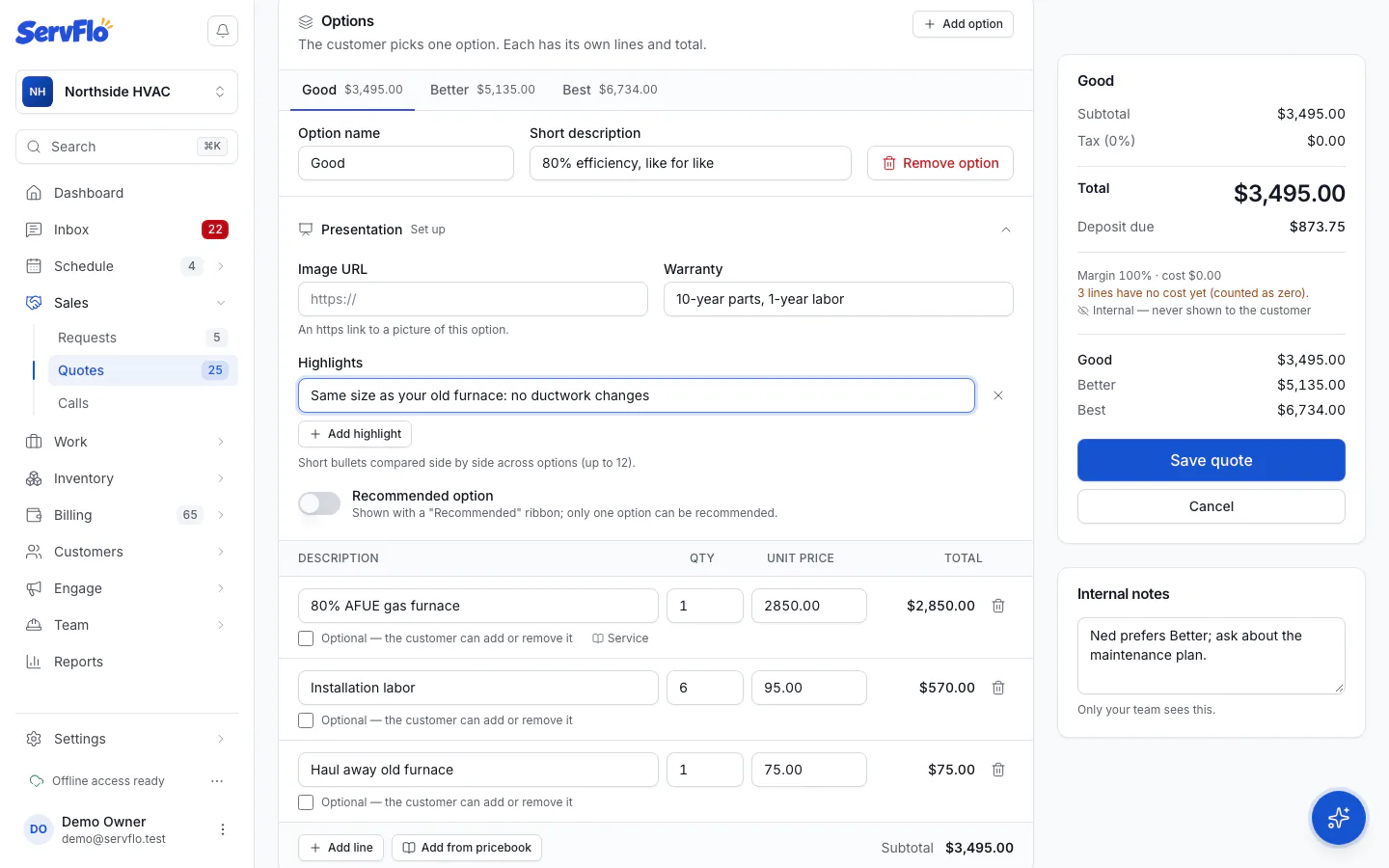
Open the quote and edit it. Each option has a Presentation section ("Picture, highlights and warranty for the in-home presenter").
Add a picture
Enter an Image URL (an https link to a picture of this option). Without one, the presenter uses the picture of the option's first pricebook item.
Add highlights and warranty
Click Add highlight for each short selling point (up to 12). Highlights are compared side by side across options under Compare options. Enter the Warranty, for example "10-year parts, 2-year labor".
Recommend one
Turn on Recommended option on the option you'd suggest. It's shown with a "Recommended" ribbon. Only one option can be recommended.
Prices the customer sees
- The option's total and any deposit.
- Member prices when your template offers a membership and the customer isn't a member yet: what they'd pay and save with the membership.
- "or as low as … /mo" when you offer Affirm or Klarna in Settings → Payments and the amount qualifies. This is an estimate over 12 months and subject to the lender's approval.