
Present a quote
Run the in-home presentation, then get the customer's choice, signature and deposit.
Present a quote that's a draft, sent, has changes requested or has expired. Technicians can present the quotes they created on their own jobs, while your business lets technicians create quotes.
Start the presentation
- From a quote, click Present.
- From a job, click Present options and choose the quote to walk the customer through.
- In the ServFlo phone app, tap Present options on the job. The presentation opens in the browser, so it needs signal to start.
Walk through the steps
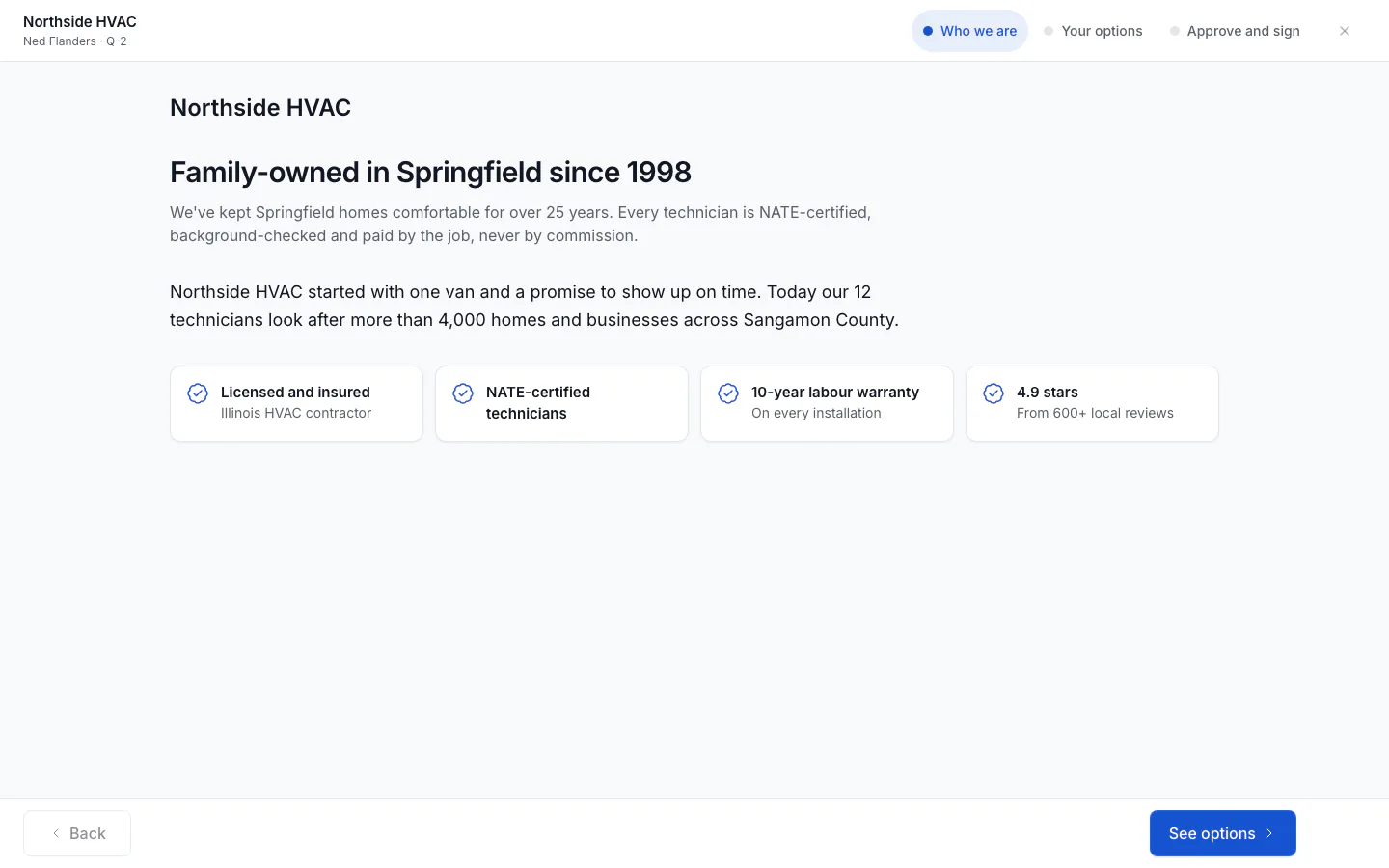
Hand over the tablet or present side by side. Use Next and Back, or tap a step at the top. On Your options the customer can tap an option, add any Add-ons, tick Add the … membership if you offer one, and open Compare options.
Approve and sign
On Approve and sign, the customer checks Your choice, reads the Terms (and the Membership agreement if they added the membership), enters their name, signs and taps Approve.
Approving needs a connection. If the signal drops, the presentation stays on screen, but approval waits until you're back online.
Take the deposit
The Approved screen shows the deposit due.
- Collect deposit opens the quote so you can record cash or a check.
- Customer pays by card shows a QR code the customer scans to pay on their own phone, or Copy link to send it.
Click Done when you're finished.
If the customer adds the membership, they're signed up first (with the same signature) and the quote gets member pricing. See Memberships.
Not today
If the customer isn't ready, click Not today, add an optional Reason and click End presentation. The quote stays open, and if the customer approves it online later, the presentation still counts as won.