
Authentication
Create API keys, choose what they can do, set an expiry, revoke them, and connect apps with OAuth.
Every call to the REST API and the MCP server carries a credential in the Authorization header:
Authorization: Bearer sfk_…You can use an API key (made in ServFlo, starts with sfk_) or, for AI apps that support it,
an OAuth connection where you sign in with ServFlo and approve the app. Both act as you, in
one business, and never do more than your role allows.
API keys
Owners and admins manage keys in Settings → Developers → API keys.
Create a key
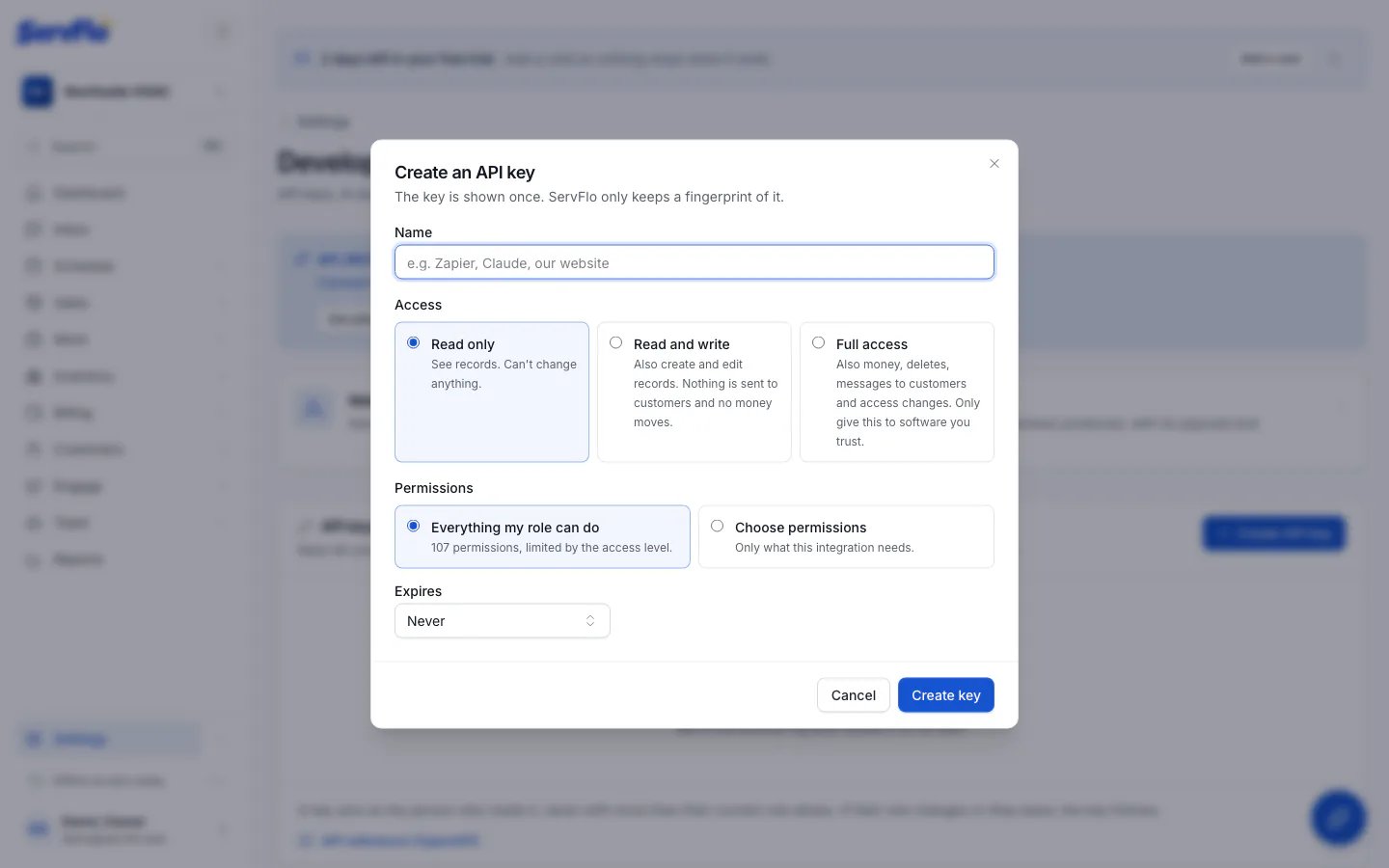
Name it
Give it a name that says what uses it, like "Zapier" or "Our website". Make one key per integration, so the activity log shows what each one did and you can revoke one without breaking the others.
Choose the access level
| Access | What the key can do | OAuth scopes |
|---|---|---|
| Read only | See records. Can't change anything. | servflo.read |
| Read and write | Also create and edit records. Nothing is sent to customers and no money moves. | servflo.read, servflo.write |
| Full access | Also money, deletes, messages to customers and access changes. Only give this to software you trust. | servflo.read, servflo.write, servflo.sensitive |
Every endpoint in the API reference shows its risk class (read,
write or sensitive), which is the scope it needs.
Choose permissions
Leave Everything my role can do, or pick Choose permissions and tick only what this
integration needs (for example customers.read and jobs.write). You can only pick permissions
your own role has.
Set an expiry
Under Expires, choose In 30 days, In 90 days, In 1 year or Never. The key stops working at the start of its expiry day (UTC).
Copy the key
Click Create key. Copy the key and store it somewhere safe, like a password manager, then click I've saved it.
The key is shown only once. ServFlo keeps only a fingerprint of it, so nobody (including ServFlo support) can show it to you again. If you lose it, revoke it and make a new one.
What a key can do
A key's rights are the overlap of three things:
- The role of the person who made it, as it is today. If their role is lowered, the key loses what the role lost. If they leave the business, the key stops working.
- The key's permissions (everything the role can do, or the ones you picked).
- The key's access level (its scopes). A sensitive call always needs Full access: it is never implied by the others.
A call outside those rights answers 403 with a message that names the missing permission or
scope.
A key works only in the business it was made in. You can have up to 50 active keys per business.
What a key can never do
Some things need a person signed in to ServFlo, whatever the key's access:
- Make, list or revoke API keys, or approve an AI assistant's request.
- Change your own profile, notifications or the list of businesses you belong to.
- Use Flo, the in-app AI assistant (call the API directly instead).
- Buy AI credits, add-ons or seats, or open the billing portal.
- Finish connecting an outside account (QuickBooks, Xero, Google, ad platforms): the key can start the connection, and you finish it in your browser.
These answer 403. A few other actions (inviting people, changing roles, adding webhooks,
connecting accounts, payout and plan changes) work with a key but wait for your approval first.
See Approvals.
See what a key did
Everything a key changes, and every call it was refused, is in Settings → Activity log (owners and admins), shown as an API key acting for the person who made it. Filter by Channel to see only API calls. The keys list shows when each key was Last used.
Revoke a key
In Settings → Developers → API keys, click Revoke next to the key, then Revoke key.
Anything using it stops working on its next call (401). This can't be undone; the key stays in
the list as Revoked so the activity log can still name it.
Connected apps (OAuth)
AI apps such as ChatGPT and Claude can connect by having you sign in with ServFlo instead of pasting a key. You choose the business the app may act in and approve the scopes it asks for. The app then acts as you, with your current role, limited to those scopes.
- Settings → Developers says whether sign-in with ServFlo is switched on for your account. Until it is, connect with an API key.
- See and disconnect the apps you approved under Apps you connected in Settings → Developers. Disconnecting is immediate.
- Apps act in one business: the one you picked when you approved them.
- OAuth discovery for MCP clients is at
https://app.servflo.ai/.well-known/oauth-protected-resource/api/mcp, and every unauthenticated MCP answer carries aWWW-Authenticateheader pointing to it.
See Connect an AI assistant for step-by-step setup in each app.
Keep keys safe
- Never put a key in a web page, a mobile app or a public repository. Call ServFlo from your server.
- Give each integration the lowest access level that works. Most reporting needs only Read only.
- Set an expiry on keys used for one-off jobs.
- If a key may have leaked, revoke it straight away and make a new one.